D365 Warehouse Management Outbound: Waves, Work and Loads Explained
Release, wave, pick, load, ship. The outbound choreography of D365 Warehouse management, with real demo work.
Part 12 of 14 in my free course D365 Supply Chain, end to end. All screenshots come from a Microsoft demo environment with standard Contoso data (company USMF). New here? Start with the series home.
In Part 7 we shipped an order with a single packing slip. In a WMS warehouse there's a whole choreography before that packing slip: release to warehouse, waves, work for pickers, and loads for trucks. This part walks through the outbound side using the standard demo records for USMF warehouse 24.
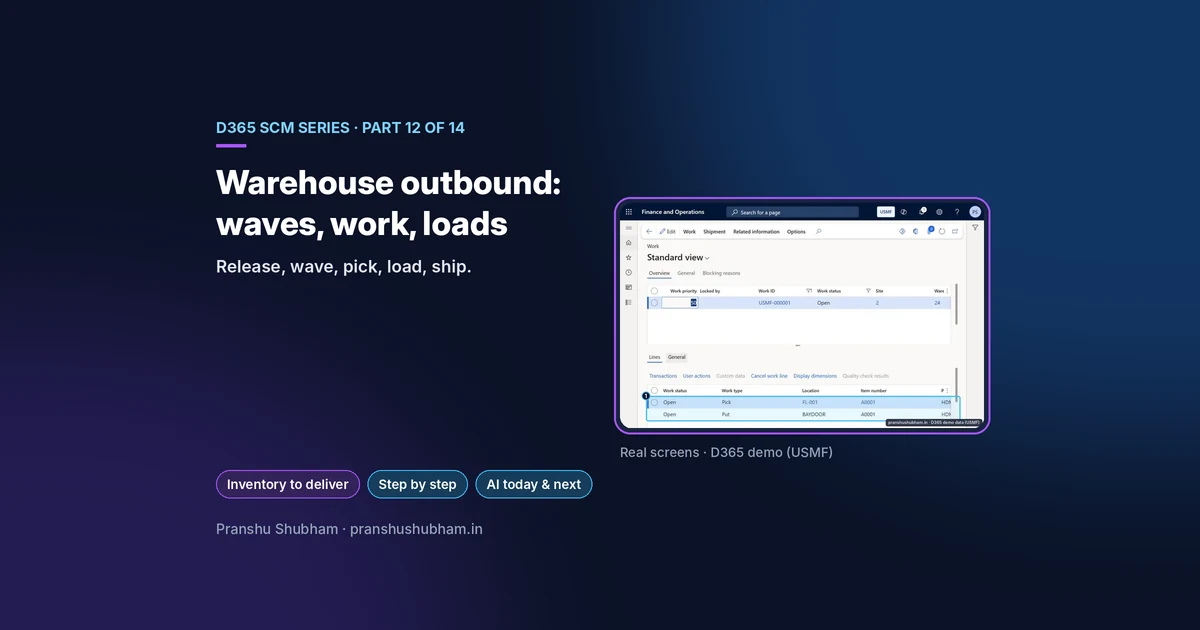
Real example from the demo: work USMF-000001 for sales order 000748: pick item A0001 (HDMI 6' cables) from location FL-001 and put it at BAYDOOR, ready to load.
1. The story
Who this section is for: Freshers, customers and anyone new to D365
Customer service doesn't send orders to the warehouse one by one. Orders are released to the warehouse, grouped into waves (for example "everything shipping this afternoon"), and the wave creates work: a list of picks for each worker's handheld. Pickers bring goods to the bay door (staging). Shipments are grouped into loads, one per truck, and when the truck leaves, the load is confirmed and the packing slip posts.
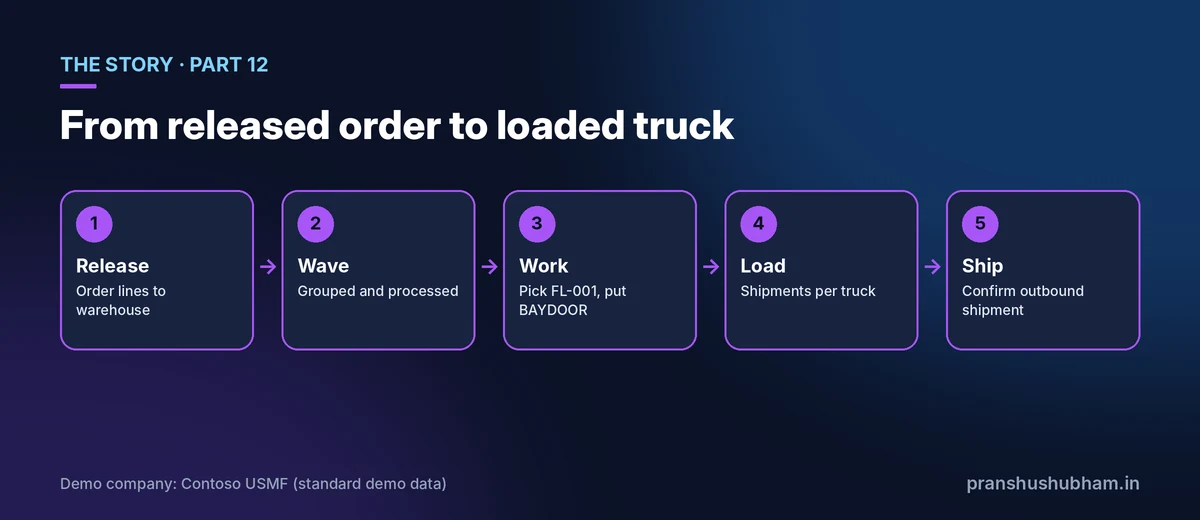
Glossary. Release to warehouse: makes order lines available to WMS. Shipment: lines going to one address. Load: shipments on one truck. Wave: a batch of shipments processed together. Work: pick and put tasks. Staging: the area at the bay door.
2. Step by step in D365
Who this section is for: End users and functional consultants
Step 1: Release to warehouse
From a sales order (Warehouse > Release to warehouse), or in bulk with Warehouse management > Release to warehouse > Automatic release of sales orders in batch. Release creates shipments and, depending on your setup, loads.
Step 2: The wave template decides what happens next
Go to Warehouse management > Setup > Waves > Wave templates. Template 24 Shipping Default applies to warehouse 24.
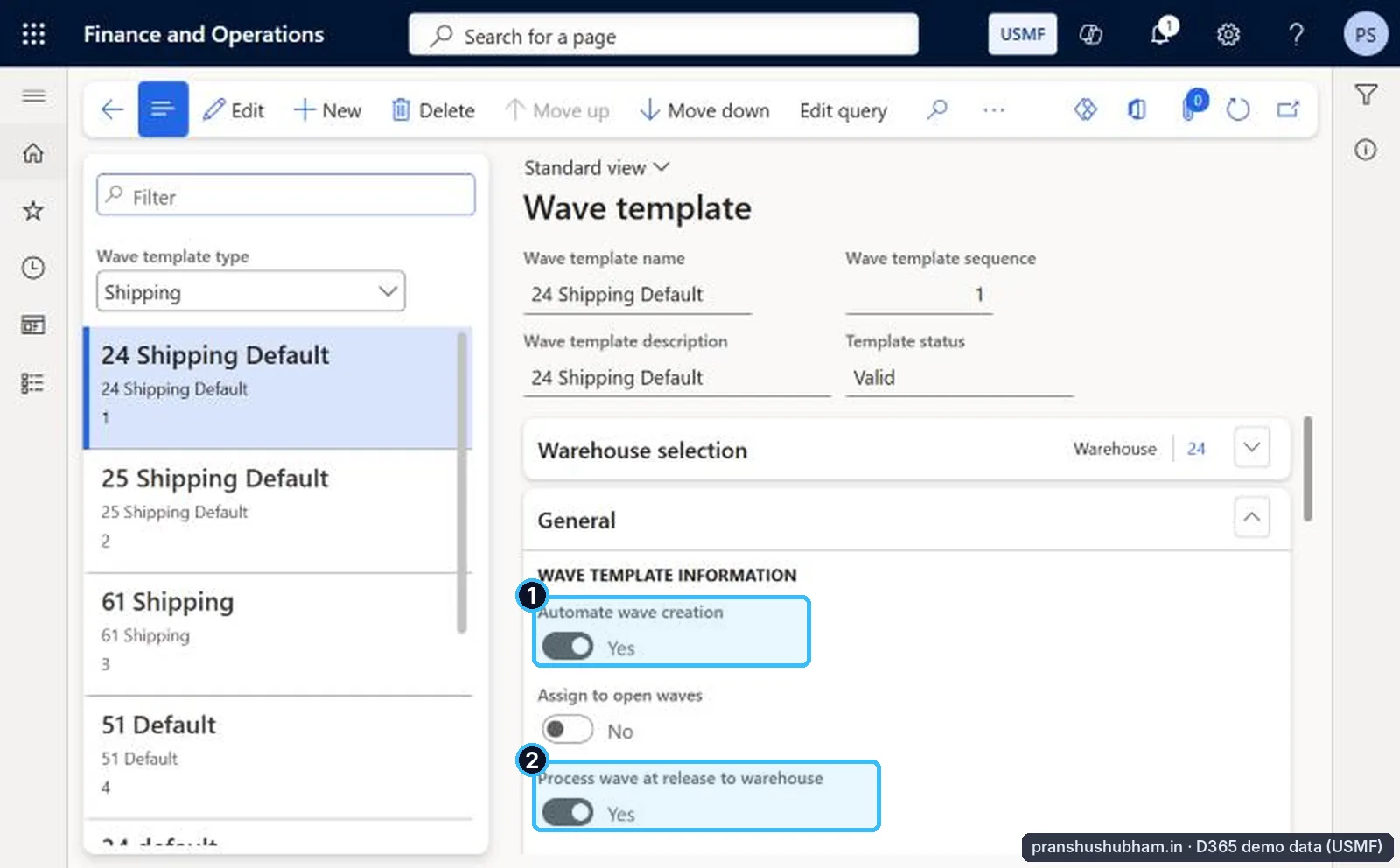
(1) Automate wave creation: Yes. (2) Process wave at release to warehouse: Yes.
With those two switches on, releasing an order immediately creates and processes a wave, which creates work. Microsoft Learn adds a third switch, Automate wave release, if you want picking work released straight to the floor. Big distribution centers usually turn "process at release" off and process waves on a schedule, so they can group more orders per wave.
The wave methods (allocate, replenish, containerize, create work, and so on) run in sequence, and you can add your own.
Step 3: Work is created
Go to Warehouse management > Work > All work. Each line is a work header with a work order type and order number.
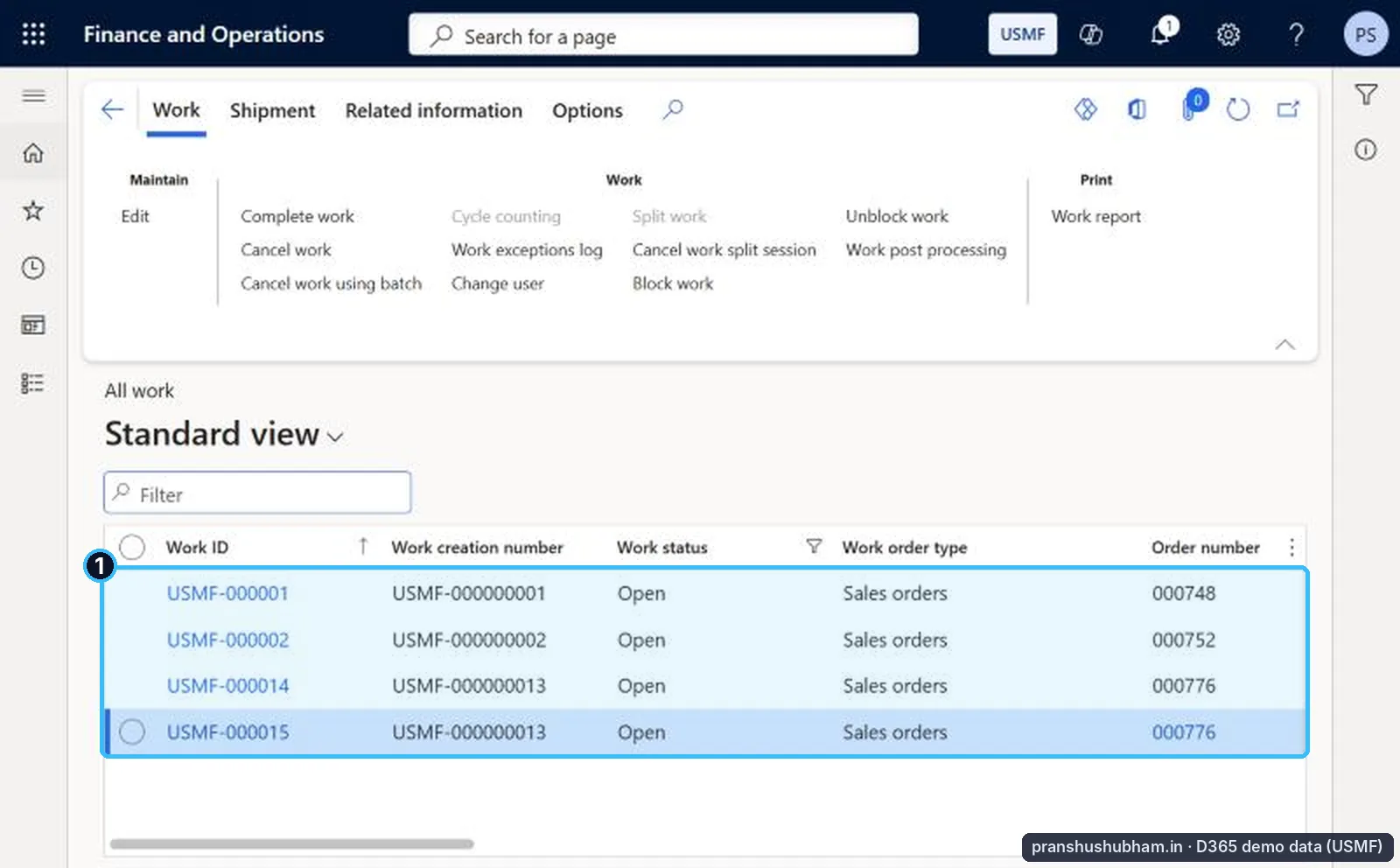
(1) Open work for sales orders 000748, 000752 and 000776.
Open USMF-000001. The lower grid shows the work lines: a Pick from FL-001 and a Put to BAYDOOR, both for item A0001.
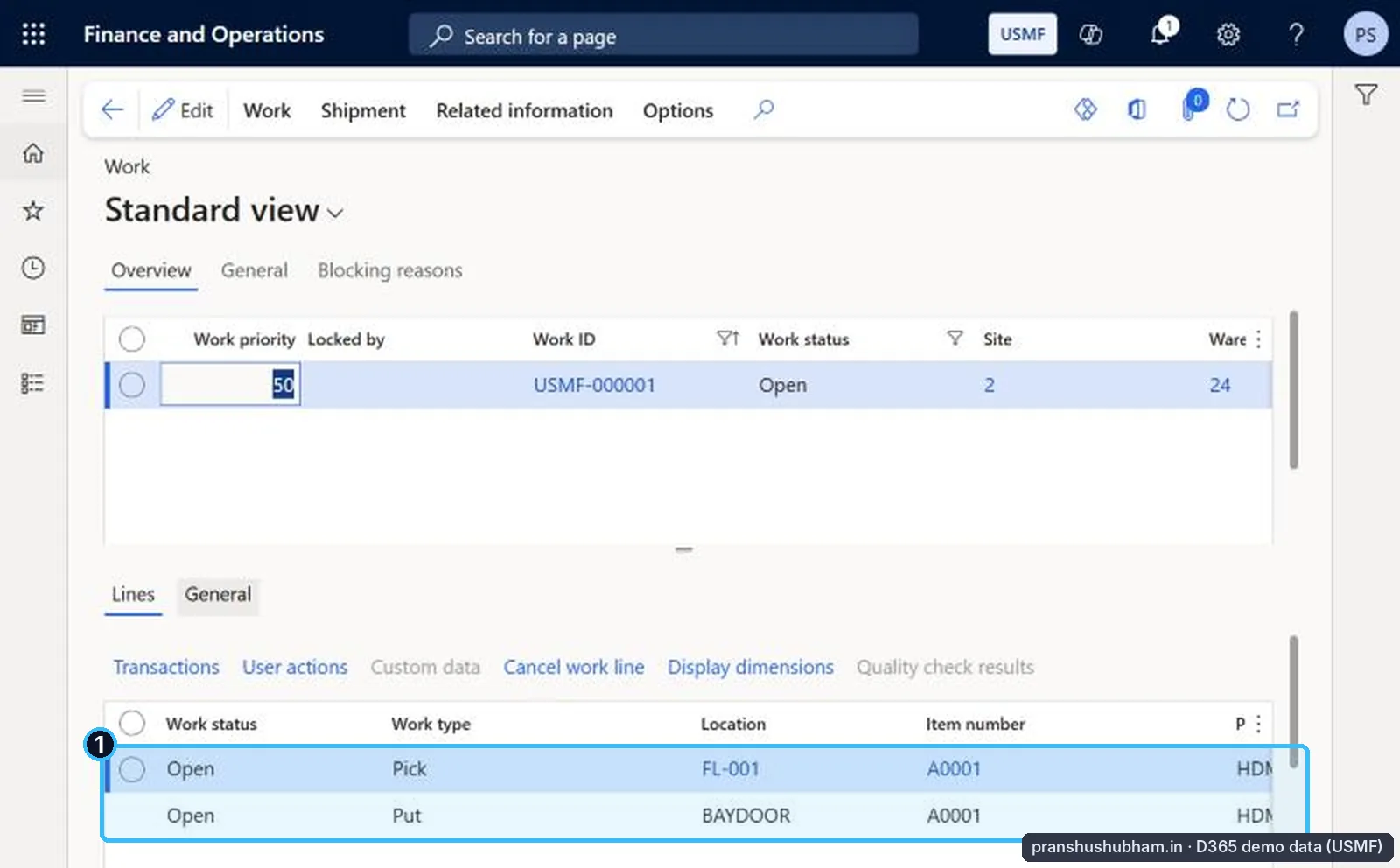
(1) Work lines: Pick from FL-001, then Put to BAYDOOR.
The pick location comes from location directives (Part 11) with work type Pick. The put location (staging) comes from a Put directive. The work template decides how lines are split and in which order.
Step 4: Pick on the mobile app
The picker opens a sales picking menu item on the Warehouse Management mobile app, gets the work, scans the location, item and quantity, then scans the bay door. The work status changes to Closed when both lines are done.
Step 5: Loads and shipping
Go to Warehouse management > Loads > Load planning workbench. Here you see shipments, sales lines, transfer lines and purchase lines, and you build or release loads. When the truck leaves, use Ship and receive > Confirm outbound shipment. That posts the packing slip in the background.
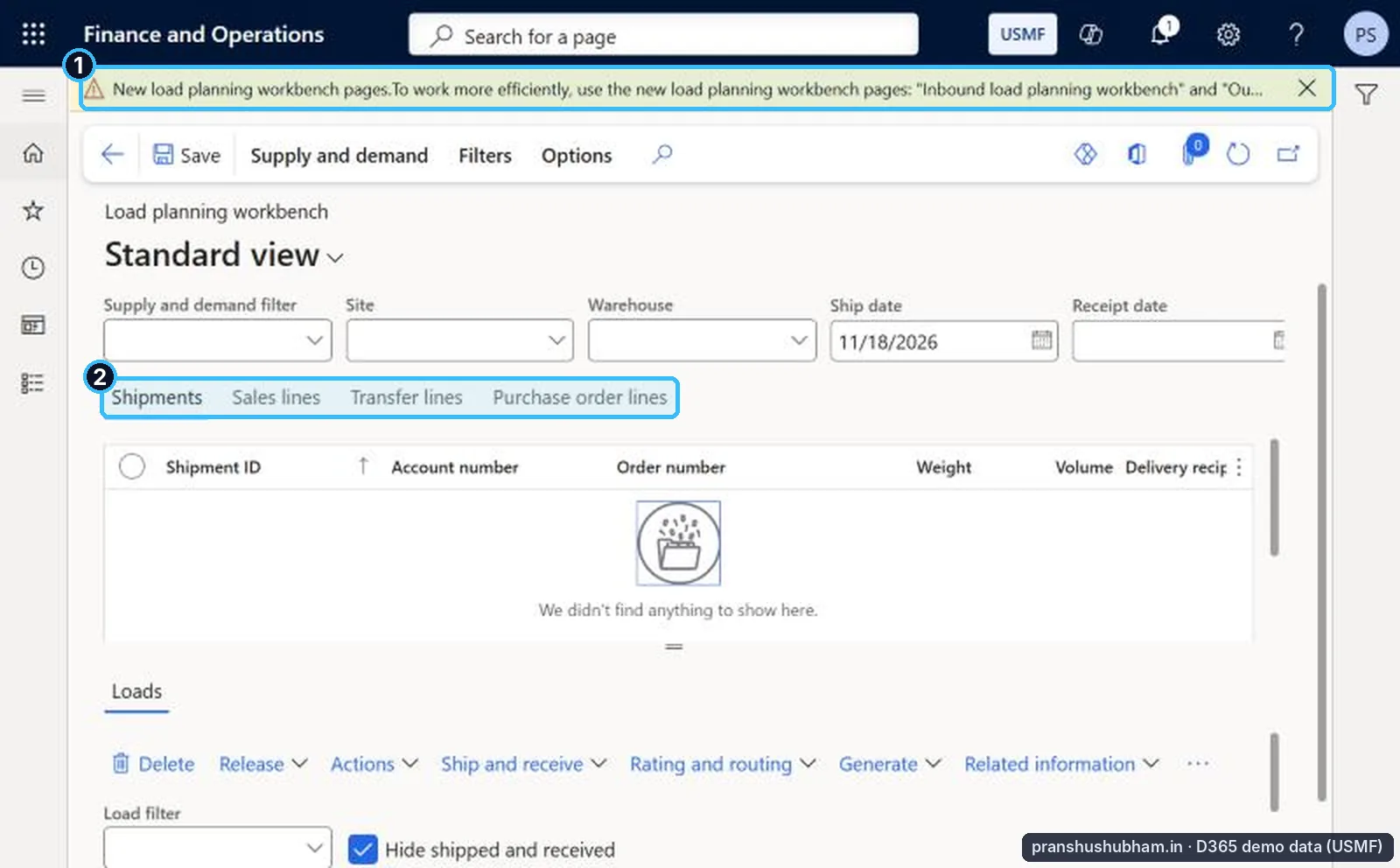
(1) A banner recommends the new "Inbound load planning workbench" and "Outbound load planning workbench" pages. (2) Tabs for shipments, sales lines, transfer lines and purchase lines.
Note the banner in the screenshot: Microsoft now recommends separate inbound and outbound load planning workbench pages for efficiency.
3. Behind the scenes
Who this section is for: Working professionals and functional consultants
- Reservation happens in the wave. Release reserves at site and warehouse; the wave's allocation step reserves at location and license plate level, following location directives.
- Replenishment can be triggered by the wave when pick locations don't have enough stock, creating replenishment work first.
- Containerization packs work into containers by container group rules. A newer optimized 3D packing algorithm is in production-ready preview (10.0.49).
- Shipment confirmation posts the packing slip, and with transportation management can also create freight bills.
- Correct packing slips from the load. For WMS items, Microsoft Learn notes that you should post packing slips from the load, not the order, if you want to be able to correct or cancel them later.
- Work statuses: Open, In process, Closed, Cancelled. Work can be blocked, split or reassigned (buttons on All work).
Common mistakes and fixes:
- Release succeeded but no work. No work template matches, or the wave hasn't been processed.
- "Not enough inventory" in the wave. Stock exists but not in pickable locations. Fix directives or add replenishment.
- Load never ships. Someone forgot "Confirm outbound shipment". Add it to the dispatch checklist or automate it.
4. Under the hood
Who this section is for: Technical consultants
- Main tables: WHSShipmentTable (shipments), WHSLoadTable and WHSLoadLine (loads), WHSWaveTable (waves), WHSWorkTable and WHSWorkLine (work), WHSWaveTemplateTable (wave templates), WHSWorkTemplateTable (work templates).
- Wave methods are classes that you can extend; custom wave steps are a supported pattern for things like custom labeling.
- Integration: carriers, label printers and sortation systems connect through transportation management, label layouts and the MHAX interface. Release to warehouse and shipment confirmation can run in batch.
- Pages: WHSWorkTableListPage (all work), WHSWaveTemplateTable (wave templates) and WHSLoadPlanningWorkbench (classic load planning workbench).
5. AI in this process: today and next
Who this section is for: Everyone
Workload insights with Copilot (Available). At sign-in, the Warehouse Management mobile app shows open pick and receiving work, active sessions and a Copilot-written summary of pending work by type. Workers can choose to view work as headers or lines. Prerequisites: SCM 10.0.39+, mobile app 2.3.2.0+.
Sales order summary with Copilot (Available). "Not fully picked" and "Not fully shipped" groups help customer service answer "where's my order?" without calling the warehouse.
Optimized 3D packing containerization (Production-ready preview, 10.0.49) and dynamic work classification with Power Fx (Production-ready preview, 10.0.48). Smart automation for packing and work assignment.
My view (opinion): wave planning is a scheduling problem with lots of constraints: truck times, labor and stock. That's where I expect AI-assisted planning to show up first in warehousing.
UAT test scenarios
- Release a sales order to warehouse 24. Expected: shipment and wave created; work created if process at release is on.
- Check the work lines. Expected: pick from a pickable location, put to BAYDOOR.
- Complete pick and put on the mobile app. Expected: work Closed.
- Confirm outbound shipment. Expected: packing slip posted; order Delivered.
- Release an order with no pickable stock. Expected: wave error or replenishment work.
FAQ
What's the difference between a shipment and a load? A shipment is per destination; a load is per truck and can hold many shipments.
Do I need transportation management for loads? No. Loads exist in WMS; TMS adds rating, routing and freight.
Can one worker pick for several orders at once? Yes, with cluster picking.
Keep going in the series
- Series home: D365 Supply Chain, end to end
- Previous: Part 11: Warehouse inbound
- Next: Part 13: Master planning
Sources
- Workload insights with Copilot in the Warehouse Management mobile app (Microsoft Learn)
- Wave templates (Microsoft Learn)
- Warehouse management overview (Microsoft Learn)
- What's new in Supply Chain Management 10.0.49 (Microsoft Learn)
Have a question about this process, or seeing something different in your version? Get in touch. I read every message.