D365 Warehouse Management Inbound: Mobile Receiving and Put-Away Explained
Scanners, work and location directives. How inbound receiving and put-away work in D365 Warehouse management.
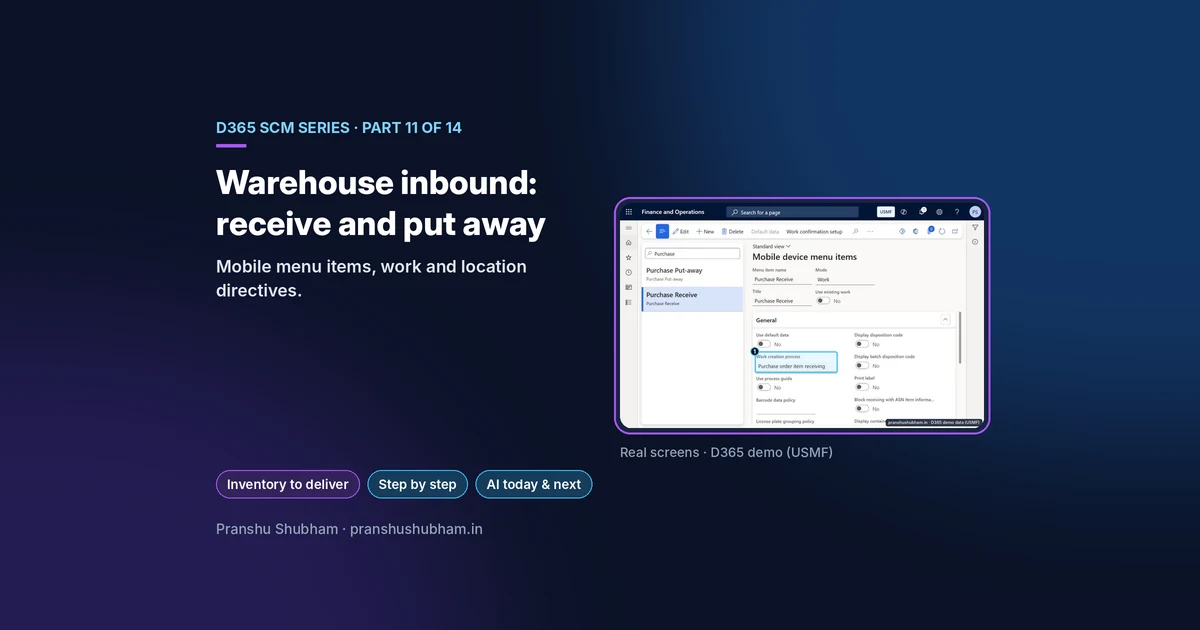
Part 11 of 14 in my free course D365 Supply Chain, end to end. All screenshots come from a Microsoft demo environment with standard Contoso data (company USMF). New here? Start with the series home.
In Part 4 we received a purchase order with one click. That's fine for a small stockroom. A real distribution center needs more: scanners, license plates, rules about where to put things, and work that's tracked person by person. That's Warehouse management (WMS), and this part covers the inbound side: receiving and put-away.
We use USMF's WMS-enabled warehouse 24 and the standard demo setup. WMS is very configuration-heavy, so this article focuses on the setup screens that drive the mobile app, with the real records from the demo.
1. The story
Who this section is for: Freshers, customers and anyone new to D365
A truck arrives. A worker scans the purchase order, the item and the quantity on a handheld. D365 instantly creates work: a task to take that pallet from the dock to a shelf. The system decides which shelf using rules, and the same or another worker scans the pallet and the shelf to confirm. Every move is recorded with who did it and when.
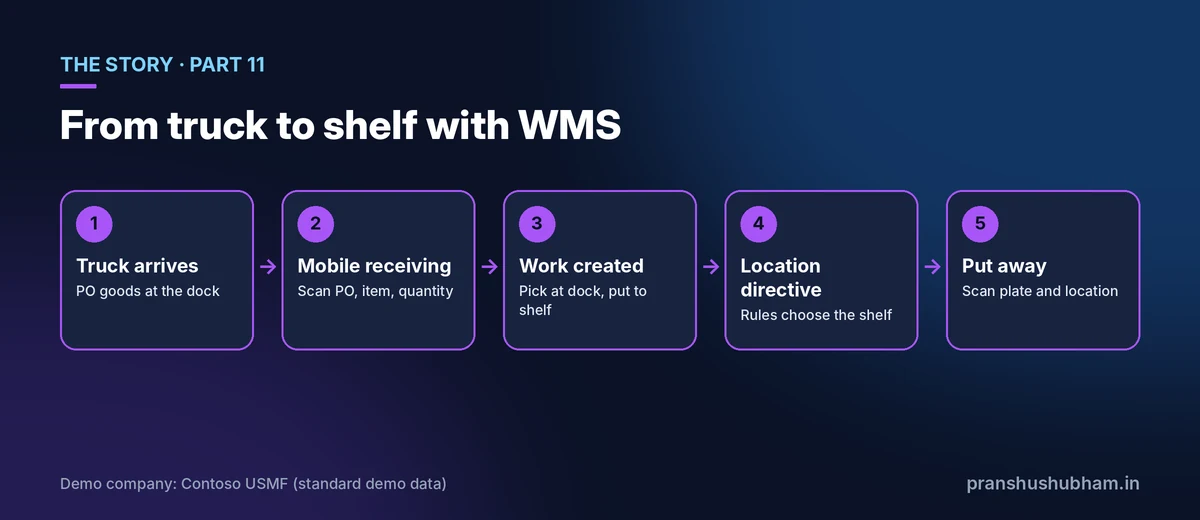
Glossary. Work: a WMS task with pick and put lines. License plate: an ID for a pallet or container. Location directive: the rule that chooses a pick or put location. Mobile device menu item: one function on the Warehouse Management mobile app.
2. Step by step in D365
Who this section is for: End users and functional consultants
Step 1: The receiving menu item
Go to Warehouse management > Setup > Mobile device > Mobile device menu items and open Purchase Receive. This is the button workers tap on the handheld.
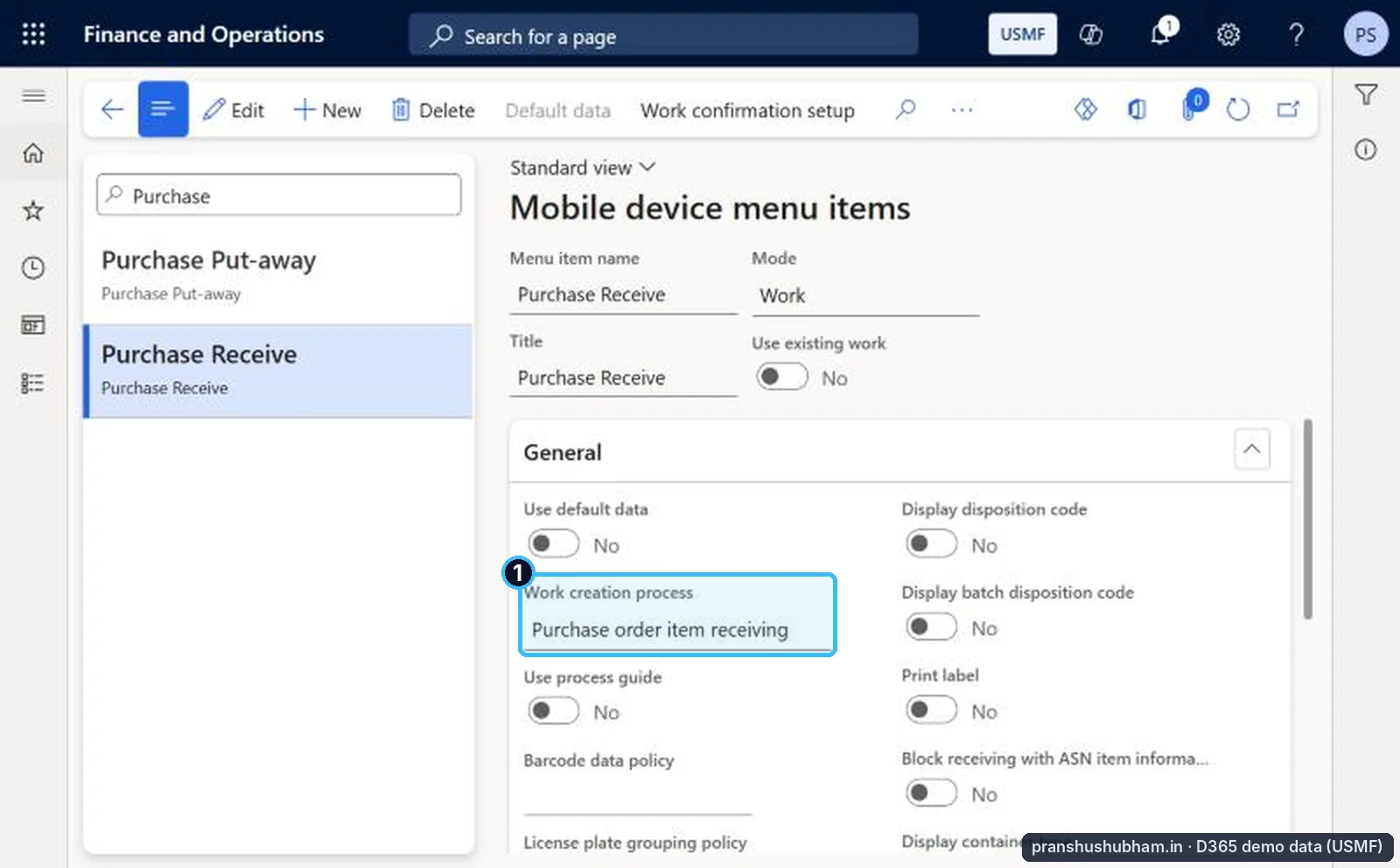
(1) Work creation process: Purchase order item receiving.
Key settings:
- Mode: Work, because receiving creates work.
- Work creation process: "Purchase order item receiving" (scan PO, item, quantity). Other options include line receiving and license plate (ASN) receiving.
- Use process guide: newer, extensible flow framework. Off here, as in many demo items.
- Display disposition code and Print label: optional extras for inspection and labeling.
Step 2: The put-away menu item
Open Purchase Put-away. It has Use existing work: Yes, because it executes the work created by receiving rather than creating new work.
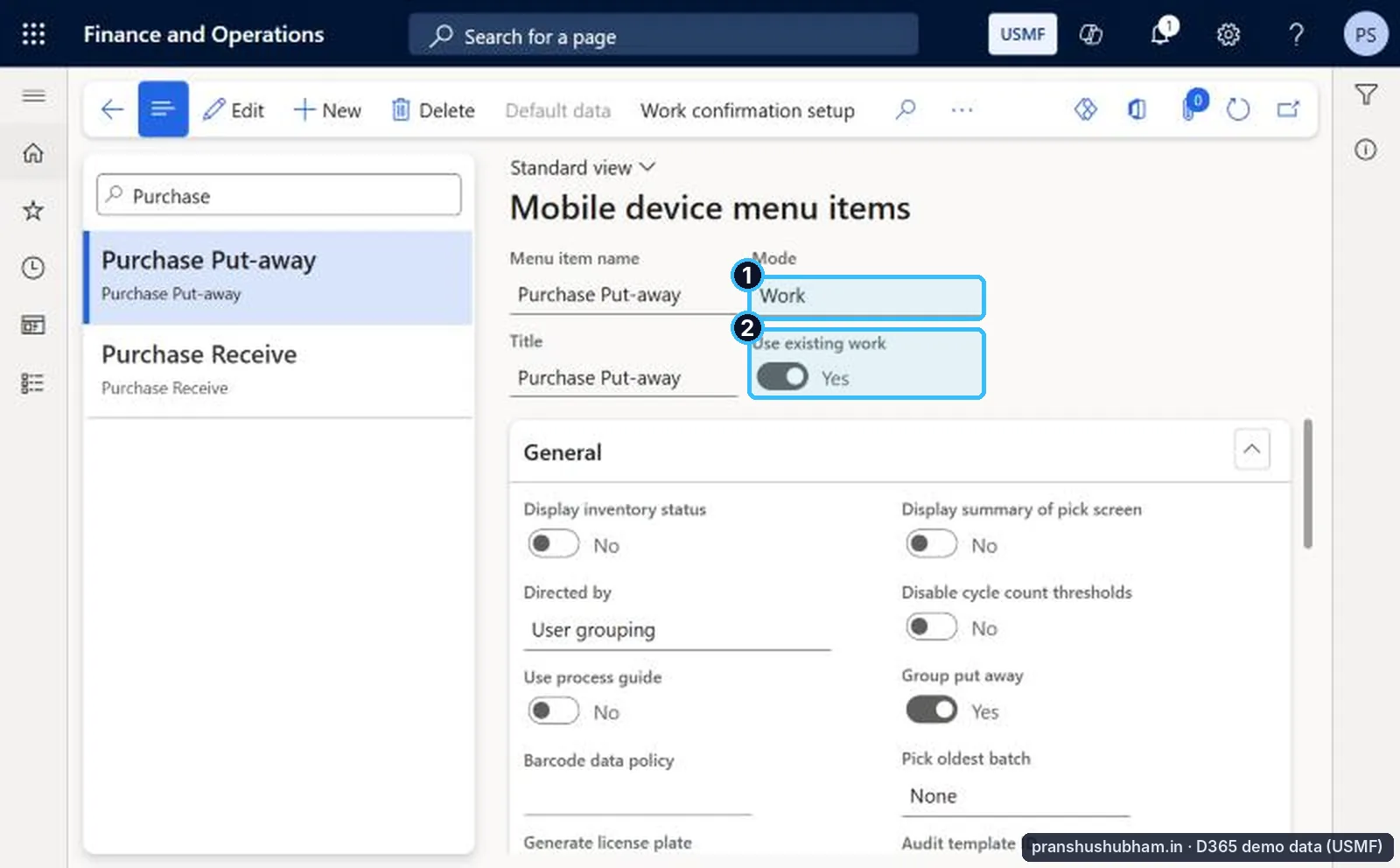
(1) Mode Work. (2) Use existing work: Yes, it performs work created at receiving.
Directed by ("User grouping" here) controls which work the worker gets. Many sites let the same worker receive and put away in one go ("receive and put away" in a single flow); others split the roles.
Step 3: Location directives choose the shelf
Go to Warehouse management > Setup > Location directives. Directives are grouped by Work order type. For receiving you'd select Purchase orders; the screenshot shows the Sales orders list for warehouse 24, which uses exactly the same structure.
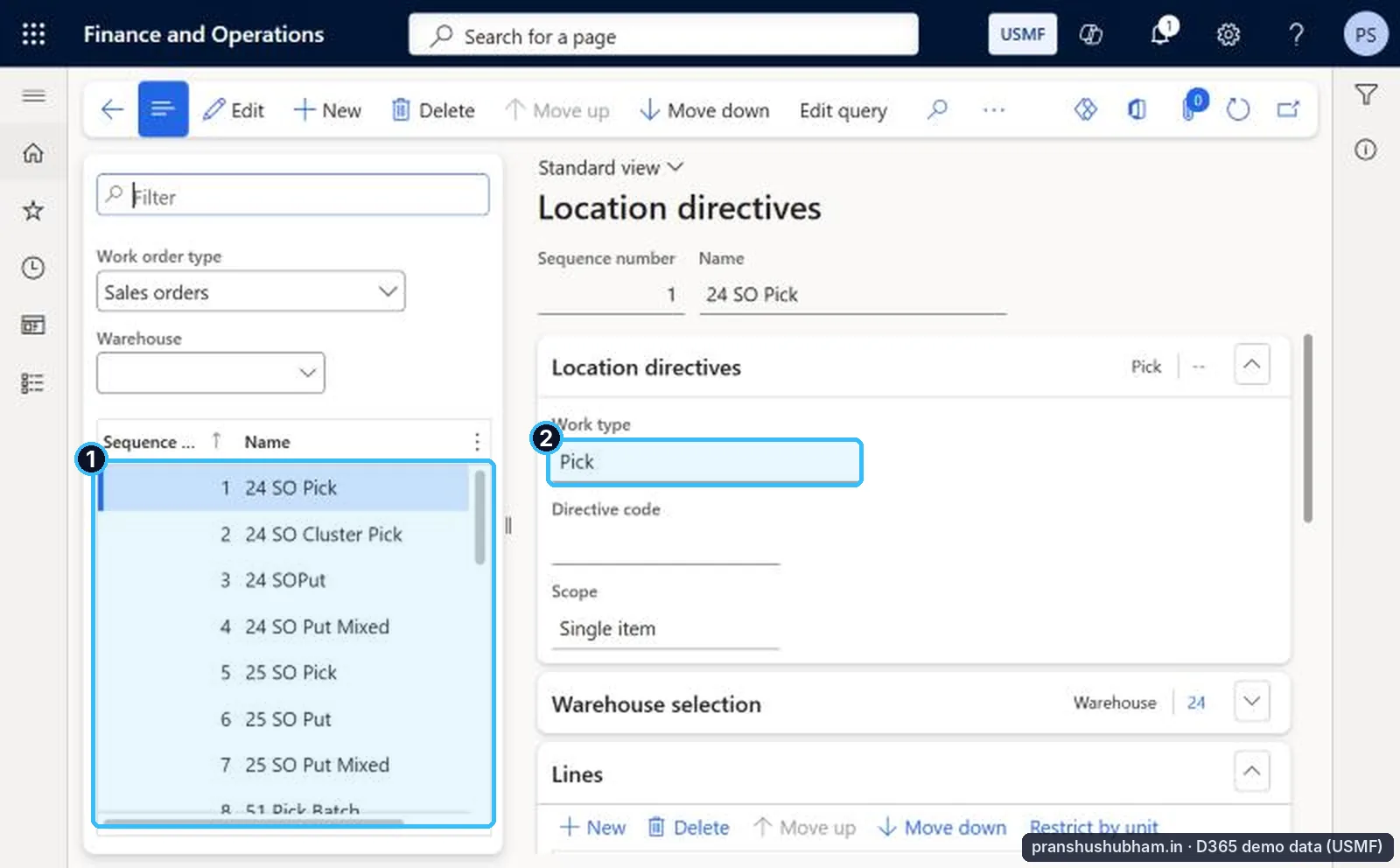
(1) Directives run in sequence order: the first one that fits wins. (2) Work type: Pick or Put.
Each directive has:
- Work type (Pick or Put) and warehouse.
- Lines with quantity ranges and units.
- Actions with queries, for example "put in the fixed location for this item, else in any empty bulk location".
Step 4: Do the work on the mobile app
On the handheld: open Purchase Receive, scan the PO, item and quantity, confirm. D365 creates work with a Pick line at the receiving dock and a Put line at the location chosen by the directive. Then Purchase Put-away: scan the license plate and the target location.
Step 5: Watch the work
Go to Warehouse management > Work > All work to see work headers, their status and order type.
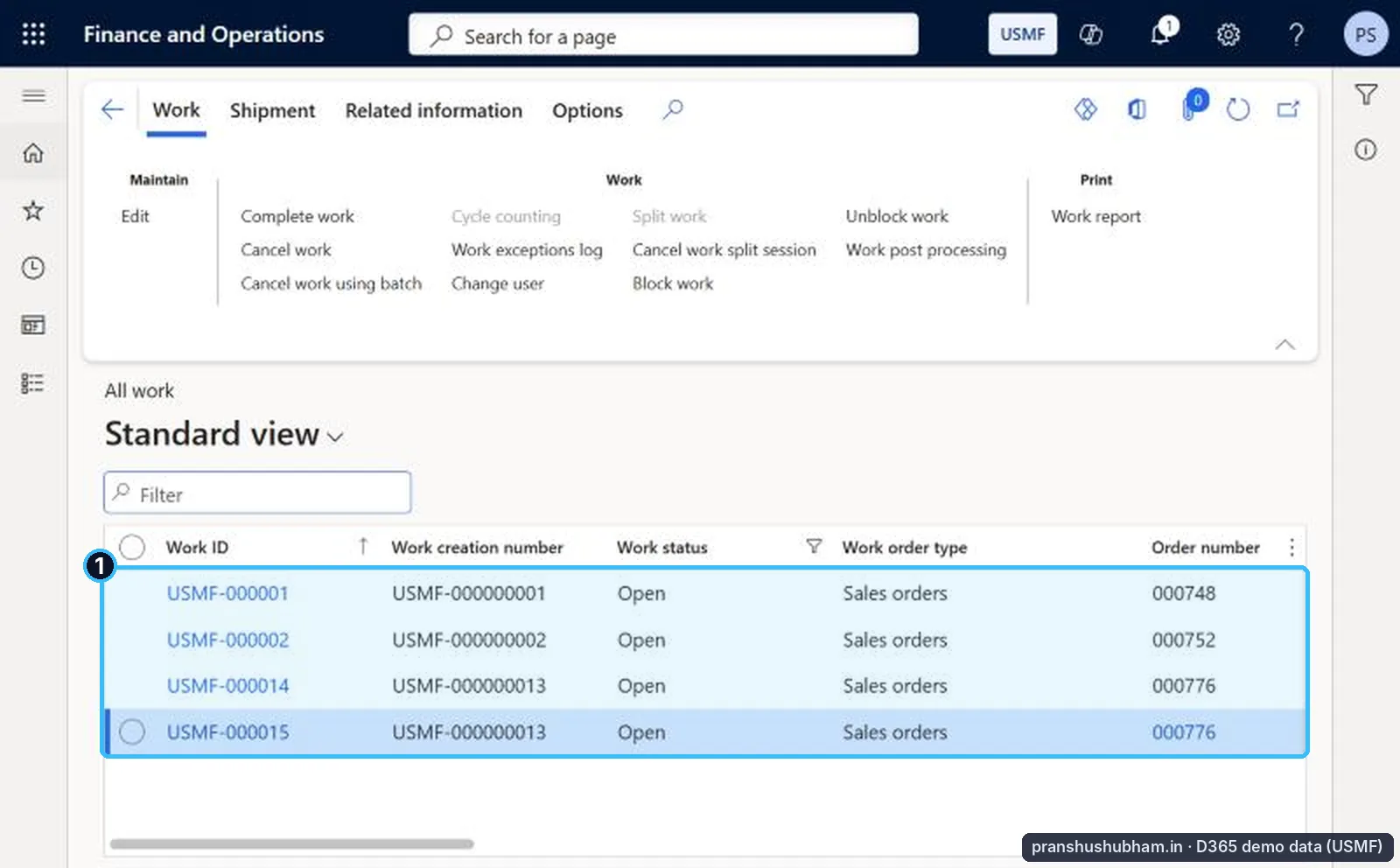
(1) Work headers with status, work order type and order number.
In my demo the open work happened to be for sales orders (we'll use it in Part 12), but inbound work looks exactly the same, with work order type "Purchase orders".
3. Behind the scenes
Who this section is for: Working professionals and functional consultants
- Receiving posts "Registered", not "Received". In WMS, mobile receiving registers the inventory at the dock location. You still post the product receipt, often in batch per load or per PO.
- Work holds the stock. While put-away work is open, the stock sits at the receiving location with a license plate.
- When no directive fits. If no directive finds a location, the receiving step shows an error on the handheld. Always test with real item sizes and full locations.
- Location profiles decide whether locations are license-plate controlled, allow mixed items or batches, and track volume.
- Inventory status (for example "Available" vs "Blocked") can be set during receiving, so damaged goods don't become available.
Common mistakes and fixes:
- Work isn't created. The item's storage dimension group doesn't use WMS processes, or there's no work template for the work order type.
- Everything goes to the same location. Directive queries are too generic. Add fixed locations or zone restrictions.
- Product receipt not posted. Registered but not received: AP can't match the invoice. Schedule the receipt posting.
4. Under the hood
Who this section is for: Technical consultants
- Main tables: WHSWorkTable (work header), WHSWorkLine (pick and put lines), WHSLocDirTable and related line/action tables (location directives), WHSRFMenuItemTable (mobile menu items), WMSLocation, WHSLicensePlate.
- Menu item names you'll see in URLs: WHSRFMenuItem (mobile menu items), WHSLocDirTable (location directives), WHSWorkTableListPage (all work).
- Extensibility: the process guide framework is the supported way to extend mobile flows. Material handling equipment connects through the MHAX interface. Labels are configured with label layouts rather than code.
- Testing: the Warehouse Management mobile app runs on Windows, Android and iOS, so you can test flows from a laptop.
5. AI in this process: today and next
Who this section is for: Everyone
Workload insights with Copilot (Available). When a worker signs in to the Warehouse Management mobile app, a workload page shows the number of pick and receiving work headers or lines, active sessions in the warehouse, details per work type, and a natural-language summary written by Copilot. Prerequisites: SCM 10.0.39 or later, mobile app 2.3.2.0 or later, and the feature "Context-aware worker summary screen in WMA" (on by default from 10.0.39). Workers can switch it off at startup in the app settings.
Dynamic work classification with Power Fx (Production-ready preview, 10.0.48). Use Power Fx formulas to classify work dynamically. It's automation rather than generative AI, but it reduces the number of rigid setup records.
Procurement Agent (Production-ready preview). Updated delivery dates from vendor emails flow into the PO before the truck arrives, which keeps the dock schedule realistic.
Location directive acceptance tests (Available). Not AI, but very useful: you can set up automated tests that check which location a directive picks under different conditions.
My view (opinion): the next big thing in WMS AI isn't on the handheld, it's in setup. location directive queries take a lot of setup and testing time, and an assistant that explains "why didn't this find a location?" in plain language would save days.
UAT test scenarios
- Receive a PO line on the mobile app. Expected: work created with pick at the dock and put at a directive location.
- Receive an item with no matching directive. Expected: a clear error on the handheld.
- Put away to a different location than suggested (if allowed). Expected: override recorded.
- Post the product receipt after registration. Expected: inventory status moves to Received.
- Sign in to the mobile app. Expected: the Copilot workload page appears (if enabled).
FAQ
Do I need WMS? Only if you need location-level control, scanning and work tracking. Basic inventory is fine for small stockrooms.
Can I receive without a PO in WMS? Not for purchase receiving. Use other menu items, such as adjustment in, for exceptions.
What's a license plate? A unique ID for a pallet or container, so you can move it as one unit.
Keep going in the series
- Series home: D365 Supply Chain, end to end
- Previous: Part 10: On-hand and counting
- Next: Part 12: Warehouse outbound
Sources
- Workload insights with Copilot in the Warehouse Management mobile app (Microsoft Learn)
- Location directives (Microsoft Learn)
- Warehouse management overview (Microsoft Learn)
- What's new in Supply Chain Management 10.0.48 (Microsoft Learn)
Have a question about this process, or seeing something different in your version? Get in touch. I read every message.