D365 Master Planning with Planning Optimization: Coverage, Planned Orders and Firming
Where D365 starts creating documents for you. Coverage groups, planned orders and firming with Planning Optimization.
Part 13 of 14 in my free course D365 Supply Chain, end to end. All screenshots come from a Microsoft demo environment with standard Contoso data (company USMF). New here? Start with the series home.
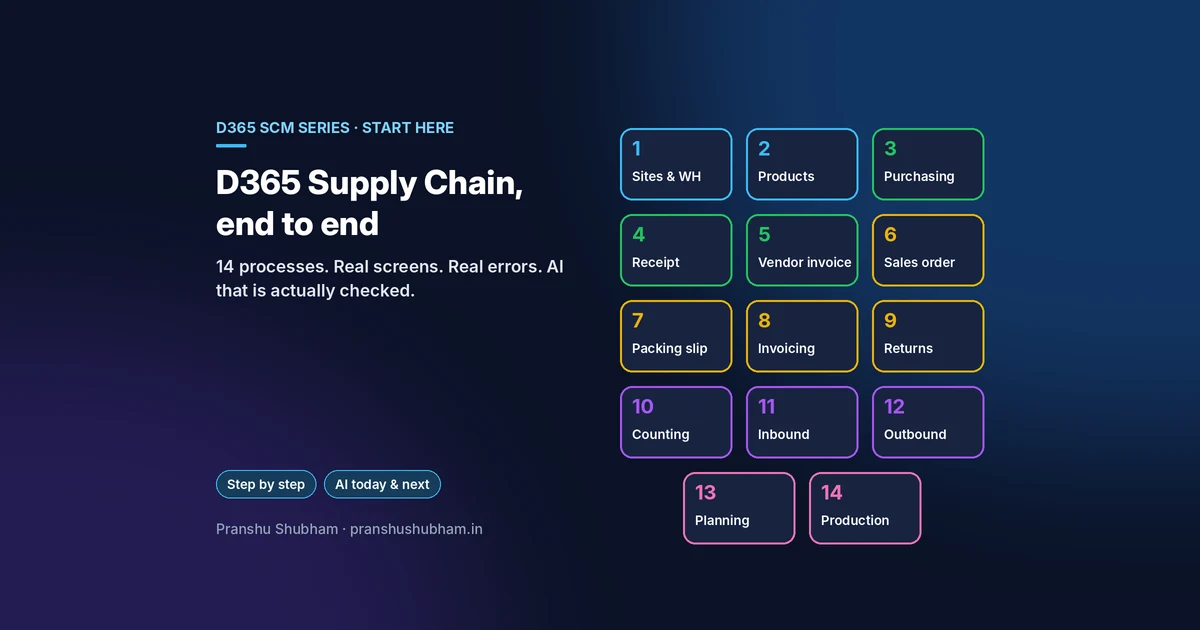
So far every document in this series was created by a person. Master planning is where Dynamics 365 starts creating them for you. It looks at demand (sales orders, forecasts, safety stock) and supply (on-hand, purchase orders, production), then suggests planned orders to fill the gaps.
In this part we look at the master planning workspace, the Planning Optimization run dialog, coverage groups and real planned orders in the USMF demo data. I didn't run a full plan in the shared demo, but the planned orders you'll see were produced by the demo's dynamic plan.
1. The story
Who this section is for: Freshers, customers and anyone new to D365
Imagine a planner with a spreadsheet: "Next week we need 100 speakers. We have 30. Ten are coming from a vendor. So we need to make or buy 60, and to make them we need cones, cables and boxes..." Master planning does that for every item and every date, following the rules you set (minimum stock, lead times, order multiples), and proposes planned orders that planners review and firm into real purchase, production or transfer orders.
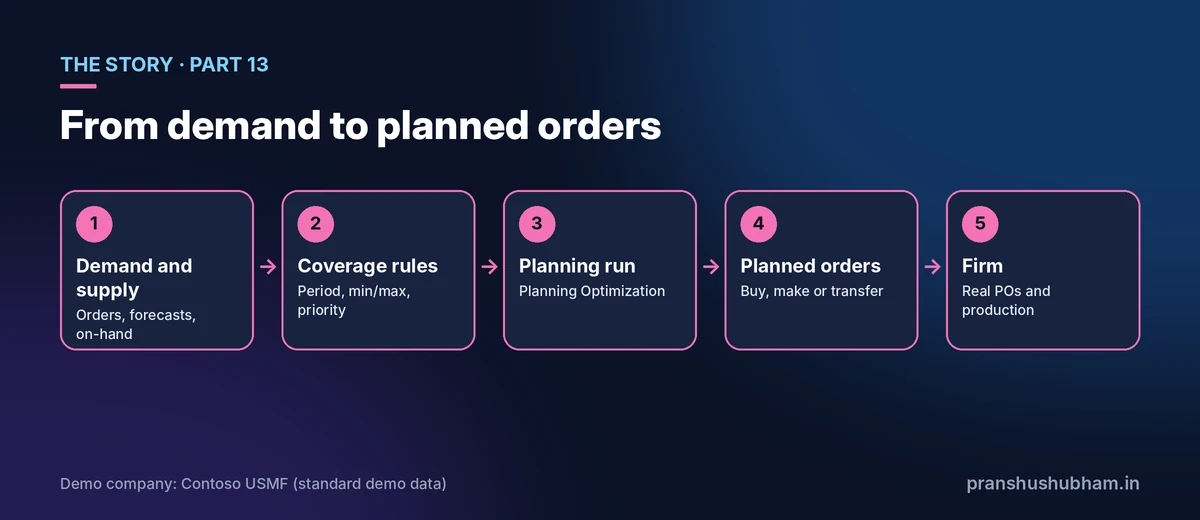
Glossary. Master plan: a set of planning settings and results (for example StaticPlan and DynPlan). Coverage group: the rules for how an item is replenished. Planned order: a suggestion to buy, make or transfer. Firming: turning a planned order into a real order. Planning Optimization: Microsoft's planning engine that runs as a service outside the database.
2. Step by step in D365
Who this section is for: End users and functional consultants
Step 1: Open the master planning workspace
Go to Master planning > Workspaces > Master planning. Select the Master plan (StaticPlan here). Tiles show planned orders, calculated delays and actions, and a card shows when master planning last ran.
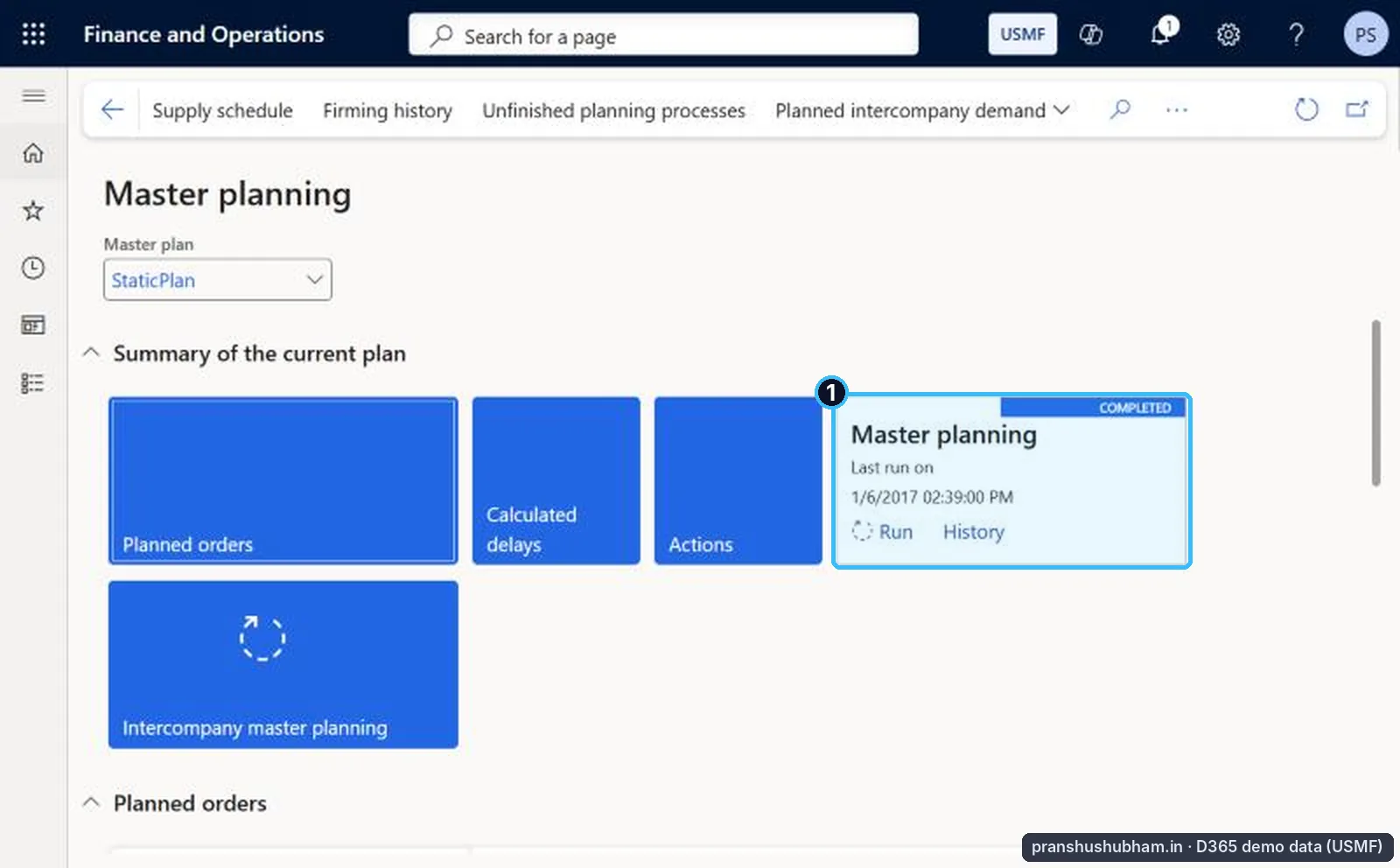
(1) The master planning card: last run date, Run and History.
Step 2: The run dialog says "Planning Optimization"
Select Run. The dialog title is Planning Optimization, which tells you this environment uses the Planning Optimization service (the legacy built-in engine is deprecated). Choose the Master plan, whether to Enable auto-firming, and Records to include (for example just a few items for a quick test).
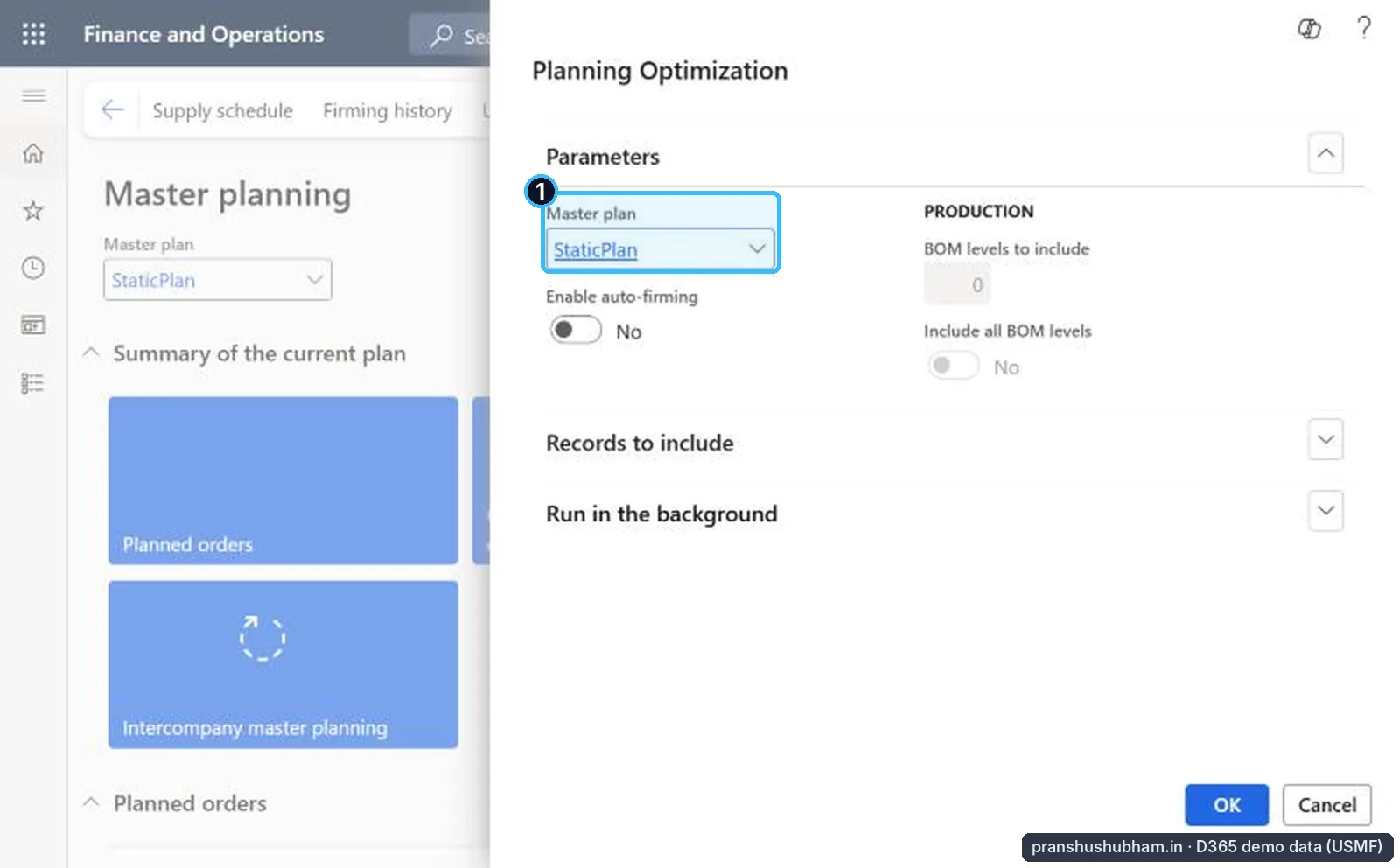
(1) Master plan selection. Auto-firming and records to include sit below.
I selected Cancel here. Running a full plan in a shared demo can replace planned orders that other people rely on, so in a real project, test planning in your own sandbox.
Step 3: Set coverage groups
Go to Master planning > Setup > Coverage > Coverage groups. A coverage group tells planning how to cover demand.
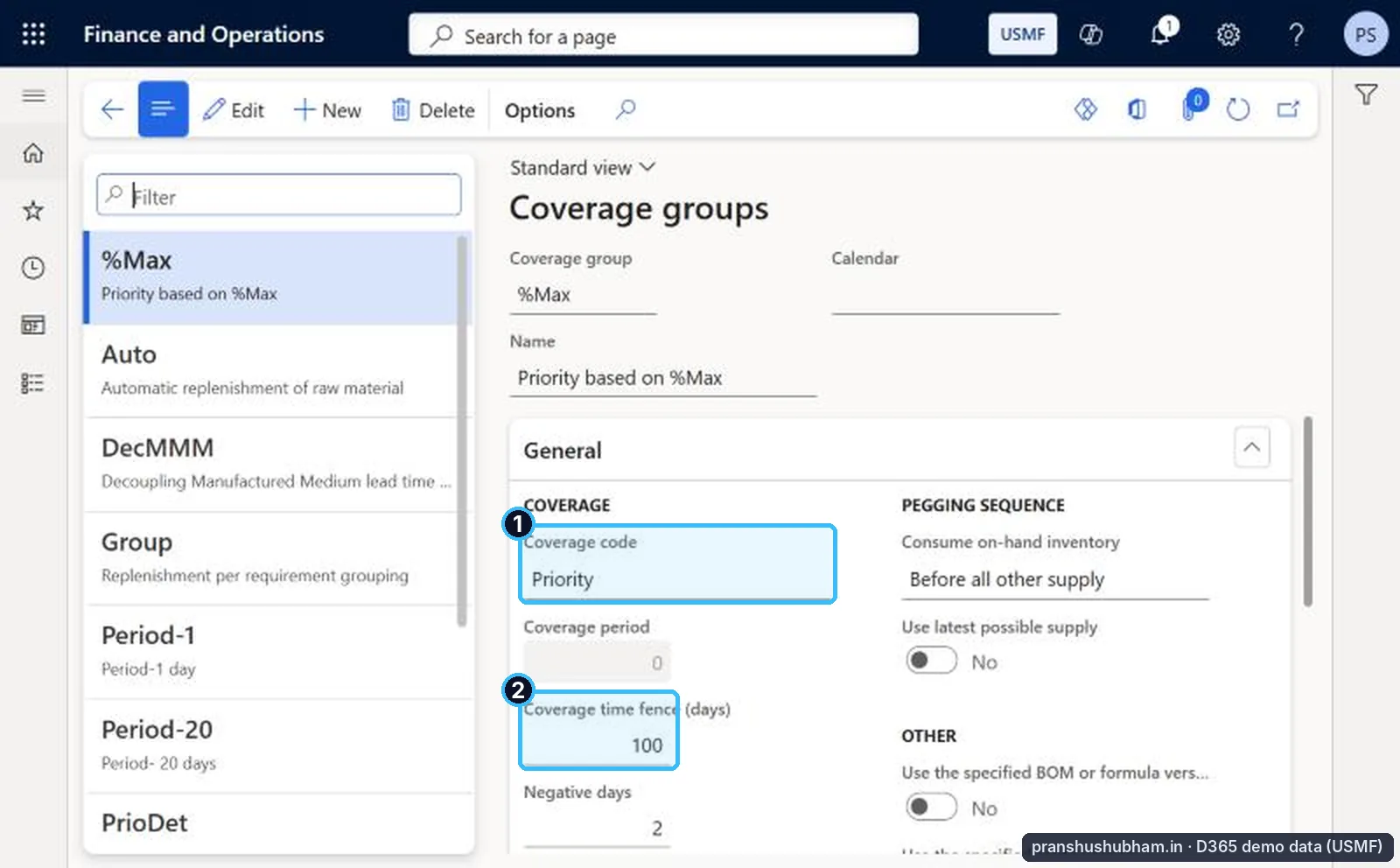
(1) Coverage code: Priority. (2) Coverage time fence: 100 days.
The coverage codes you'll use most:
- Period: combine all demand in a period (for example 1 day, 20 days) into one planned order.
- Requirement: one planned order per demand (make to order).
- Min/Max: refill to a maximum when stock falls below the minimum.
- Priority: Planning Optimization's code for priority-driven planning, used in the demo's %Max group.
Also important: the coverage time fence (how far ahead to plan), negative days (how late incoming supply may be and still count) and positive days. Item-specific minimums, maximums and lead times are set in Item coverage.
Step 4: Review planned orders
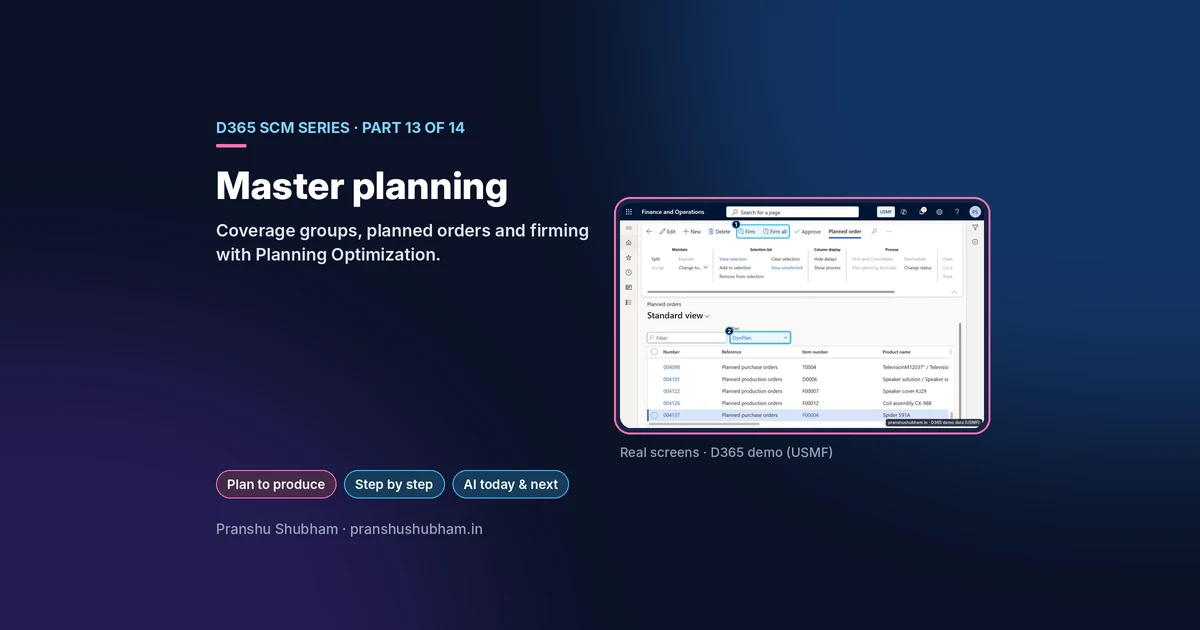
Go to Master planning > Master planning > Planned orders and choose the plan (DynPlan here). You'll see planned purchase orders and planned production orders, for example a planned production order for D0006 Speaker solution and a planned purchase order for F00004 Spider.
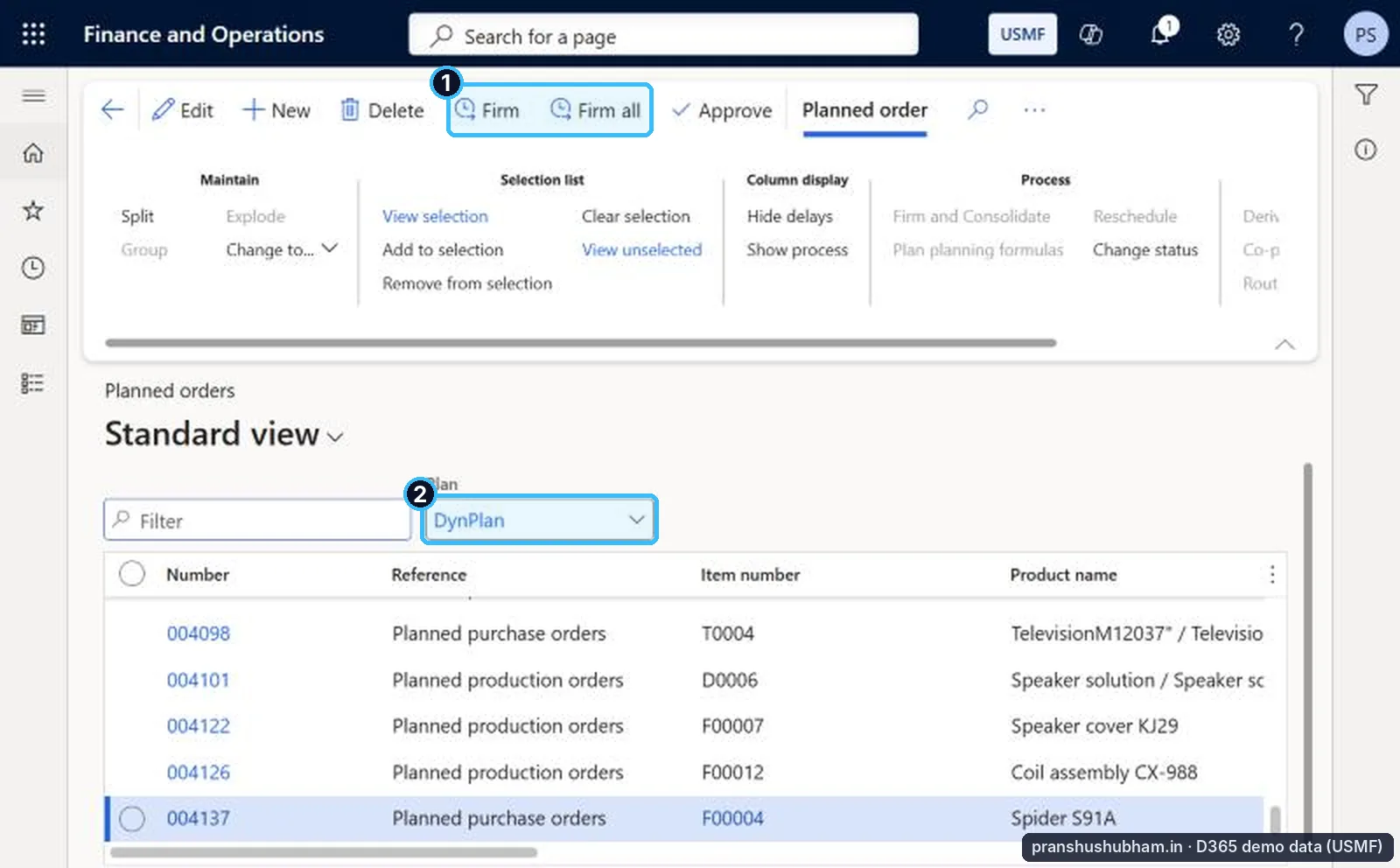
(1) Firm and Firm all turn planned orders into real orders. (2) The plan being viewed: DynPlan.
For each planned order, check the requirement date, quantity, vendor or BOM/route, and any delay messages. Then select Firm (or approve first if your process requires it).
Step 5: Firm, and the documents appear
Firming a planned purchase order creates a purchase order (Part 3). Firming a planned production order creates a production order (Part 14). With auto-firming and a firming time fence, planning can firm automatically for items you trust.
3. Behind the scenes
Who this section is for: Working professionals and functional consultants
- Static vs dynamic plans. The static plan is the official plan, usually run in batch. The dynamic plan is used for quick what-ifs and delivery date calculations. USMF has both.
- Planning Optimization runs outside the AOS and database. That's why it's fast enough to run during office hours. It also means it depends on the service being reachable. In Part 14 I hit a real "Planning Optimization client request retry count exceeded" error during production scheduling in this sandbox.
- Pegging links each planned order to the demand it covers. Newer features (10.0.47–10.0.48) keep pegging and confirmed supply stable between runs, for example "keep supply for confirmed demand" and protecting confirmed CTP dates.
- Actions and delays tell planners where to expedite or postpone existing orders.
- Safety stock is set in item coverage (minimum), and planning treats it as demand.
Common mistakes and fixes:
- No planned orders for an item. No coverage group on the item or the site, or the coverage time fence is too short.
- Thousands of tiny planned orders. Coverage code Requirement where Period makes more sense. Add order multiples.
- Planned orders ignore a vendor's lead time. Lead time isn't set on the item or trade agreement.
4. Under the hood
Who this section is for: Technical consultants
- Main tables: ReqPlan and ReqPlanVersion (plans), ReqTrans (requirement transactions), ReqPO (planned orders), ReqGroup (coverage groups), ReqItemTable (item coverage).
- Pages: ReqPOGridView (planned orders), ReqGroup (coverage groups), ReqCreatePlanWorkspace (master planning workspace).
- Planning Optimization is installed from Lifecycle Services or the Power Platform admin center and turned on in Supply Chain Management. Some legacy extension points of the old engine aren't available, so check customizations before migrating.
- Integration: forecasts often come from Demand planning (Microsoft's newer forecasting app) and are exported back into SCM as demand forecasts.
5. AI in this process: today and next
Who this section is for: Everyone
Analyze demand plans with Copilot (Available in Demand planning). In the Demand planning app, select a point on a worksheet chart and pick a predefined question: shifts between periods, trends over six periods, outliers in a year (interquartile range) or deviations between two time series (MAPE). Copilot answers in natural language with visuals. It's on by default and controlled from the Power Apps maker portal.
Demand planning forecasting (Available) uses models such as ARIMA and ETS with a "best fit" option, plus your own Azure Machine Learning models.
Procurement Agent impact analysis (Production-ready preview, 10.0.48). When a vendor changes a purchase order, the agent analyzes the downstream impact on the plan, for example which sales or production orders slip.
My view (opinion): planners don't need AI to calculate MRP; engines are great at that. They need help deciding which of 500 action messages actually matter today. That's where I'd expect the next wave of copilots.
UAT test scenarios
- Create a sales order for an item with coverage group Period. Expected: after a planning run, one planned order per period.
- Set a minimum on item coverage. Expected: planning creates supply to keep stock at the minimum.
- Firm a planned purchase order. Expected: a purchase order with the planned vendor, quantity and date.
- Firm a planned production order. Expected: a production order with the right BOM and route.
- Run planning for a few items using "Records to include". Expected: only those items are replanned.
FAQ
Static or dynamic plan for daily work? Static for the official plan; dynamic for what-ifs and delivery date promises.
How often should I run planning? With Planning Optimization, many companies run it several times a day.
What does "firm" mean? Turning a suggestion into a real order that buyers or production can act on.
Keep going in the series
- Series home: D365 Supply Chain, end to end
- Previous: Part 12: Warehouse outbound
- Next: Part 14: Production order lifecycle
Sources
- Master planning system architecture (Microsoft Learn)
- Keep supply for confirmed demand in Planning Optimization (Microsoft Learn)
- Analyze demand plans with Copilot (Microsoft Learn)
- Demand planning home page (Microsoft Learn)
Have a question about this process, or seeing something different in your version? Get in touch. I read every message.