D365 Picking, Packing Slip and Shipping Without WMS, Step by Step
How goods actually leave the building in D365: picking, the packing slip, a mandatory BOL field and what changes in inventory.
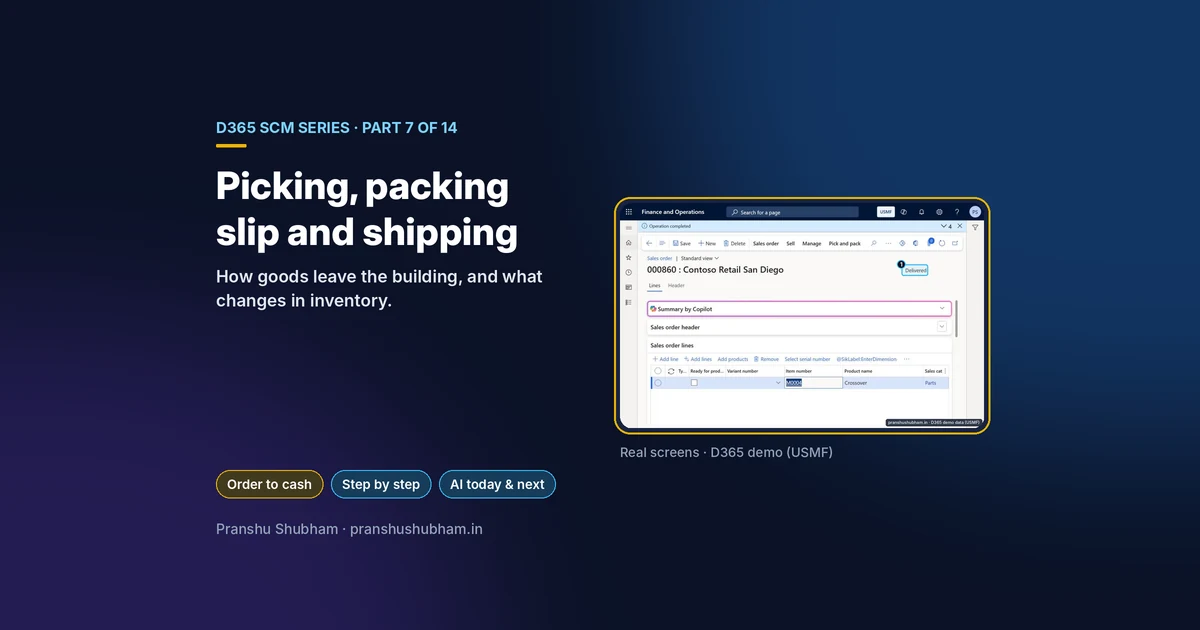
Part 7 of 14 in my free course D365 Supply Chain, end to end. All screenshots come from a Microsoft demo environment with standard Contoso data (company USMF). New here? Start with the series home.
Sales order 000860 from Part 6 is confirmed. Now the goods have to physically leave the building. In Dynamics 365 that's picking and the packing slip, the document that says "these items have shipped".
This part shows the basic (non-WMS) shipping flow. If your warehouse uses advanced warehouse management, the same packing slip still happens, but waves and mobile-app work come first. That's Part 12.
1. The story
Who this section is for: Freshers, customers and anyone new to D365
The warehouse gets a list of what to pick, finds the items on the shelves, packs them, and hands them to the carrier. The packing slip (delivery note) goes in the box and is posted in D365. From that moment the stock is gone from your warehouse and the customer's order shows as Delivered.
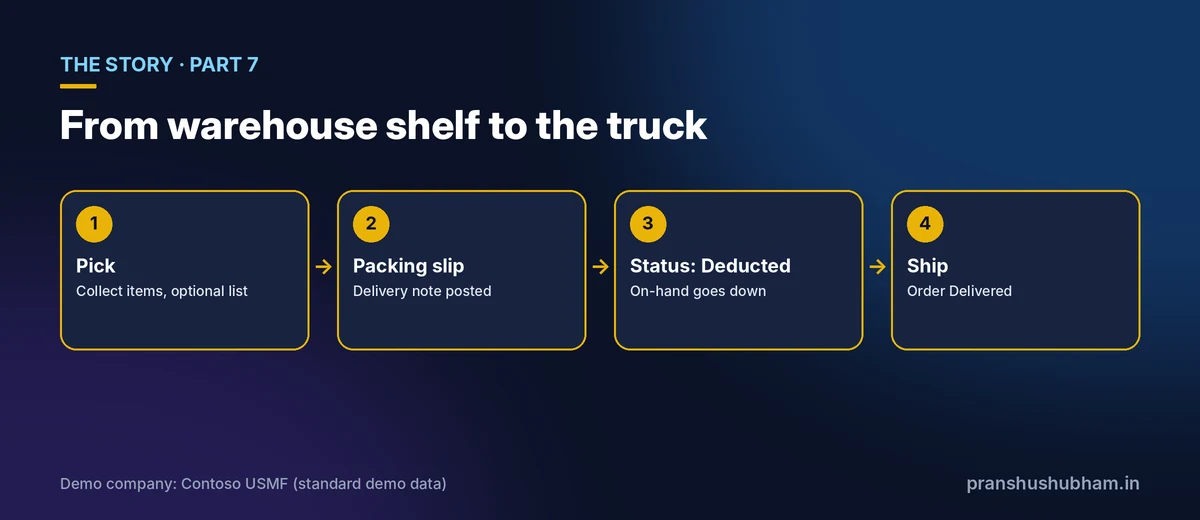
Glossary. Picking list: a list of items and quantities to collect. Packing slip: the delivery note posted when goods ship. BOL: bill of lading, the carrier's shipping document number. Deducted: inventory status after packing slip posting.
2. Step by step in D365
Who this section is for: End users and functional consultants
Step 1: Open the Pick and pack tab
Open sales order 000860 and go to the Pick and pack tab on the Action Pane. Under Generate you'll find Generate picking list and Post packing slip.
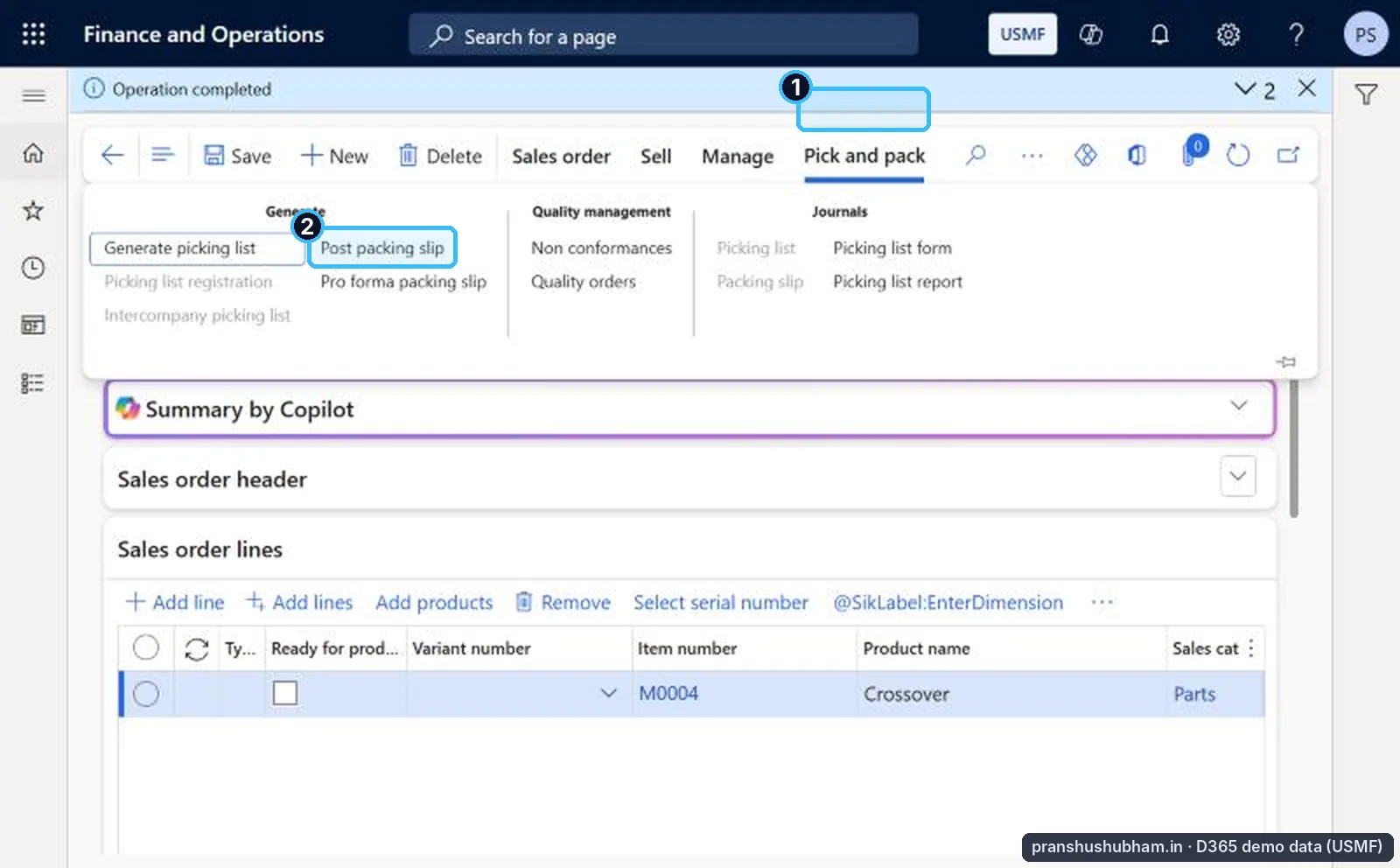
(1) The Pick and pack tab. (2) Post packing slip under Generate.
Picking lists are optional in the basic flow. If you don't use them, posting the packing slip with quantity All picks and ships in one step. Many small warehouses work this way.
Step 2: Fill in the packing slip posting dialog
Select Post packing slip. In the Parameters section, set Quantity. "All" ships the whole open quantity; "Picked" ships only what has been picked; "Deliver now" uses the deliver-now quantity on the lines.
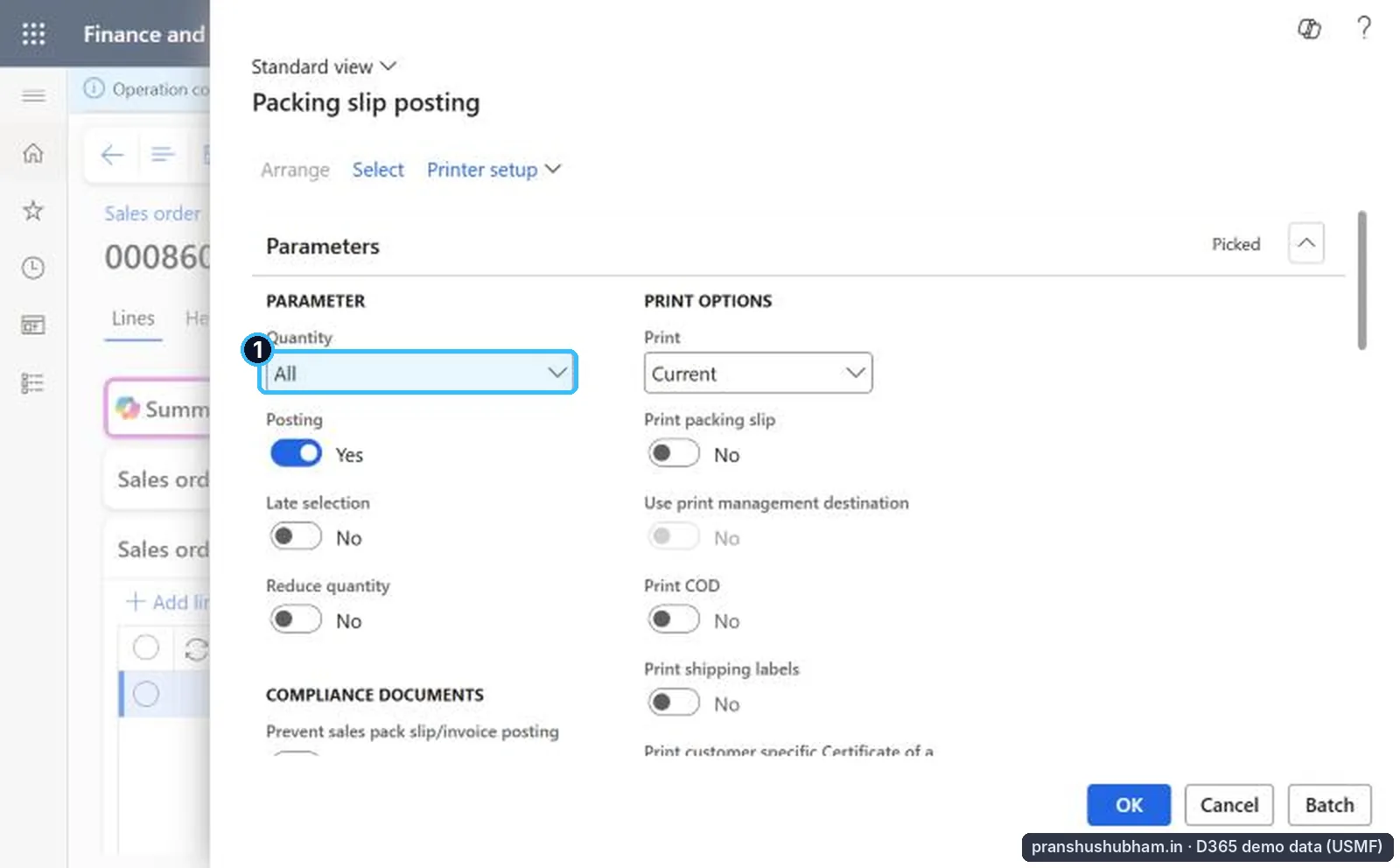
(1) Quantity All ships everything that's open.
Step 3: Enter the BOL
In this environment the Overview grid has a BOL (bill of lading) column, and it's mandatory. My first attempt failed with "Field 'BOL' must be filled in." I entered BOL-000860 and posted again.
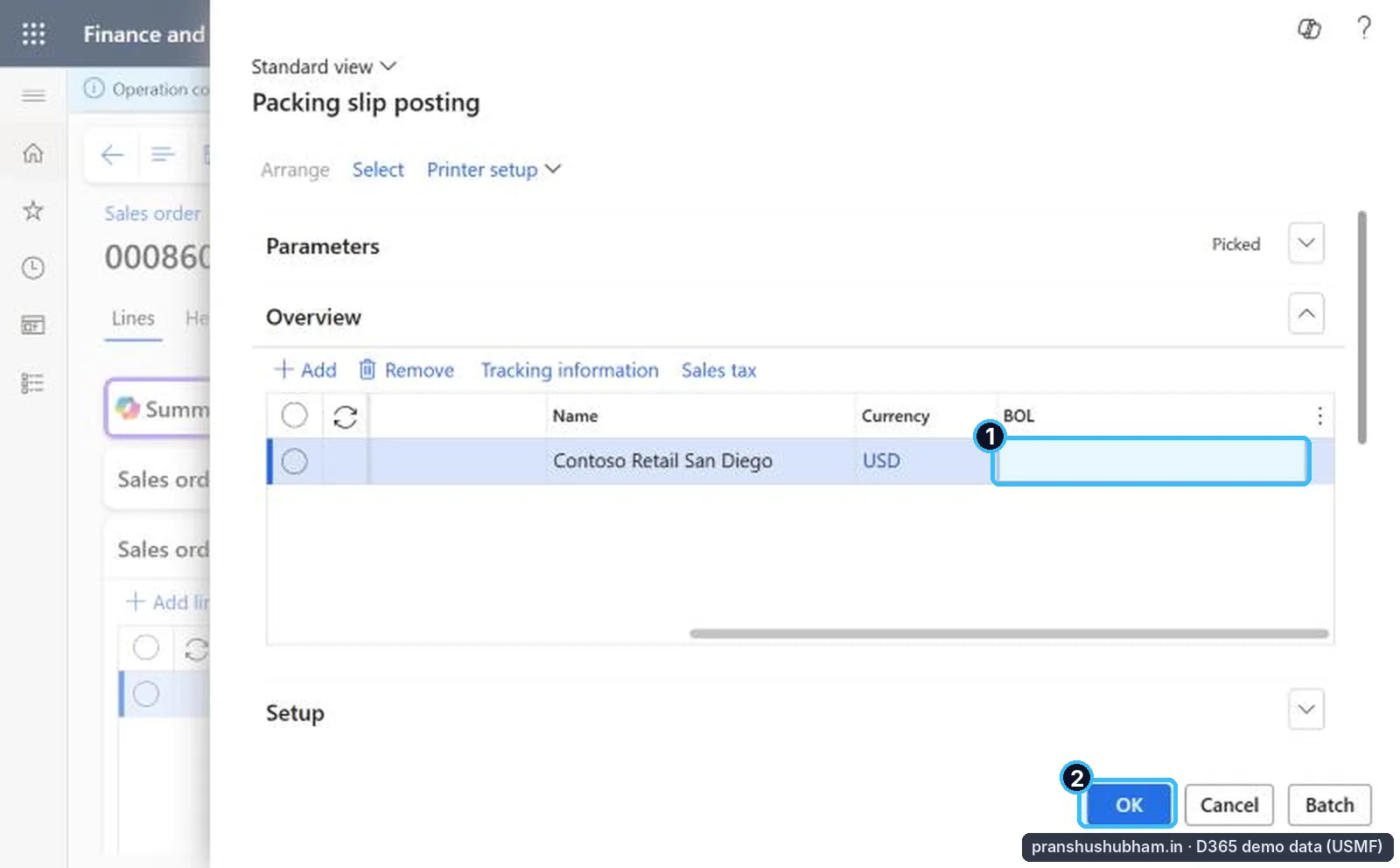
(1) The BOL field must be filled before posting in this setup. (2) OK posts the packing slip.
Whether BOL is required depends on your configuration, so don't be surprised if your system doesn't ask for it. If it does, put the carrier's tracking or BOL number in it so customer service can find it later.
Step 4: Check the result
The order status changes to Delivered.
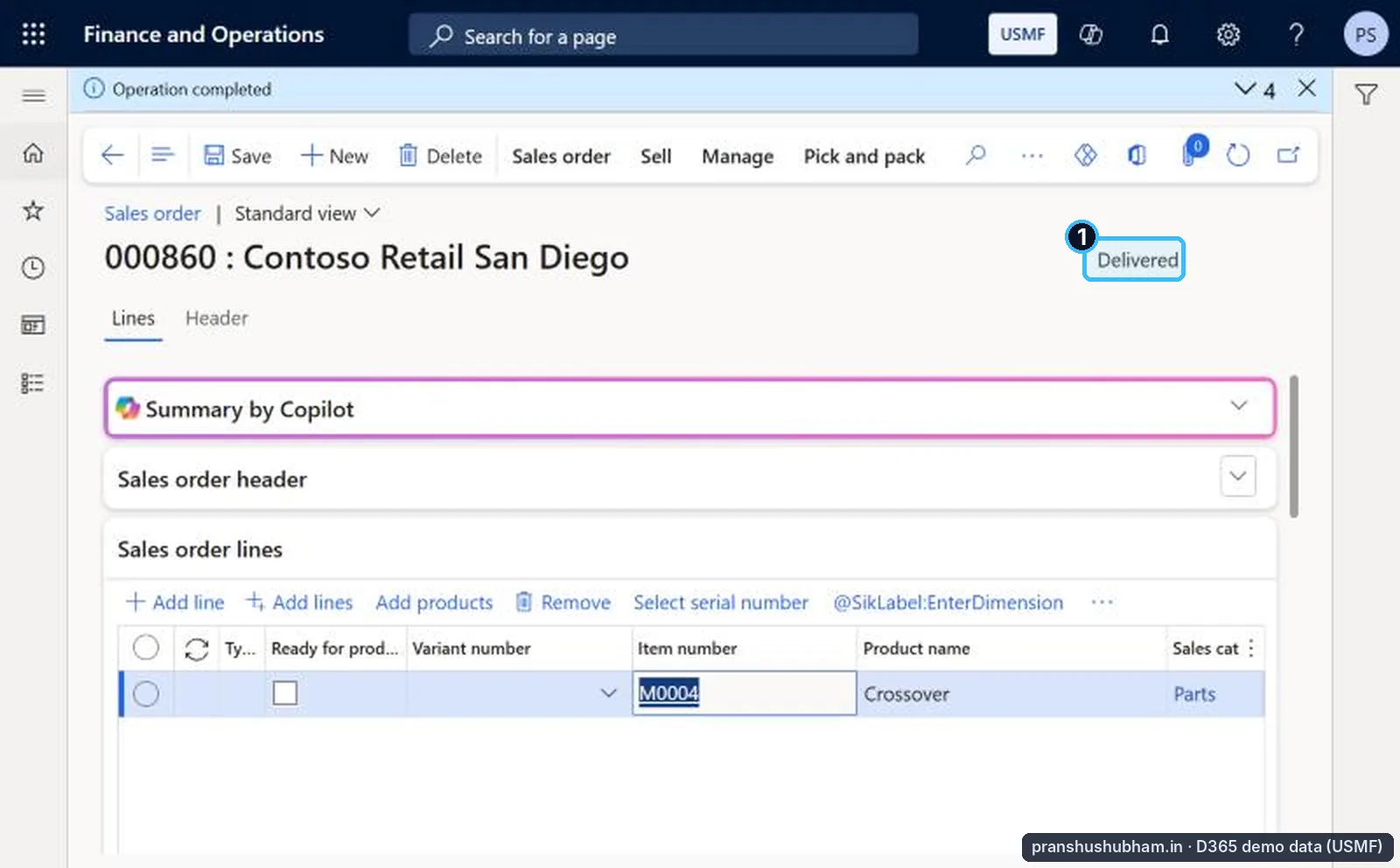
(1) Status Delivered.
Under Pick and pack > Journals > Packing slip you can view and print the posted packing slip.
3. Behind the scenes
Who this section is for: Working professionals and functional consultants
- Inventory status moves from On order or Reserved physical to Picked (if picking was registered) and then to Deducted when the packing slip posts. On-hand goes down at this point.
- Physical posting to the ledger happens only if "Post physical inventory" is on in the item model group and "Post packing slip in ledger" is on in Accounts receivable parameters. Then D365 posts packing slip offset and issue entries, reversed later at invoice.
- Force a picking step if you need one. The item model group options Picking requirements (no packing slip without a posted picking list) and Deduction requirements (no invoice without a packing slip) enforce the order of steps.
- Partial shipments leave a remainder on the line. Set "Deliver remainder" or cancel it.
- Over-delivery is controlled per item and customer, like over-receipt on the purchase side.
- The cost used at packing slip is the running cost at that moment. The final cost is settled at inventory close (FIFO, weighted average) or is the standard (standard cost).
Common mistakes and fixes:
- Packing slip won't post: not enough stock. Negative physical inventory isn't allowed on the item model group. Receive the stock first or fix the warehouse.
- Wrong quantity shipped. The Quantity parameter was "All" instead of "Picked". Correct the packing slip or return the excess.
- Mandatory field errors (like BOL). Fill them in, and make sure the warehouse team knows about them before go-live.
4. Under the hood
Who this section is for: Technical consultants
- Main tables: CustPackingSlipJour (header), CustPackingSlipTrans (lines), WMSPickingRoute and WMSOrderTrans (basic picking lists), SalesParmTable / SalesParmLine (dialog parameters), InventTrans (status Deducted).
- Posting class: SalesFormLetter_PackingSlip.
- Integration: carriers and shipping software usually feed back tracking numbers. Store them on the packing slip or shipment, and send ship confirmations (ASN) by EDI through your integration layer.
- Batch posting: high-volume shippers post packing slips in batch, often after wave completion in WMS.
5. AI in this process: today and next
Who this section is for: Everyone
Sales order summary with Copilot (Available). Before shipping, the "Not fully picked" and "Not fully shipped" groups and their filter buttons show what's still waiting. After posting, the order moves to the next group.
Workload insights with Copilot (Available, WMS warehouses). The Warehouse Management mobile app shows pick work for the shift with a Copilot-written summary. Covered in Part 12.
Optimized 3D packing containerization (Production-ready preview, 10.0.49). A newer containerization algorithm for packing work into containers in WMS. It's optimization rather than generative AI, but it's the kind of "smart" feature that changes packing stations.
My view (opinion): shipping is physical. The AI value is upstream (which orders to release first) and downstream (telling customers proactively when an order is late).
UAT test scenarios
- Post a packing slip with Quantity All. Expected: order Delivered; inventory Deducted.
- Ship 3 of 5 units. Expected: order stays Open order with 2 remaining.
- Post without BOL where it's mandatory. Expected: "Field 'BOL' must be filled in".
- Ship more than on-hand with negative physical inventory off. Expected: posting blocked.
FAQ
Do I need picking lists? Not in the basic flow. Use them when someone other than the shipper does the picking.
Packing slip or shipment? In basic inventory you post packing slips per order. In WMS, shipments and loads group work, then packing slips post per shipment.
Can I cancel a packing slip? Yes, with Correct or Cancel on the packing slip journal, before invoicing.
Keep going in the series
- Series home: D365 Supply Chain, end to end
- Previous: Part 6: Sales order entry
- Next: Part 8: Customer invoice and payment
Sources
- Ship sales orders without warehousing (Microsoft Learn)
- Inventory costing FAQ: item model groups (Microsoft Learn)
- What's new in Supply Chain Management 10.0.49 (Microsoft Learn)
- AI summaries with Copilot (Microsoft Learn)
Have a question about this process, or seeing something different in your version? Get in touch. I read every message.