D365 Products and Released Products: Item Model Groups, Dimension Groups and Copilot Summaries
One product, many companies. How shared and released products work in D365, why item model groups matter, and what Copilot product summaries do.
Part 2 of 14 in my free course D365 Supply Chain, end to end. All screenshots come from a Microsoft demo environment with standard Contoso data (company USMF). New here? Start with the series home.
In Part 1 we built the "where". Now we need the "what": the products. In Dynamics 365 a product lives twice: once as a shared product for the whole organization, and once as a released product inside each company that actually buys, stocks or sells it.
Our running example is item M0004 "Crossover" in company USMF. We'll buy it in Part 3, sell it in Part 6, and see it as a component in a bill of materials in Part 14. On the way we'll also look at one of the first Copilot features you'll notice in SCM: the product summary.
1. The story
Who this section is for: Freshers, customers and anyone new to D365
Imagine a group with three companies. The head office keeps one master list of products, so everyone calls item M0004 the same thing. But each company decides for itself whether it sells M0004, at what price, how it costs it, and which warehouse it ships from.
That's the split: shared product (the master list) and released product (the local copy with local rules).
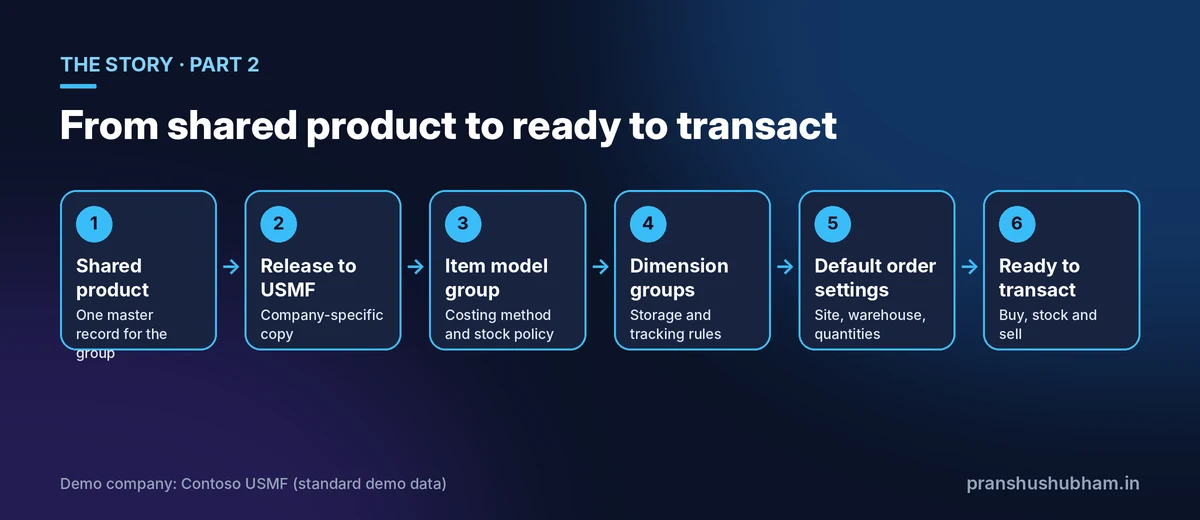
Glossary. Shared product: the organization-wide record. Released product: the product as one legal entity uses it. Item model group: the costing and inventory policy (FIFO, moving average, standard cost). Item group: decides the ledger accounts for postings.
2. Step by step in D365
Who this section is for: End users and functional consultants
Step 1: Open released products
Go to Product information management > Products > Released products. This list shows only the products released to the current company (USMF).
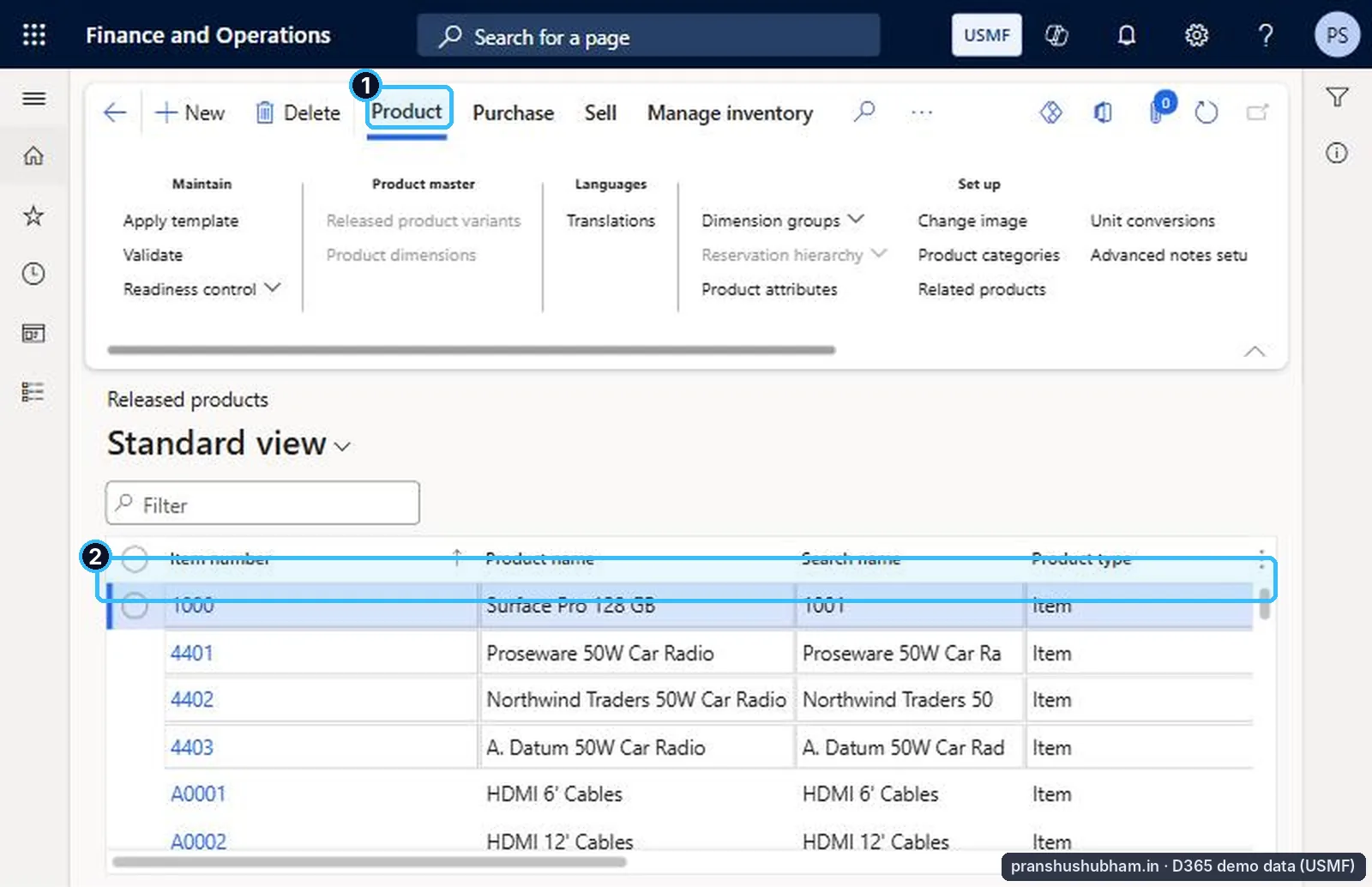
(1) The Product tab holds release, template and readiness actions. (2) Each row is a product released to USMF.
Step 2: Find a product fast
Type in the Filter box and pick the field to filter on, for example Item number. Here I filtered on D0001, the MidRangeSpeaker we manufacture in Part 14.
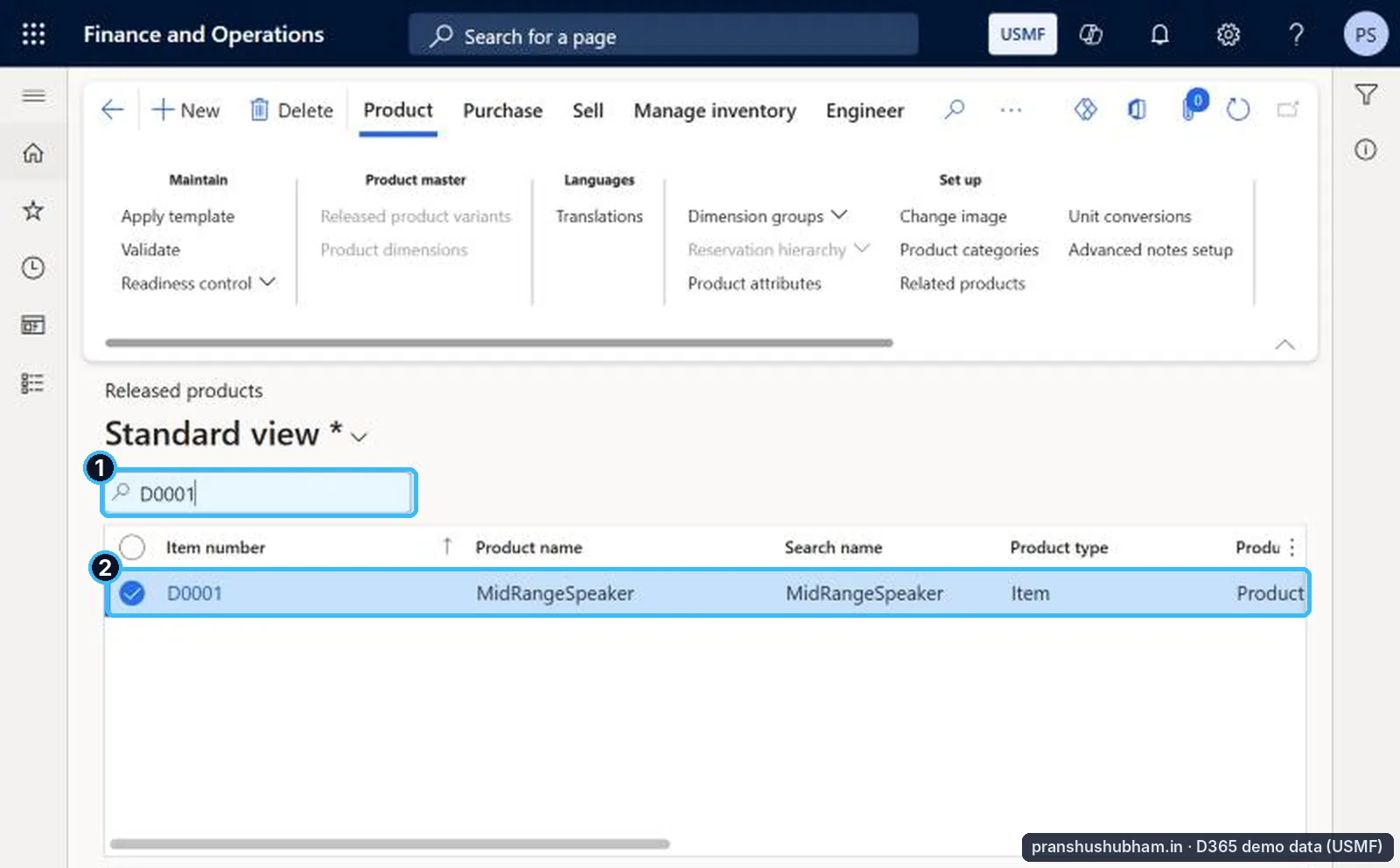
(1) Quick filter by item number. (2) The single matching row.
Step 3: Open the product and read the summary
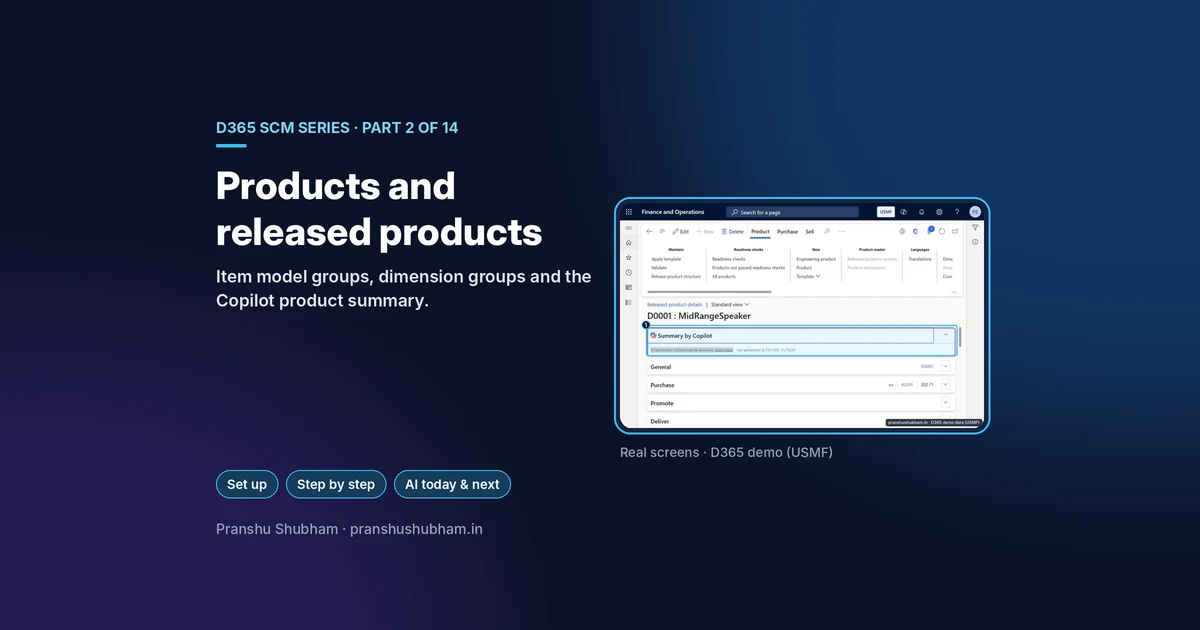
Open the product. At the top you'll see a Summary by Copilot FastTab, followed by the classic FastTabs: General, Purchase, Promote, Deliver, Sell, Manage inventory, Engineer, Plan, Manage costs and Financial dimensions.
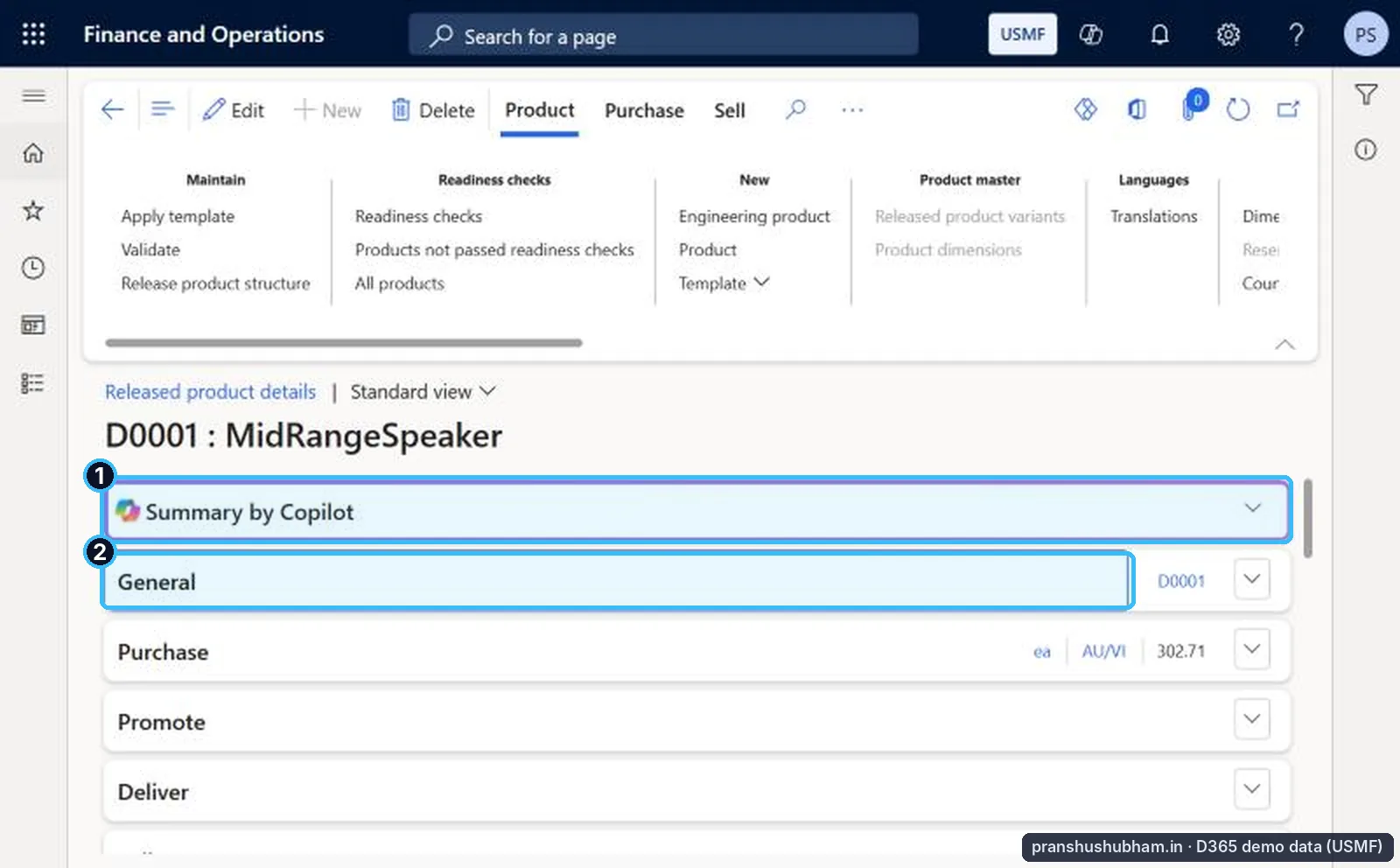
(1) Summary by Copilot sits above the classic FastTabs. (2) General holds product type, item group and dimension groups.
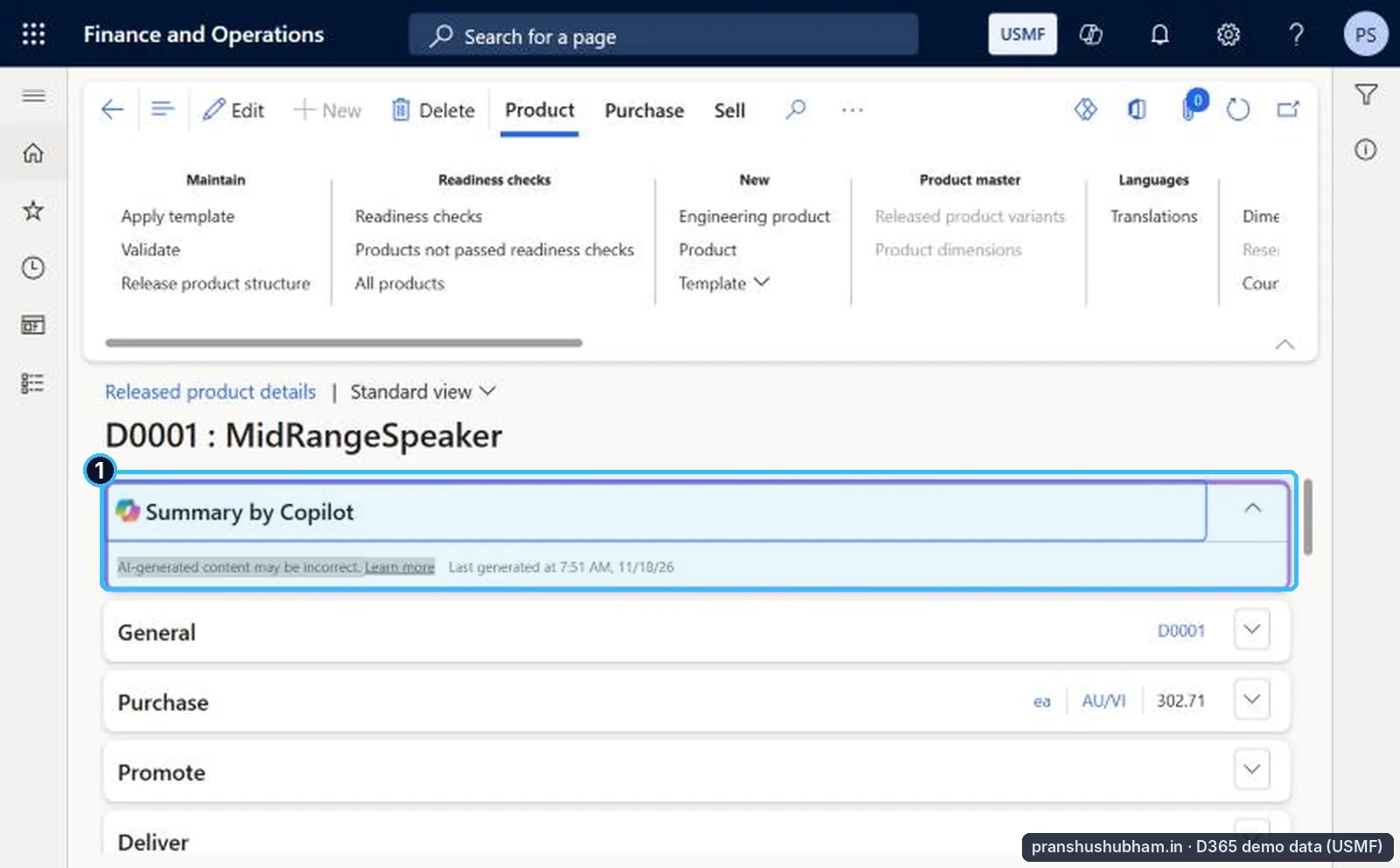
(1) In my sandbox the summary area loaded but stayed empty, with "AI-generated content may be incorrect". More on why below.
Step 4: Check the setup that drives everything
On the released product, these fields decide how every later process behaves:
- Product type: Item (stocked) or Service.
- Item model group: costing method and whether the item is stocked.
- Item group: the ledger accounts for purchases, sales and inventory.
- Storage and tracking dimension groups: from Part 1.
- Default order settings: default site and warehouse for purchase, inventory and sales, plus minimum and multiple quantities.
- Sales price and purchase price: base prices. If both are empty and there's no trade agreement, orders come in at zero. I hit exactly this in Part 8.
Step 5: Understand the item model group
Go to Inventory management > Setup > Inventory > Item model groups. The item model group is the one setting finance cares about most.
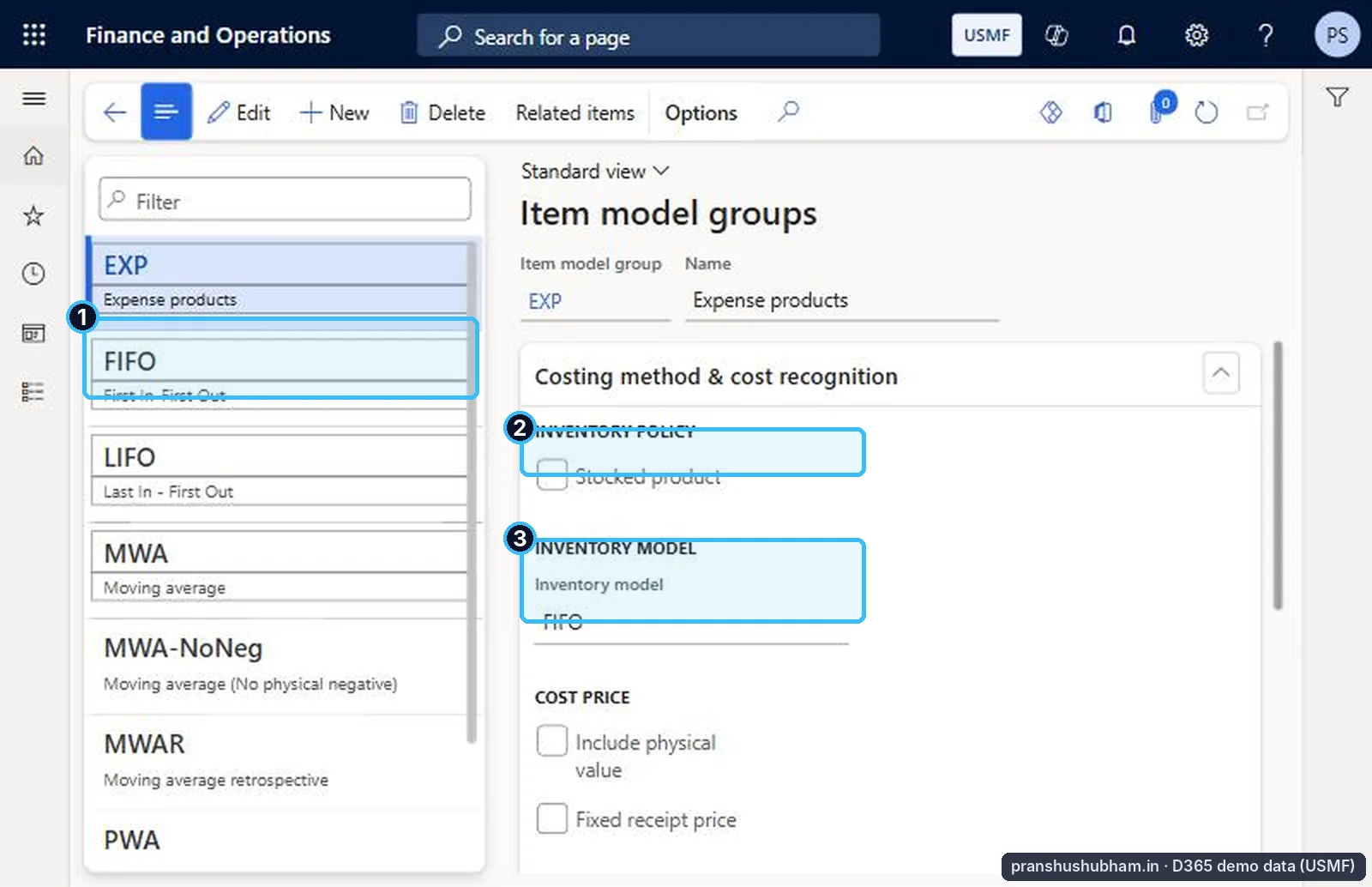
(1) The FIFO group. (2) Stocked product decides whether the item is kept in inventory. (3) Inventory model: FIFO, LIFO, weighted average, moving average or standard cost.
3. Behind the scenes
Who this section is for: Working professionals and functional consultants
- Releasing creates company-specific data. The shared product stays in the product master; releasing creates the company's item record with its own groups and prices.
- Costing methods behave differently. Standard cost posts at the standard and sends differences to variance accounts. FIFO and weighted average are periodic and need inventory close. Moving average costs at the time of each transaction.
- "Stocked product" off means no inventory. Service items and non-stock items skip on-hand tracking entirely.
- Physical vs financial update. The item model group decides whether receipts and issues are posted to the ledger at physical update (receipt or packing slip) or only at invoice.
- Product readiness checks (the "Readiness checks" button) can stop incomplete products from being used. Great for data quality, but someone must own the check.
Common mistakes and fixes:
- Orders created at price zero. No base price and no trade agreement. Add a price or a trade agreement and turn on price validation if you need it.
- Wrong cost on an item. The wrong item model group. Fix it before transactions start.
- "Item isn't valid for this site". Default order settings or site-specific order settings are missing for that site.
4. Under the hood
Who this section is for: Technical consultants
- Main tables: EcoResProduct (shared product), InventTable (released product), InventItemGroupItem (item group link), InventModelGroupItem (item model group link), InventItemPurchSetup / InventItemSalesSetup / InventItemInventSetup (default order settings), InventTableModule (prices and units per module).
- Data entities: Products V2 and Released products V2 are the standard migration entities. There are separate entities for item model groups and item groups.
- Integration: product master data often comes from a PLM or PIM system. Use the released product entities through data management or dual-write, never direct SQL.
- Extensions: add fields to InventTable with table extensions and to the Released product details form with form extensions. For new validation, extend the readiness check rather than custom pop-ups.
5. AI in this process: today and next
Who this section is for: Everyone
Product summaries with Copilot (Available). Microsoft Learn describes two:
- Released product details summary: a Summary by Copilot FastTab with a summary based on the user's most-used pages and context.
- Product hover summary: hover over an item number on most pages to see a generated summary.
Prerequisites: Supply Chain Management 10.0.39 with PQU-3, 10.0.40 with PQU-1, or 10.0.41 and later; Power Platform integration enabled. The features are on by default and controlled in Feature management ("Product details summary", "Product summary when hovering on item").
What I saw in the demo. The FastTab appeared, but the text stayed empty. That usually points to the Copilot components or Power Platform integration not being fully deployed in that environment, which is common in short-lived sandboxes. If you see the same, check the "Enable Copilot capabilities in finance and operations apps" guidance.
Agents for product data (Template, not a product feature). The FastTrack team publishes an Inventory Stock Availability Agent template that answers "how many do we have, and where?" using read-only tools. I covered it in 9 free ERP agent templates.
My view on what's next (opinion): product data quality is a strong agent use case: checking new products for missing groups, prices and default order settings before the first order hits them.
UAT test scenarios
- Release a shared product to USMF and open it. Expected: it appears in Released products with the template values.
- Create a sales order line for an item with no price. Expected: price is zero unless a trade agreement applies. Decide if that's acceptable.
- Change an item's default sales warehouse and create a sales order. Expected: the new warehouse defaults.
- Hover over an item number on a sales order. Expected: the product summary appears, if Copilot is enabled.
FAQ
Why can't I find a product I know exists? It hasn't been released to your company. Check Products (shared) and release it.
Should I use product templates? Yes. "Apply template" saves time and keeps groups consistent.
Is the Copilot summary stored? It's generated from current data and the user's context, so it changes as the data changes and is limited by your security role.
Keep going in the series
- Series home: D365 Supply Chain, end to end
- Previous: Part 1: Sites, warehouses and dimensions
- Next: Part 3: Requisition to purchase order
Sources
- AI summaries with Copilot (Microsoft Learn)
- Responsible AI FAQ for AI summaries (Microsoft Learn)
- Product information management (Microsoft Learn)
Have a question about this process, or seeing something different in your version? Get in touch. I read every message.