D365 Inventory Control: On-Hand and Counting Journals (and the Location Error)
Does the system match the shelf? On-hand and counting in D365, including a real "Location must be specified" error.
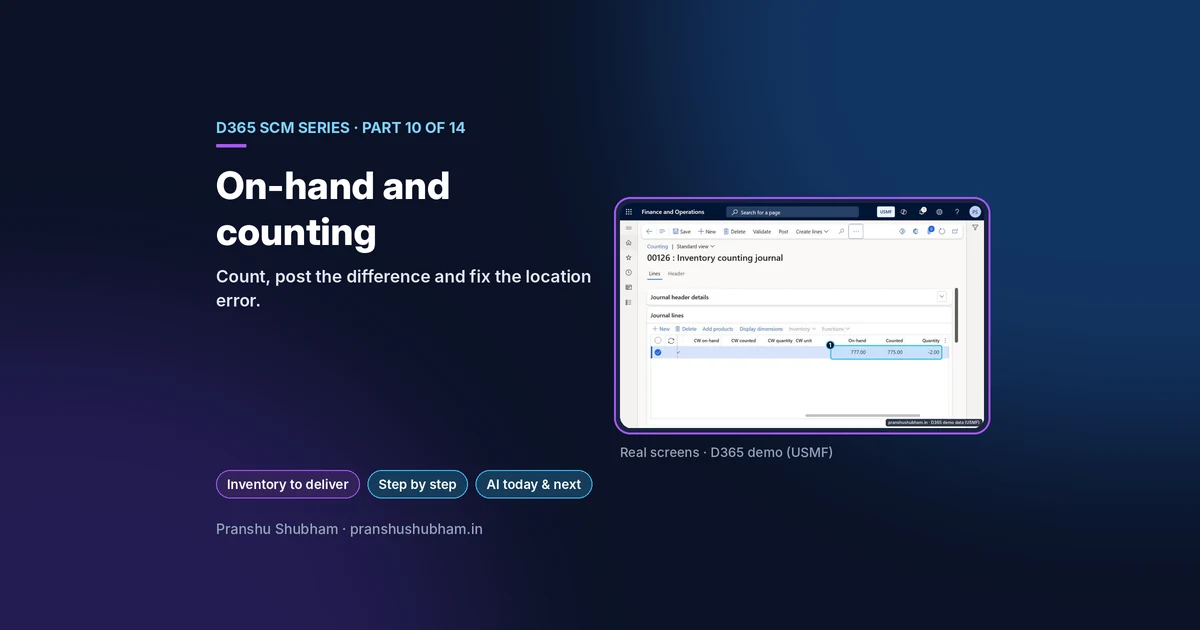
Part 10 of 14 in my free course D365 Supply Chain, end to end. All screenshots come from a Microsoft demo environment with standard Contoso data (company USMF). New here? Start with the series home.
Every process so far has moved stock in or out. But how do you know the number in the system matches the shelf? That's inventory control: checking on-hand and counting.
In this part we look up on-hand for our item M0004 Crossover, count it with a counting journal, find a difference of 2 units, and post it. Along the way the journal refused to post with a location error, which turned into a good lesson on inventory dimensions.
1. The story
Who this section is for: Freshers, customers and anyone new to D365
Stock goes missing, gets damaged or gets put in the wrong place. So companies count it, either all at once (a stocktake) or a few items every day (cycle counting). When the count differs from the system, someone approves the difference, and D365 adjusts on-hand and posts the value difference to the ledger.
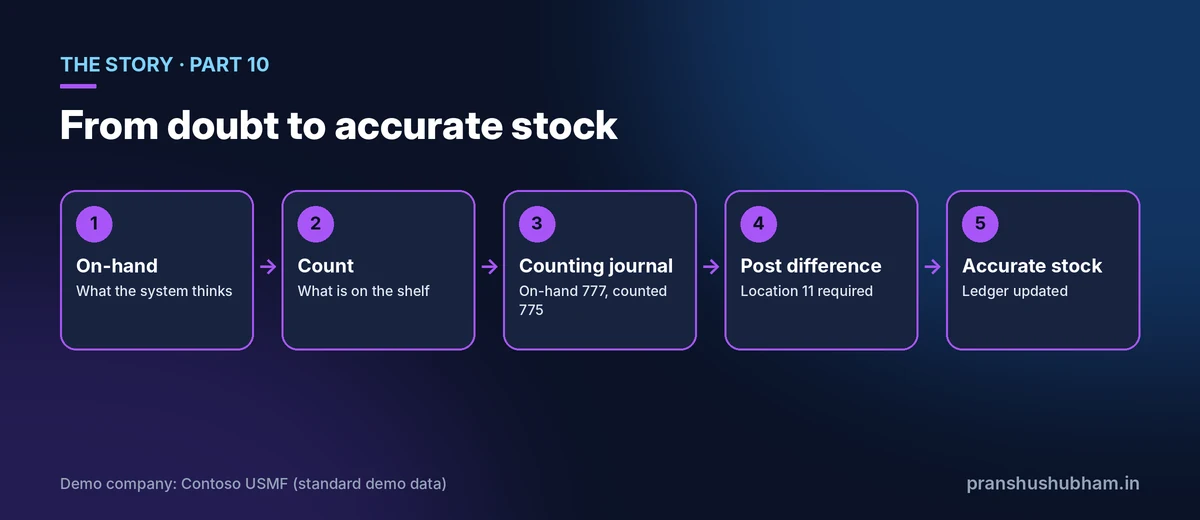
Glossary. On-hand: what the system thinks you have. Counting journal: where counted quantities are entered and posted. Counting group: how often an item should be counted. Cycle counting: counting a little every day instead of everything once a year.
2. Step by step in D365
Who this section is for: End users and functional consultants
Step 1: Check on-hand
Go to Inventory management > Inquiries and reports > On-hand list. The page opens with a filter pane; you can filter by item, site and warehouse, and change the displayed dimensions with Inventory quantities.
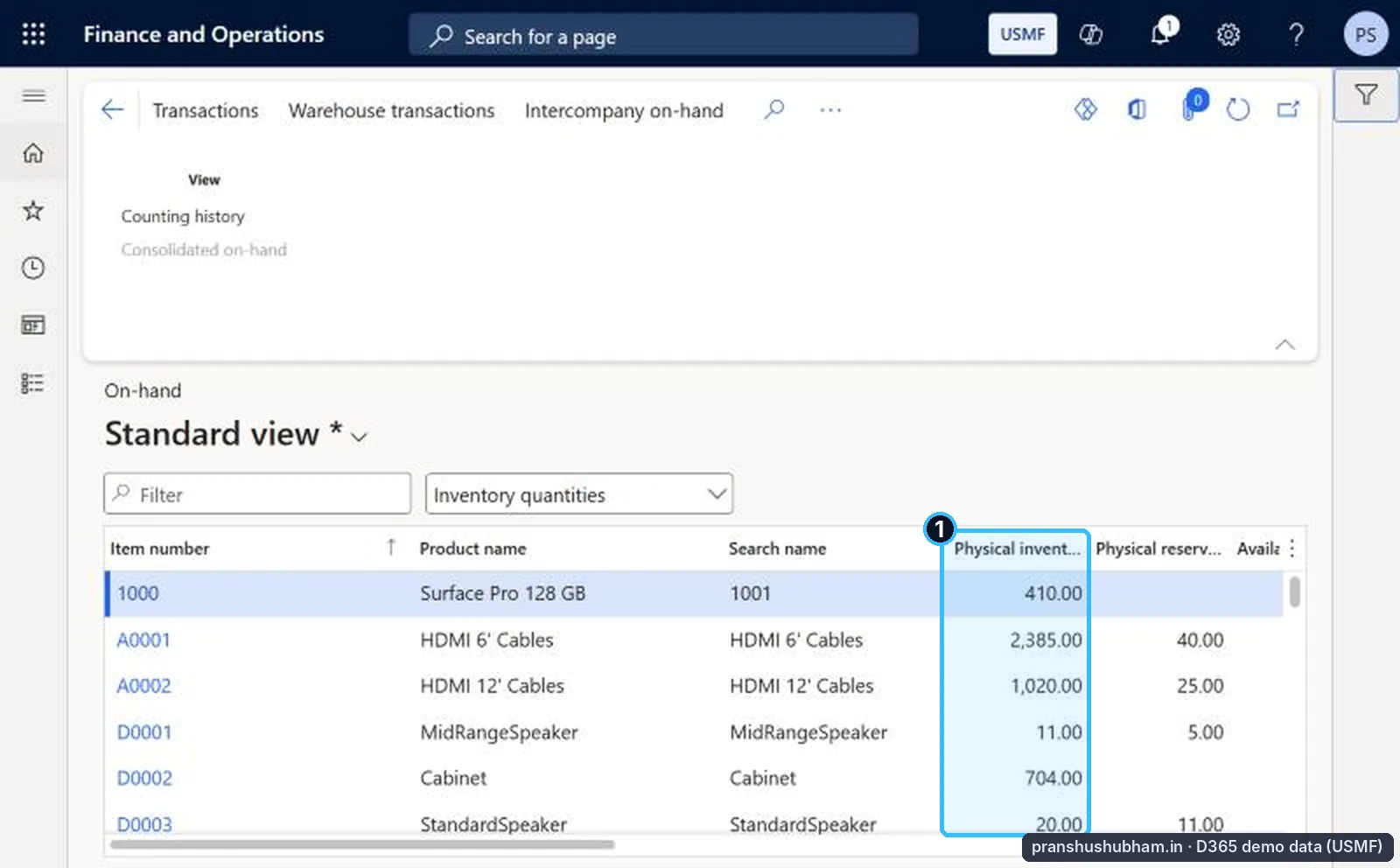
(1) Physical inventory, physical reserved and available quantities by item.
The columns that matter:
- Physical inventory: physically on hand.
- Physical reserved: set aside for orders.
- Available physical: what you can still use.
- Ordered in total / On order: incoming and outgoing.
Step 2: Create a counting journal
Go to Inventory management > Journal entries > Item counting > Counting and select New. The Create inventory journal pane shows the journal Name (ICnt), a new Journal number (00126 in my case), and which dimensions you count by.
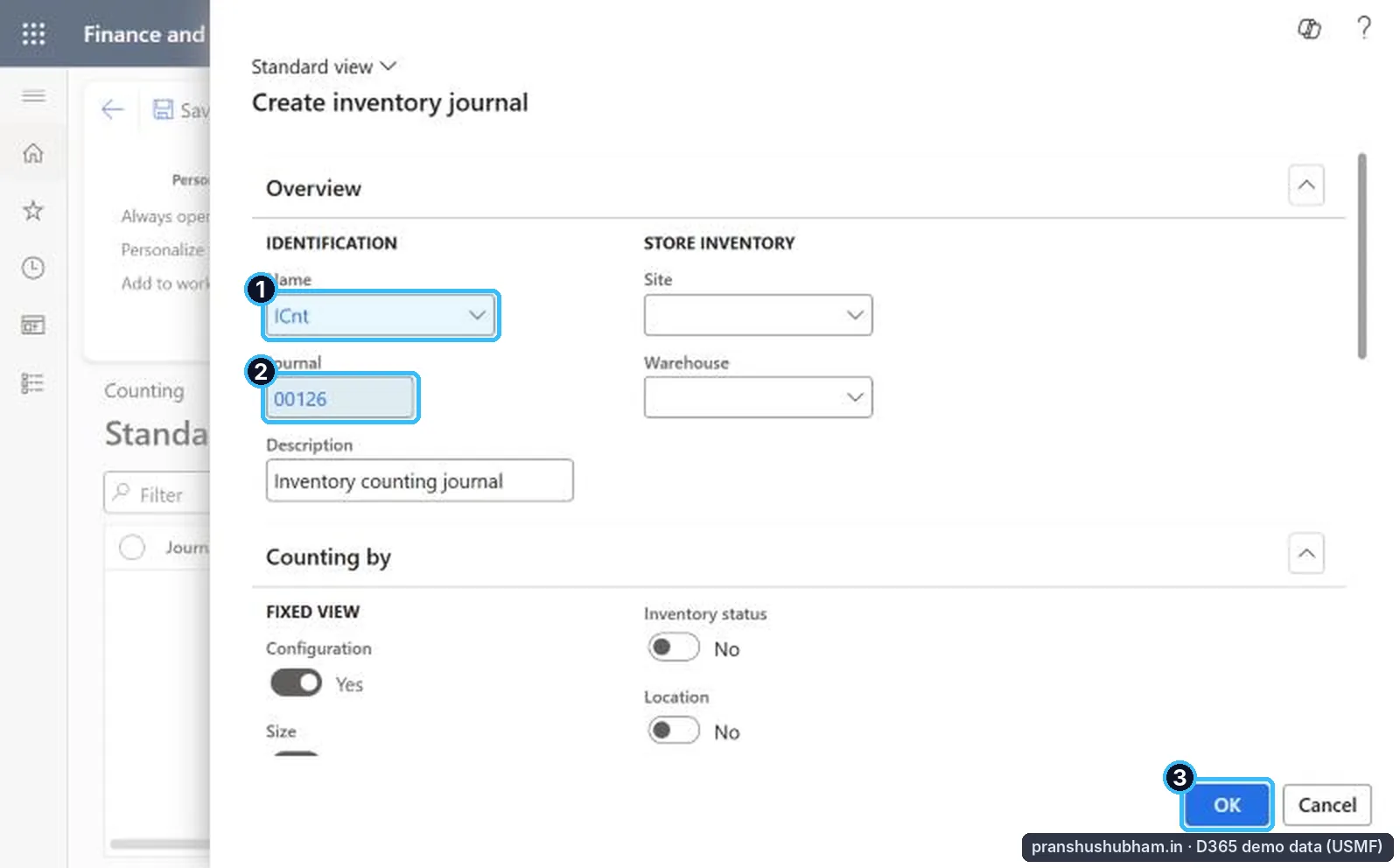
(1) Journal name ICnt. (2) Journal number 00126. (3) OK creates the journal.
The Counting by section matters: it decides which dimensions appear on the lines (configuration, site, warehouse, location, batch and so on).
Step 3: Enter the count
On Journal lines, select New. Enter item M0004. Site 1 and warehouse 11 default, and D365 fills On-hand: 777. I entered Counted: 775, and D365 calculated Quantity: -2.
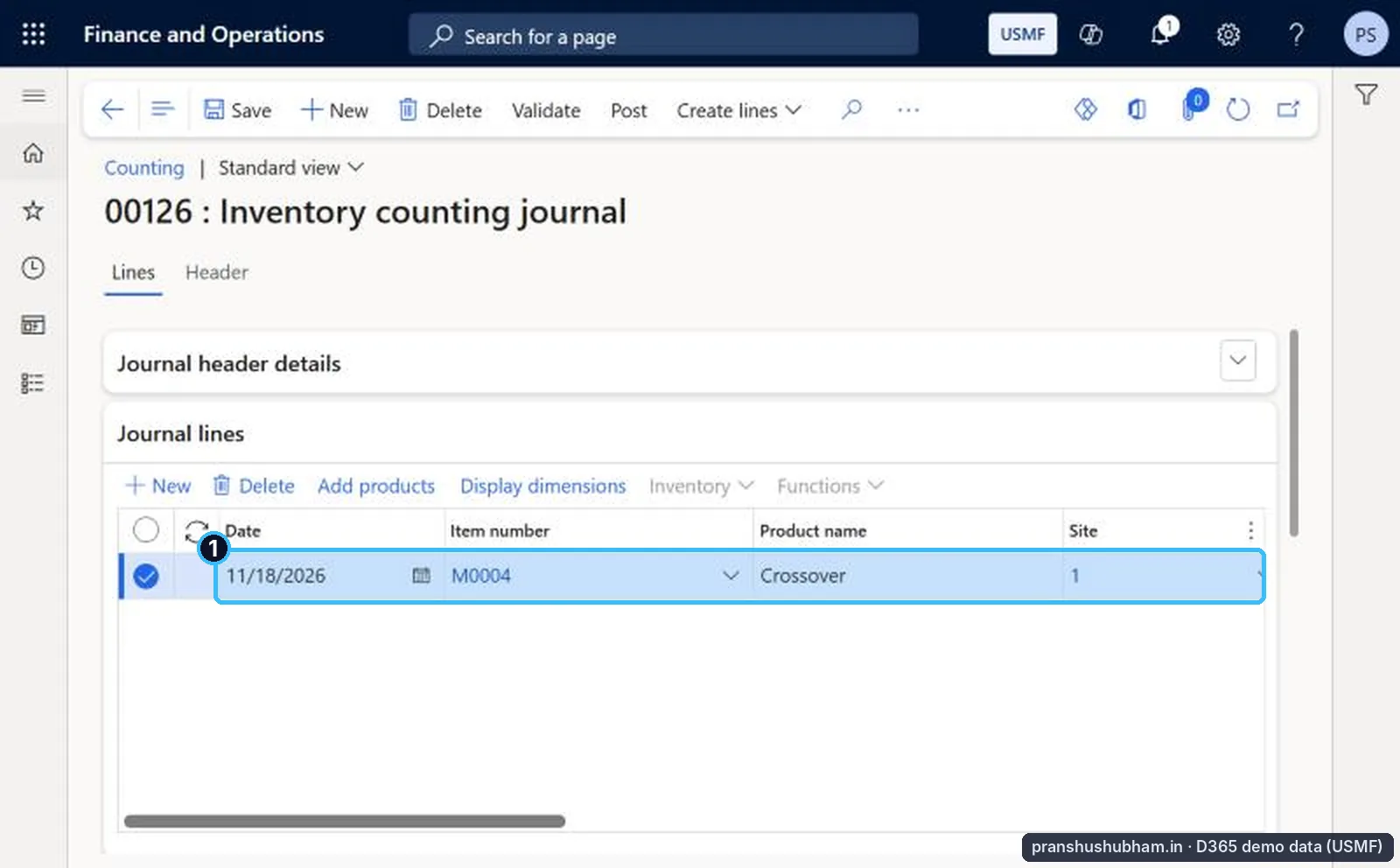
(1) Date, item M0004, product name and site.
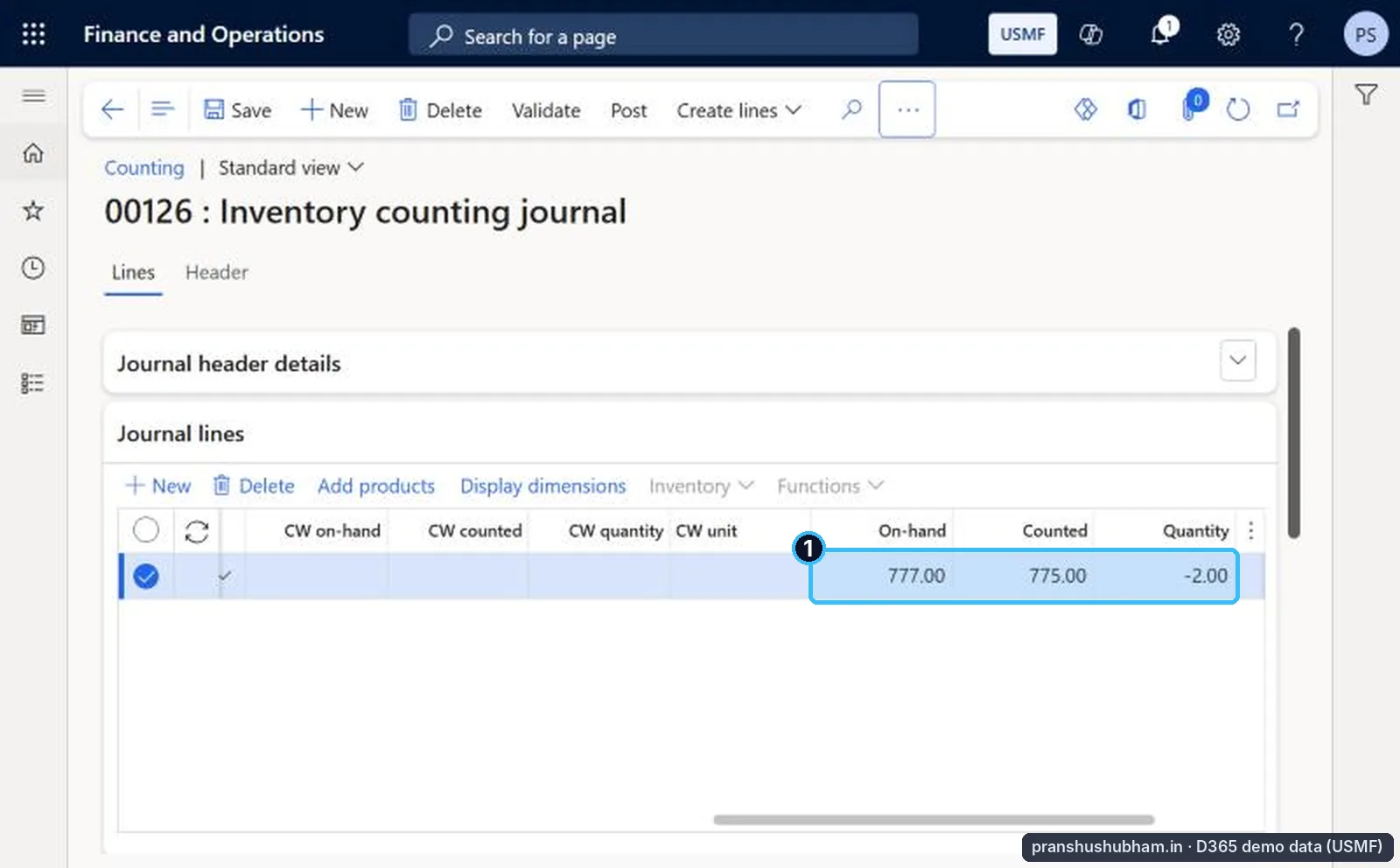
(1) On-hand 777, counted 775, difference -2.
Tip: for real counts, use Create lines (by on-hand, by counting group, or by location) instead of typing lines. It's faster and less error-prone.
Step 4: Post, and meet the location error
I selected Post and got: "Inventory dimension Location must be specified." Message details show the journal, the line and the item.
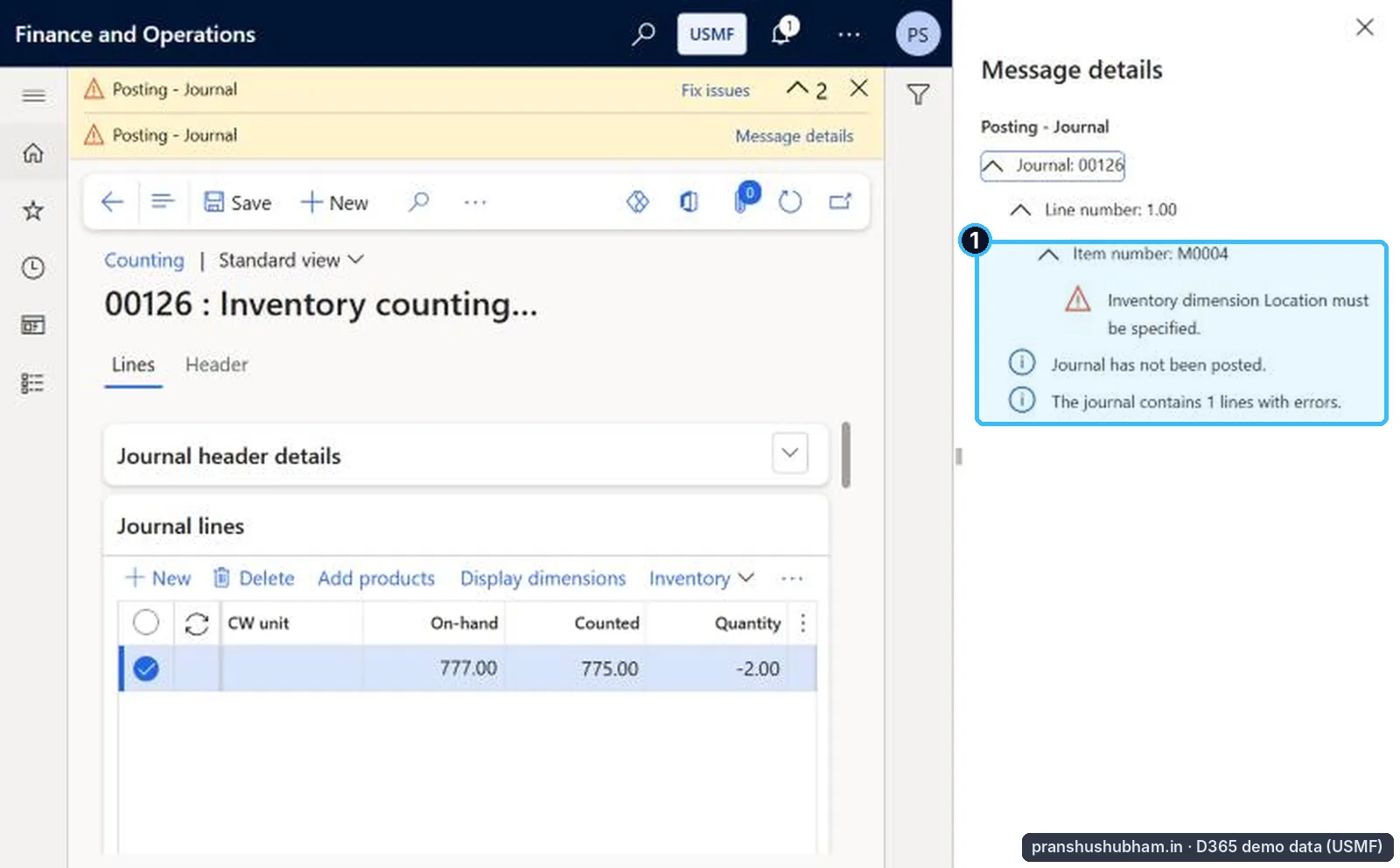
(1) The posting log: Journal 00126, line 1, item M0004, Location must be specified.
Why? Warehouse 11 tracks stock by location, so a count must say which location. Counting by site and warehouse only isn't enough. I checked the warehouse locations (warehouse 11 has one location, also called 11), entered it on the line and posted again.
Step 5: Check the result
"Journal: 00126 Journal has been posted." On-hand for M0004 in warehouse 11 is now 775.
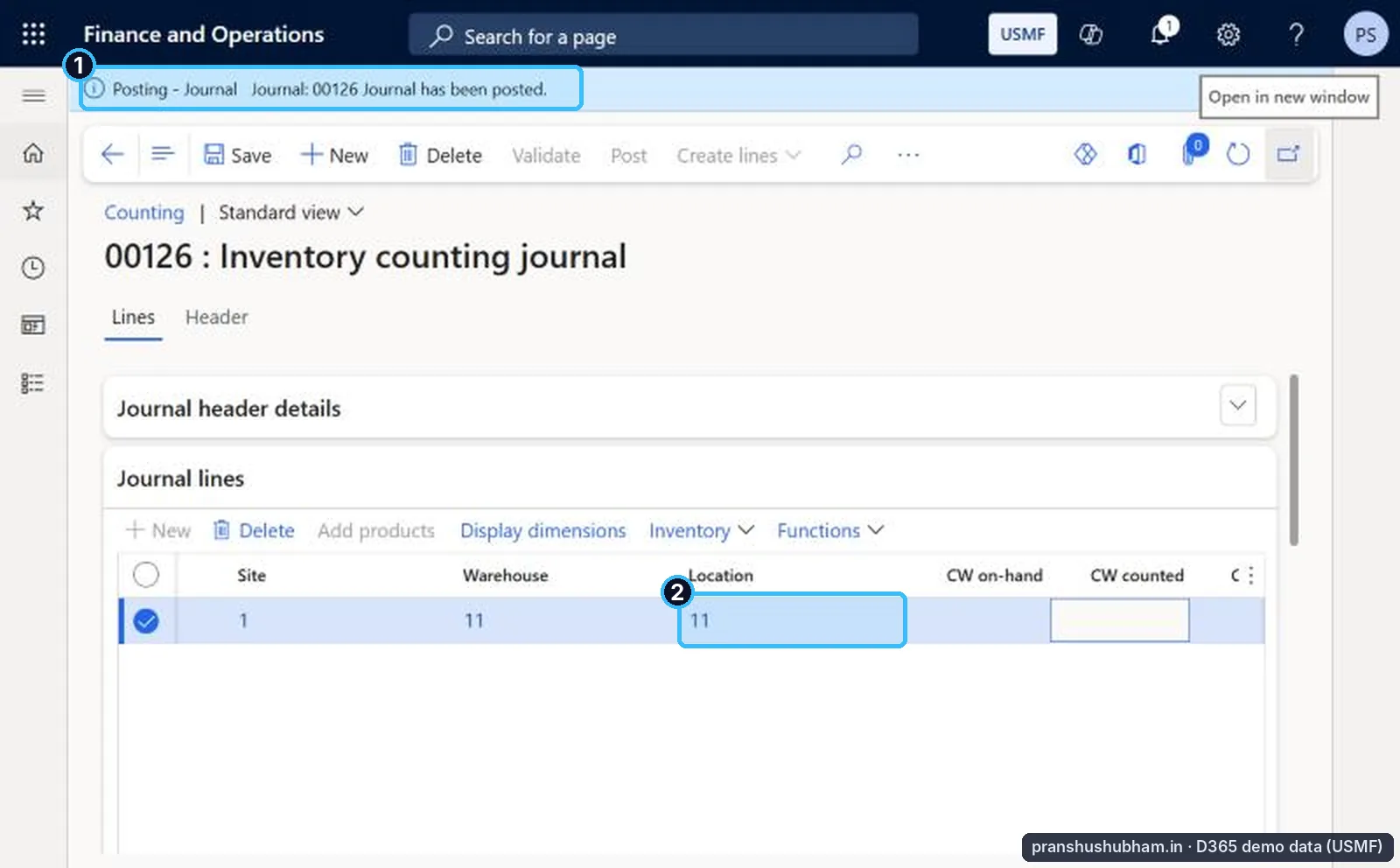
(1) Journal 00126 has been posted. (2) Site 1, warehouse 11, location 11 on the line.
3. Behind the scenes
Who this section is for: Working professionals and functional consultants
- What posting does: it creates an inventory transaction for the difference (here an issue of 2) and posts the value to the inventory loss/profit account from the item group.
- Counting by dimensions: the counting journal's dimension settings must match what the item tracks. If the storage dimension group tracks location, you must count by location. That's the error I hit.
- Lock items during count: a setting in Inventory and warehouse management parameters that stops packing slips, picking lists and picking registrations for items being counted, so you aren't counting a moving target.
- Counting groups and periods automate cycle counting: items are counted every N days, or when on-hand drops to zero.
- Counting reason codes (newer feature) let you record why there's a difference, and can be made mandatory by policy.
- In WMS warehouses, counting is done with cycle count work on the mobile app (the mobile device menu has Cycle Count menu items for this), with thresholds that require a supervisor to approve large differences.
Common mistakes and fixes:
- "Inventory dimension Location must be specified". Count by location, or use Create lines by location.
- On-hand changed while counting. Post open transactions first, or turn on "Lock items during count".
- Huge value difference. The cost price on the line is wrong or the unit differs. Check before posting.
4. Under the hood
Who this section is for: Technical consultants
- Main tables: InventJournalTable (journal header, journal type Counting) and InventJournalTrans (lines with on-hand and counted fields), InventSum (on-hand), InventTrans (the posted difference), InventCountGroup (counting groups).
- Locations: WMSLocation. I listed the locations of warehouse 11 with OData
/data/WarehouseLocationsfiltered on WarehouseId. - Data entities: inventory counting journal entities let handheld or third-party counting apps import counted quantities into a journal for review and posting.
- Performance: very large counts are best created with Create lines in batch and posted in batch.
5. AI in this process: today and next
Who this section is for: Everyone
Inventory Stock Availability Agent template (Template, read-only). The FastTrack template answers on-hand, reserved and available questions by item, warehouse and legal entity, using read-only tools. A safe first agent for inventory teams. See my agent templates post.
Product hover and released product summaries (Available) include availability across warehouses.
Inventory Visibility (Available, separate add-in) gives a near real-time, cross-system on-hand view and ATP. It's not generative AI, but it's the data foundation the Inventory Fulfillment agent template uses.
My view (opinion): counting is a great place for agents to suggest what to count (items with frequent differences or high value) and to explain differences by checking recent transactions. Posting the adjustment should stay a human decision.
UAT test scenarios
- Count an item with no difference. Expected: posts with zero quantity.
- Count lower than on-hand. Expected: an issue transaction and a loss posting.
- Count a location-tracked item without a location. Expected: "Location must be specified".
- Create lines by counting group. Expected: only items due for counting appear.
FAQ
Physical inventory vs available? Physical is what's there; available subtracts reservations.
Can I count without stopping the warehouse? Yes, with cycle counting and "Lock items during count" for just the items being counted.
Who should post the counting journal? Someone other than the counter, ideally with approval for large differences.
Keep going in the series
- Series home: D365 Supply Chain, end to end
- Previous: Part 9: Return orders (RMA)
- Next: Part 11: Warehouse inbound
Sources
- Inventory counting and cycle counting (Microsoft Learn)
- Inventory Visibility overview (Microsoft Learn)
- FastTrack AI ERP agent templates (GitHub)
Have a question about this process, or seeing something different in your version? Get in touch. I read every message.