D365 Product Receipt: What Really Happens When Goods Arrive
Until you post a product receipt, D365 thinks the goods are still on order. Here is exactly what happens when they arrive.
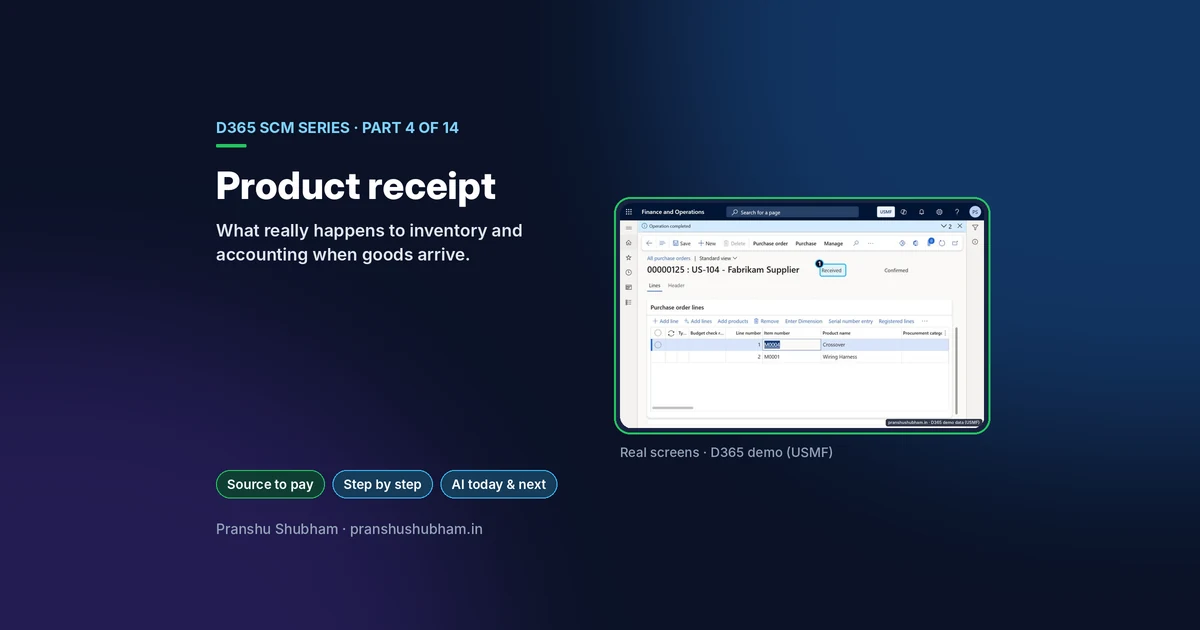
Part 4 of 14 in my free course D365 Supply Chain, end to end. All screenshots come from a Microsoft demo environment with standard Contoso data (company USMF). New here? Start with the series home.
The truck has arrived. Someone in the warehouse has counted the boxes. Now Dynamics 365 needs to know, because until you post a product receipt, the system still thinks the goods are "on order".
In this part we receive purchase order 00000125 from Part 3 with product receipt number PR-0125-01. It's one of the shortest processes in the series, but it's the one that makes stock available, starts the three-way match and creates the first accounting entries for inventory.
1. The story
Who this section is for: Freshers, customers and anyone new to D365
The vendor sends goods with a delivery note (packing slip). Your receiving team checks that the right items and quantities arrived, then records the receipt in D365 using the vendor's delivery note number. From that moment the goods are in stock and can be sold or used, even though the vendor's invoice hasn't arrived yet.
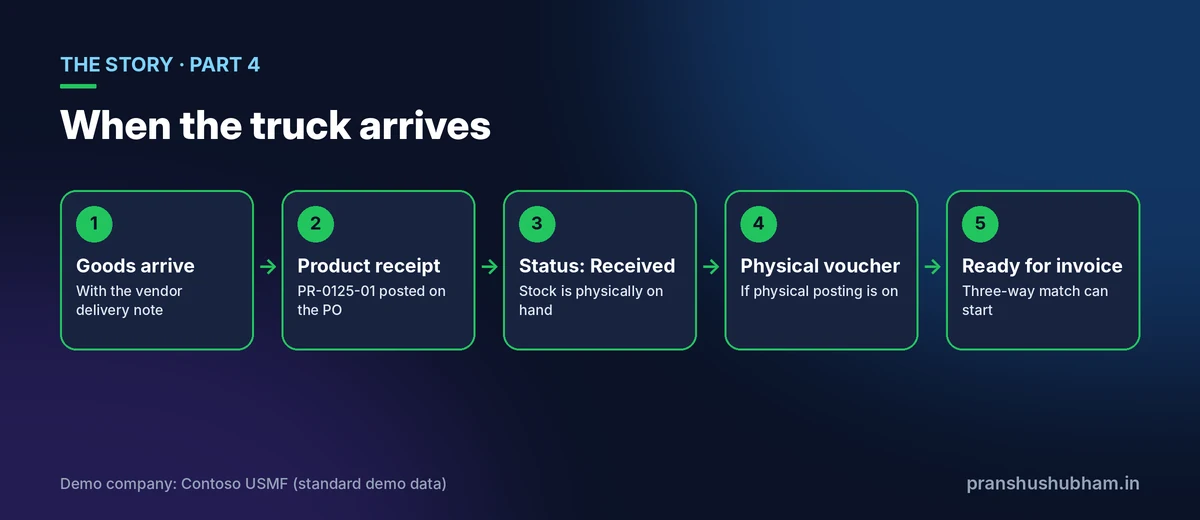
Glossary. Product receipt: D365's name for posting a received delivery (older versions called it "packing slip" on the purchase side). Received: the inventory status after product receipt. Physical voucher: the accounting entry for received-not-invoiced goods, if your setup posts physical updates.
2. Step by step in D365
Who this section is for: End users and functional consultants
This is the "basic" receipt, used when the warehouse doesn't run advanced warehouse management. For WMS warehouses, receiving happens on the mobile app. That's Part 11.
Step 1: Open the PO and go to the Receive tab
Open purchase order 00000125. On the Action Pane, open the Receive tab. Under Generate, select Product receipt.
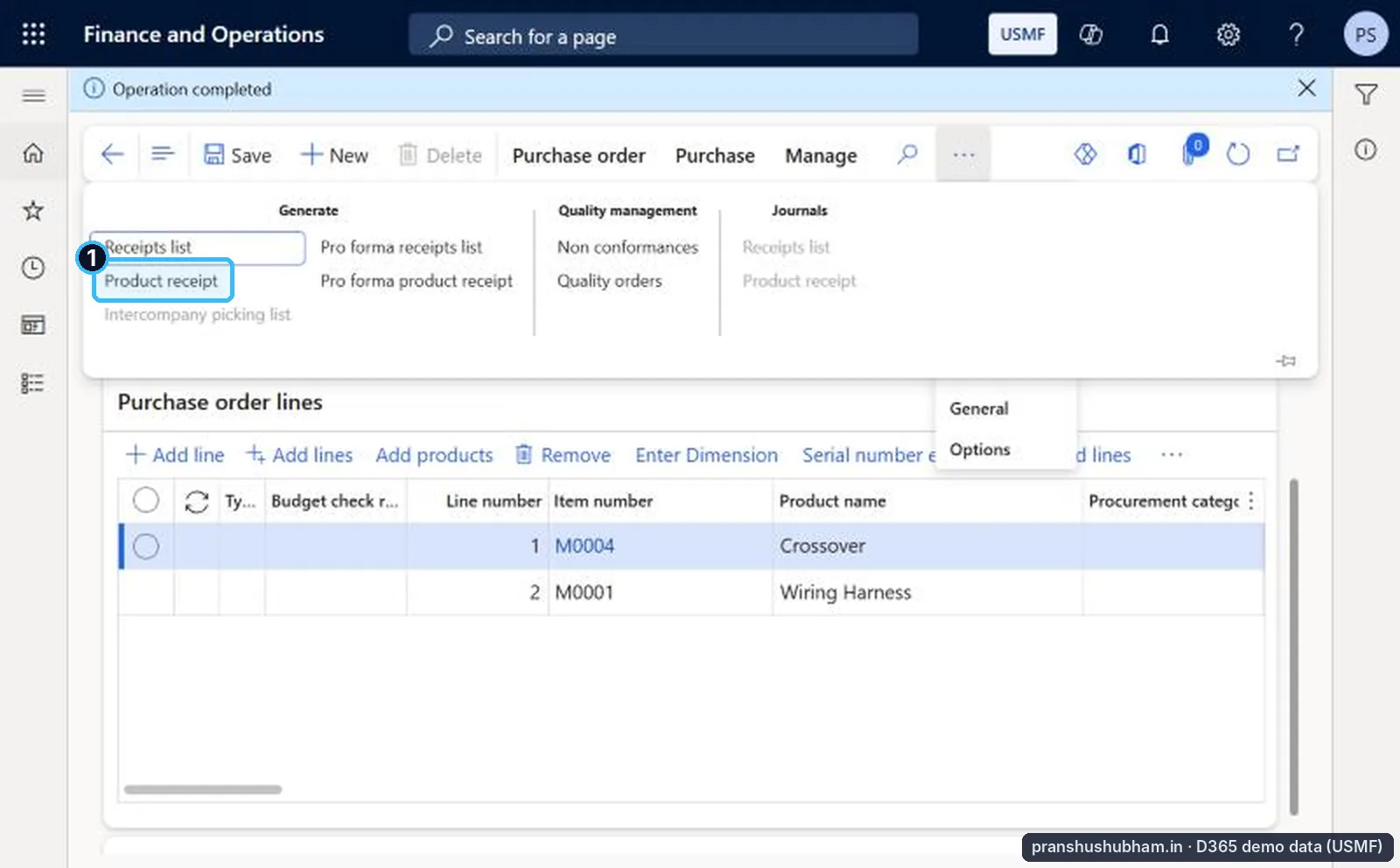
(1) Product receipt is under Generate on the Receive tab.
You'll also see Receipts list (a pre-receipt document for the warehouse) and quality management options such as Quality orders. Use them if your process needs them.
Step 2: Fill in the posting product receipt dialog
The Posting product receipt dialog opens. Check three things:
- Quantity: "Ordered quantity" receives everything; "Receive now quantity" receives only what you entered on the lines; "Registered quantity" uses what was registered first.
- Product receipt: enter the vendor's delivery note number. I used PR-0125-01.
- Product receipt date: usually today. It becomes the physical date of the inventory transaction.
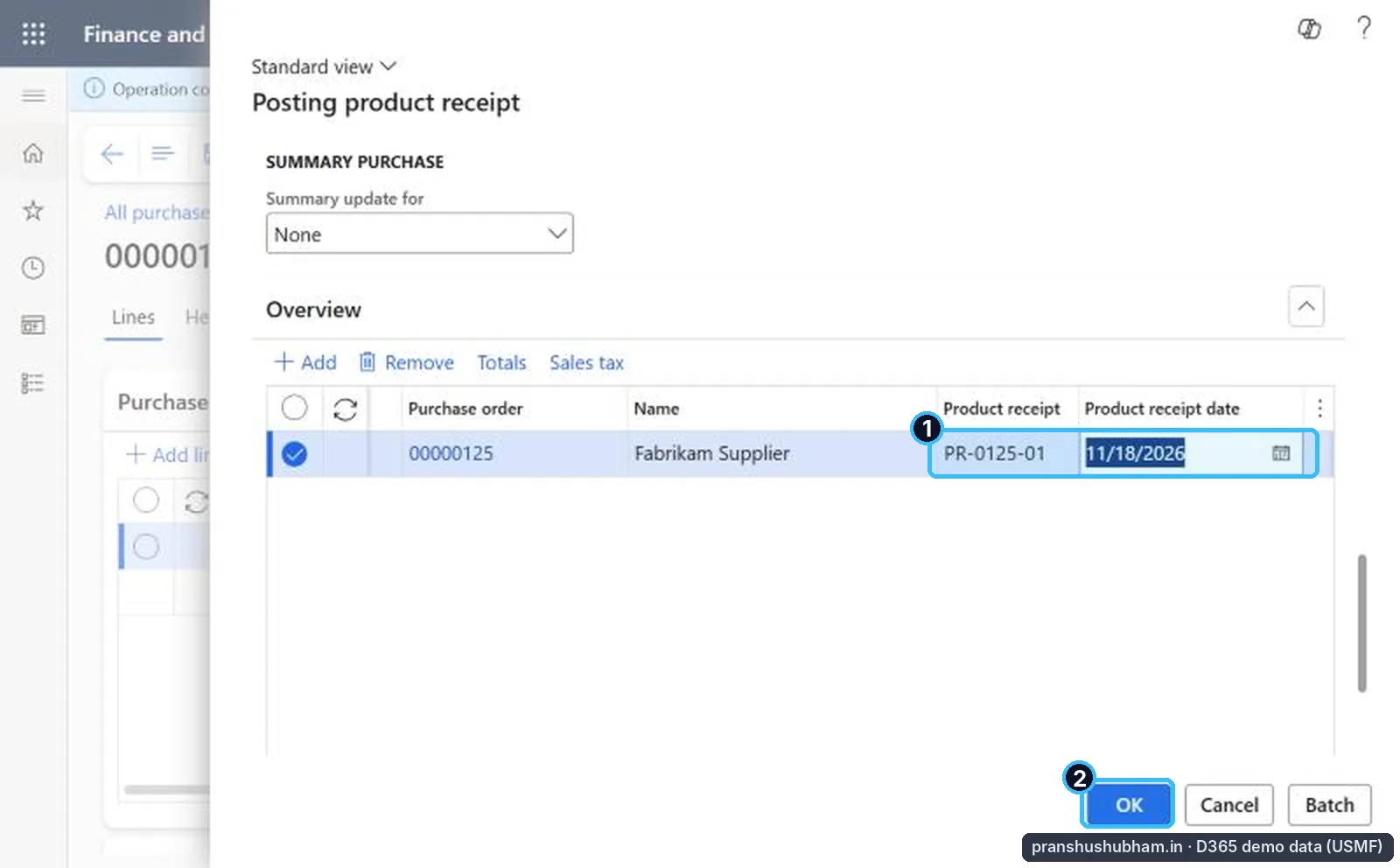
(1) The product receipt number and date for PO 00000125. (2) OK posts the receipt.
Select OK.
Step 3: Check the result
The document status of the PO changes from Open order to Received. The approval status stays Confirmed.
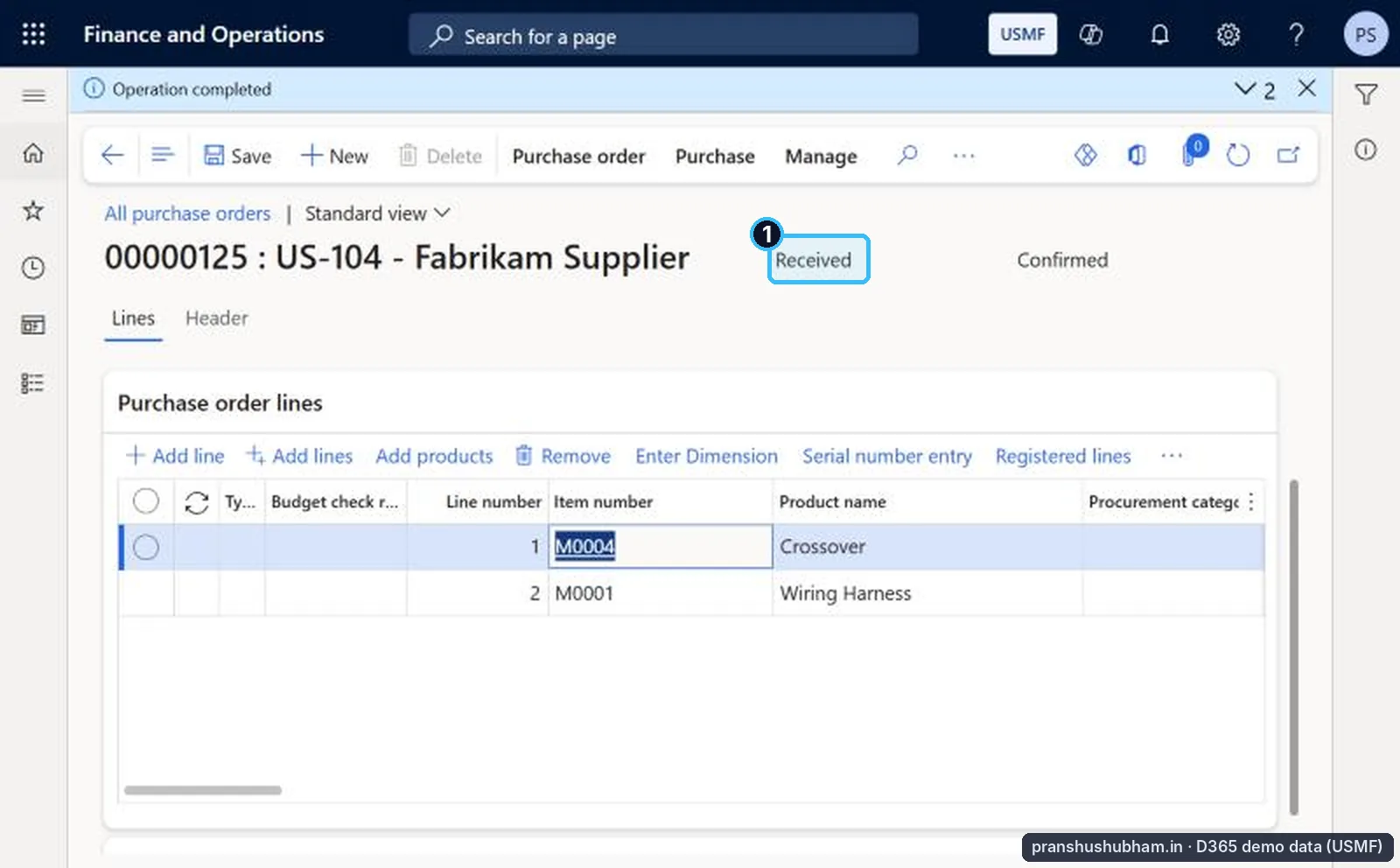
(1) Document status is now Received.
To see the posted receipt, go to Receive > Journals > Product receipt on the PO. You can print it, check the quantities, and see the voucher if one was posted.
3. Behind the scenes
Who this section is for: Working professionals and functional consultants
Inventory statuses on the receipt side move like this:
- Ordered: when the PO line is saved.
- Registered: optional, if you register arrival first (for example through the arrival overview).
- Received: after the product receipt posts. Stock is now physically on hand.
- Purchased: after the vendor invoice posts (Part 5).
Accounting at receipt. Whether a voucher is created depends on settings: if "Post physical inventory" is on in the item model group and "Post product receipt in ledger" is on in Accounts payable parameters, D365 posts a received-not-invoiced entry (typically debit physical inventory receipt, credit purchase accrual). When the invoice posts, these are reversed and replaced by the financial entries.
Over and under delivery. The item and vendor can allow a percentage of over or under delivery. Outside the tolerance, the receipt posts with a warning or is blocked.
Confirmed POs only. Product receipt is available only for confirmed purchase orders; on an unconfirmed PO the button is greyed out.
Partial receipts are normal. Receive what arrived, and the rest of the line stays "Ordered" with the delivery remainder.
Common mistakes and fixes:
- Receipt posted to the wrong warehouse. The line's warehouse was wrong. Cancel the product receipt and receive it again to the right warehouse (a correction can only reduce the received quantity).
- Duplicate product receipt number. D365 checks for duplicates per vendor if the parameter is on. Use the vendor's delivery note number and keep it unique.
- Receipt blocked by quality order. An open quality order holds the stock. Validate the quality order first.
4. Under the hood
Who this section is for: Technical consultants
- Main tables: VendPackingSlipJour (product receipt header), VendPackingSlipTrans (lines), PurchParmTable / PurchParmLine (the dialog parameters while posting), InventTrans (status changes to Received), InventSum (on-hand).
- Posting class: PurchFormLetter_PackingSlip, part of the form letter framework. Extend it with Chain of Command if you need extra validation.
- Data entities: there are product receipt entities for reading posted receipts; integrations usually post receipts through the warehouse integration or the purchase order receive APIs rather than inserting journal rows.
- Batch posting: the dialog's Batch button posts in the background, which is how high-volume receiving is normally run.
5. AI in this process: today and next
Who this section is for: Everyone
Purchase order summary with Copilot (Available). After receipt, the summary's status section moves lines into "Fully received, not fully invoiced", and the "Not fully received" filter disappears. It's a fast way for AP clerks to see what's waiting for an invoice.
Procurement Agent (Production-ready preview). If the vendor emails a shipping notice or a changed delivery date, the supplier communications agent can extract the date and suggest the PO update before the goods arrive. It even handles "ship date only" emails by estimating the arrival date from agreed transit times, according to Microsoft Learn.
Workload insights with Copilot (Available), for WMS warehouses: the Warehouse Management mobile app shows how many receiving lines are open at the start of a shift. More in Part 11.
My view (opinion): receipt itself is a physical, scan-driven step. AI helps most just before it (expected arrivals) and just after it (matching, Part 5).
UAT test scenarios
- Receive the full PO quantity. Expected: PO status Received; inventory status Received.
- Receive half the quantity. Expected: the remaining quantity stays Ordered on the line.
- Post a receipt with a delivery note number already used for this vendor. Expected: warning or block, depending on parameters.
- Check the voucher on the product receipt journal. Expected: received-not-invoiced entries only if physical posting is on.
FAQ
Is a product receipt the same as a goods received note? Yes, in most companies. D365 calls it a product receipt.
Can I receive without a PO? Not with this process. Use an inventory movement journal or create the PO first.
Can I undo a receipt? Use Correct (reduce the quantity) or Cancel on the product receipt journal, as long as the invoice hasn't been posted.
Keep going in the series
- Series home: D365 Supply Chain, end to end
- Previous: Part 3: Requisition to purchase order
- Next: Part 5: Vendor invoice and payment
Sources
- Product receipt against purchase orders (Microsoft Learn)
- AI summaries with Copilot (Microsoft Learn)
- Supplier communications features of the Procurement Agent (Microsoft Learn)
Have a question about this process, or seeing something different in your version? Get in touch. I read every message.