D365 Vendor Invoice, Three-Way Match and Vendor Payment (Including a Real Posting Error)
Invoice, match, settle, pay. The back half of source to pay in D365, with a real cash discount and a real posting error.
Part 5 of 14 in my free course D365 Supply Chain, end to end. All screenshots come from a Microsoft demo environment with standard Contoso data (company USMF). New here? Start with the series home.
The goods from Part 4 are on the shelf. Now the vendor wants their money. This part covers the full back half of source to pay: posting the vendor invoice, how matching protects you, and paying it with a vendor payment journal.
Running example: vendor US-104 Fabrikam Supplier, PO 00000125, invoice INV-FS-0125 for 737.50 USD, paid early with a cash discount. I also hit a real posting error on the payment, so you'll see that too.
1. The story
Who this section is for: Freshers, customers and anyone new to D365
The vendor sends an invoice. Accounts payable checks it against what was ordered (the PO) and what was received (the product receipt). That's the famous three-way match. If it all agrees, the invoice is posted and the company now officially owes the money. Later, a payment run pays the vendor and settles the invoice, so it's no longer open.
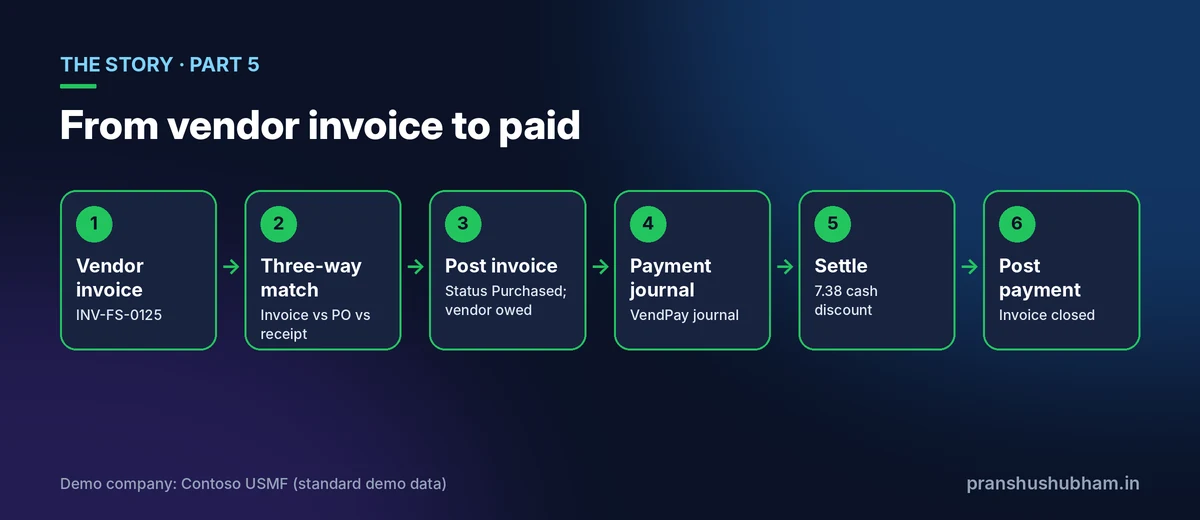
Glossary. Vendor invoice: the bill from the vendor. Three-way match: invoice vs PO vs receipt. Settlement: linking a payment to the invoice it pays. Cash discount: a discount for paying early, such as 1% within 7 days. Method of payment: check, electronic, and so on.
2. Step by step in D365
Who this section is for: End users and functional consultants
Step 1: Create the invoice from the PO
Open PO 00000125. On the Invoice tab, select Invoice. A pending vendor invoice opens with the vendor, the PO lines and the product receipt already filled in.
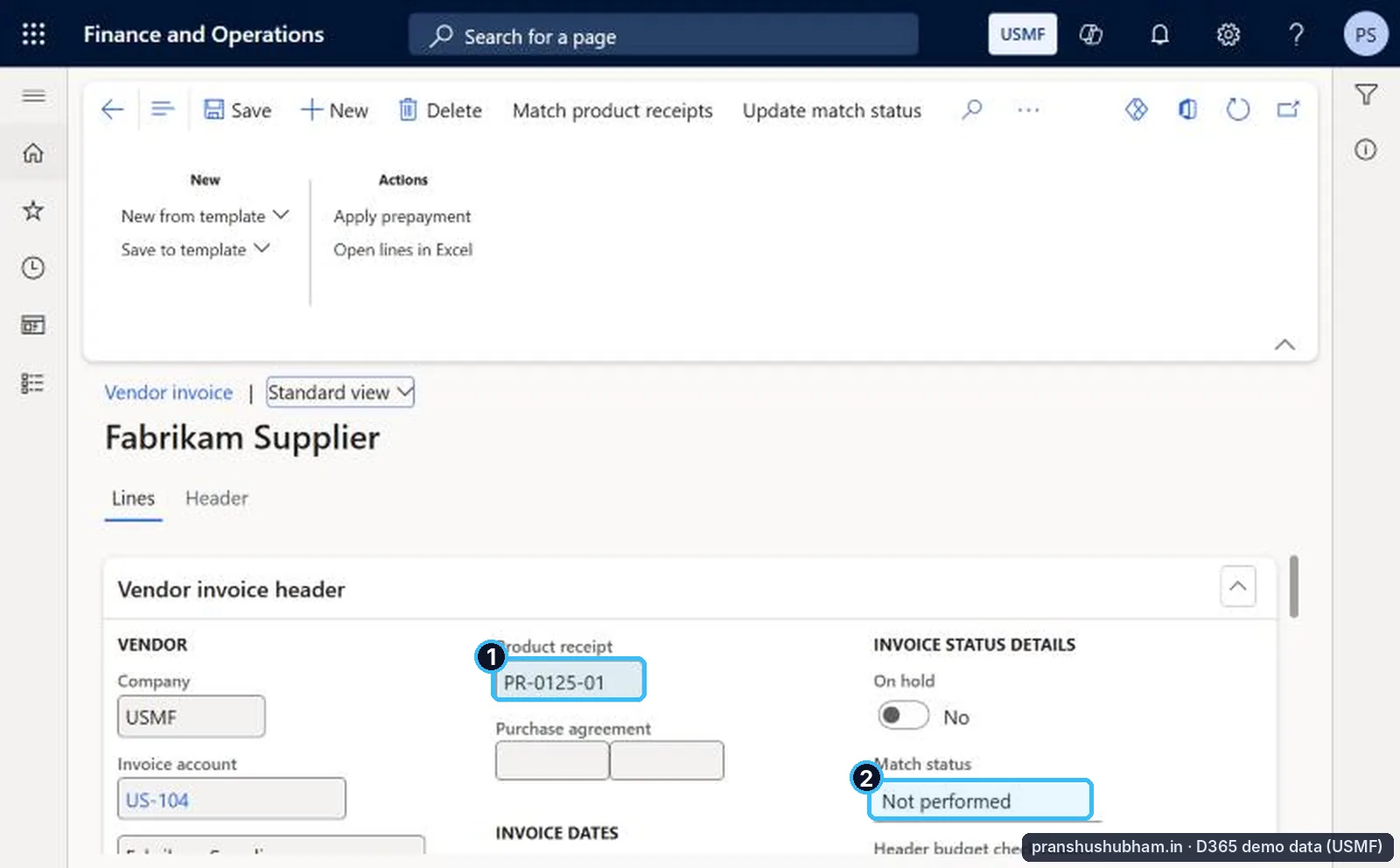
(1) The product receipt PR-0125-01 is linked automatically. (2) Match status is "Not performed" until you validate.
Step 2: Enter the invoice number and dates
Enter the vendor's Number (INV-FS-0125), the Invoice date, and check the Posting date and Due date. The due date and cash discount come from the vendor's payment terms.
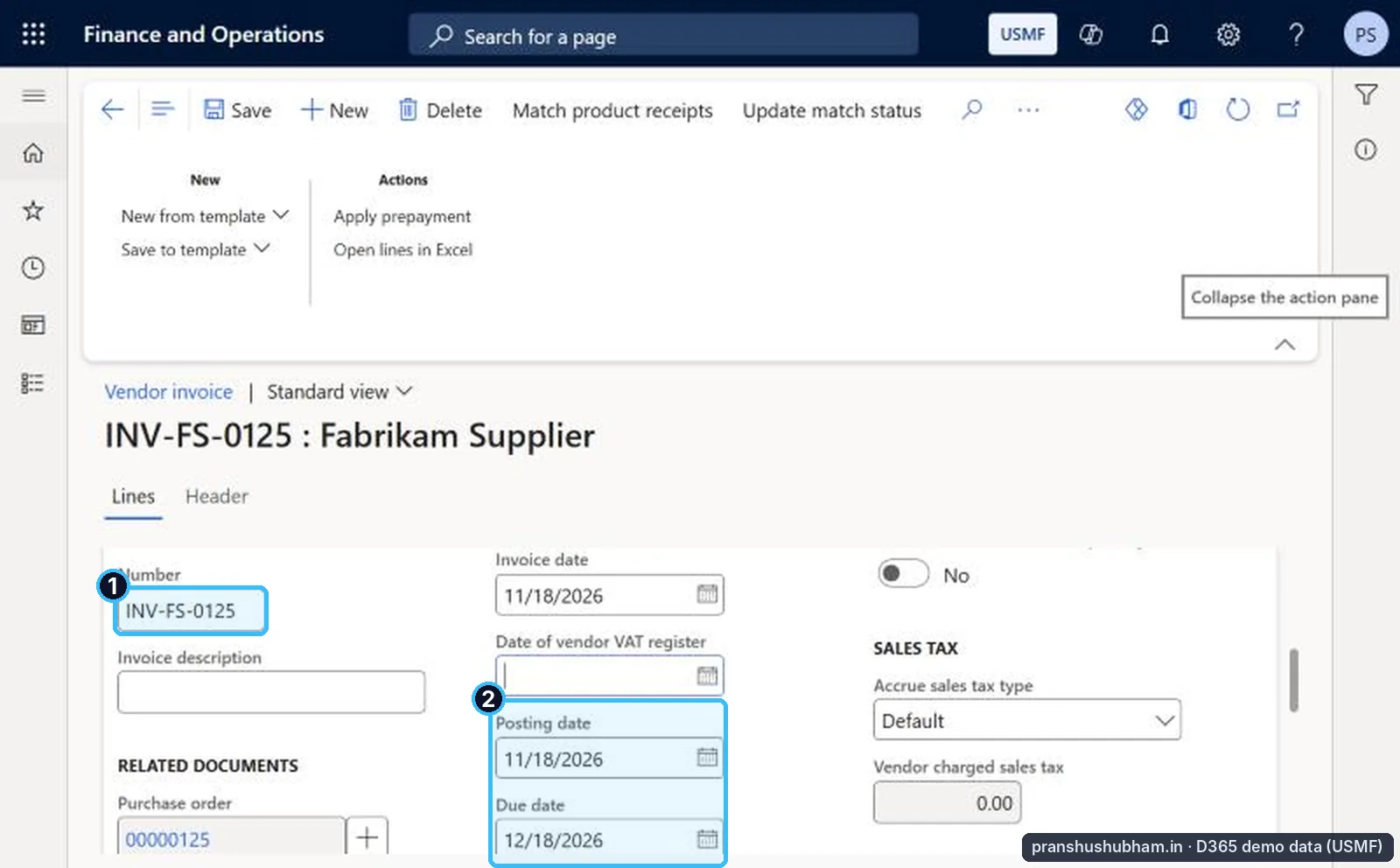
(1) The vendor's invoice number. (2) Posting date 11/18/2026 and due date 12/18/2026.
Then select Update match status to run the match, and check the Matching details. If prices and quantities agree within tolerance, the match passes.
Step 3: Post the invoice
Select Post. The PO status becomes Invoiced, and a message confirms the posting.
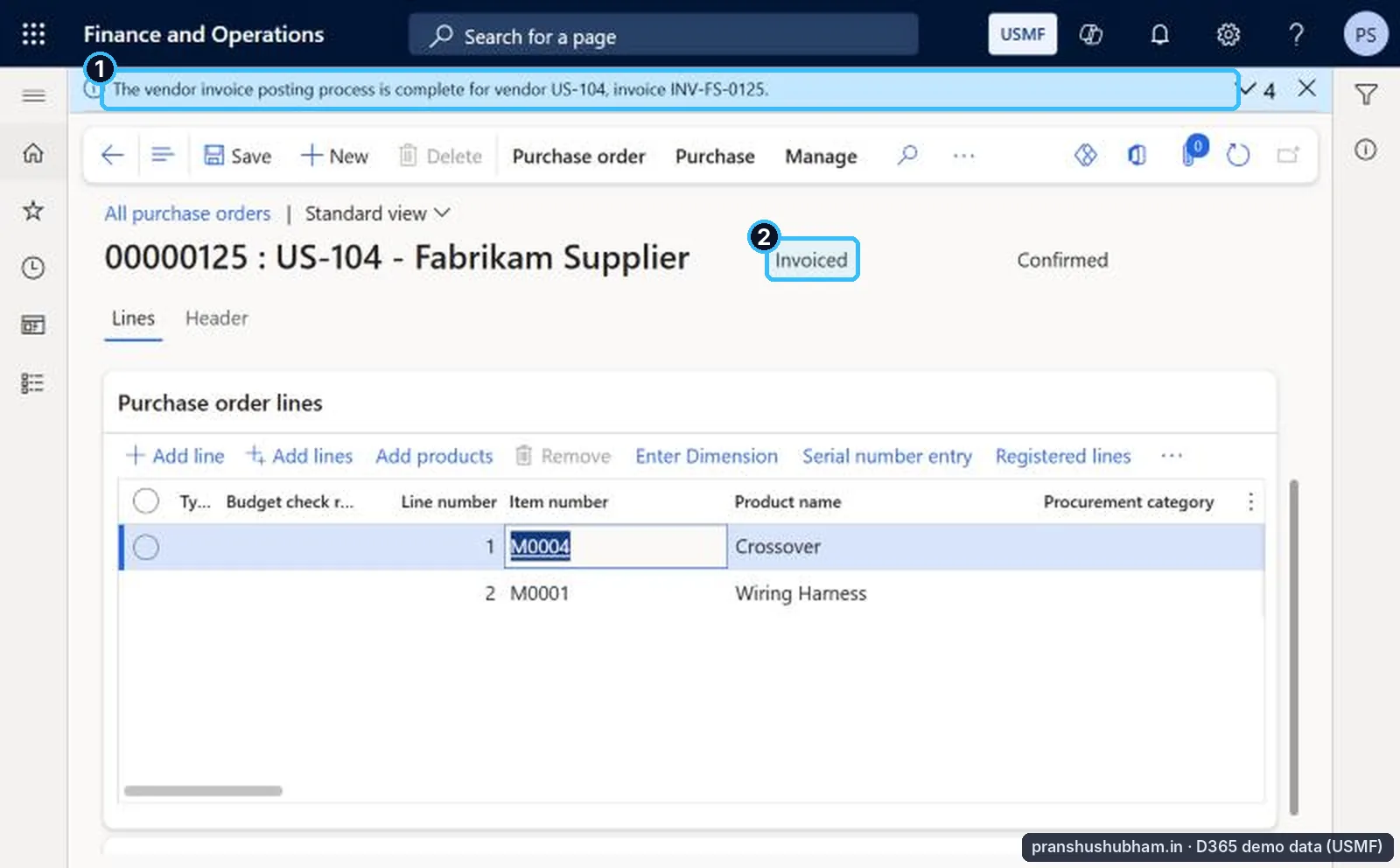
(1) "The vendor invoice posting process is complete for vendor US-104, invoice INV-FS-0125." (2) PO status Invoiced.
On the PO line, Inventory > Transactions now shows both a physical date and a financial date. The receipt has moved from Received to Purchased.
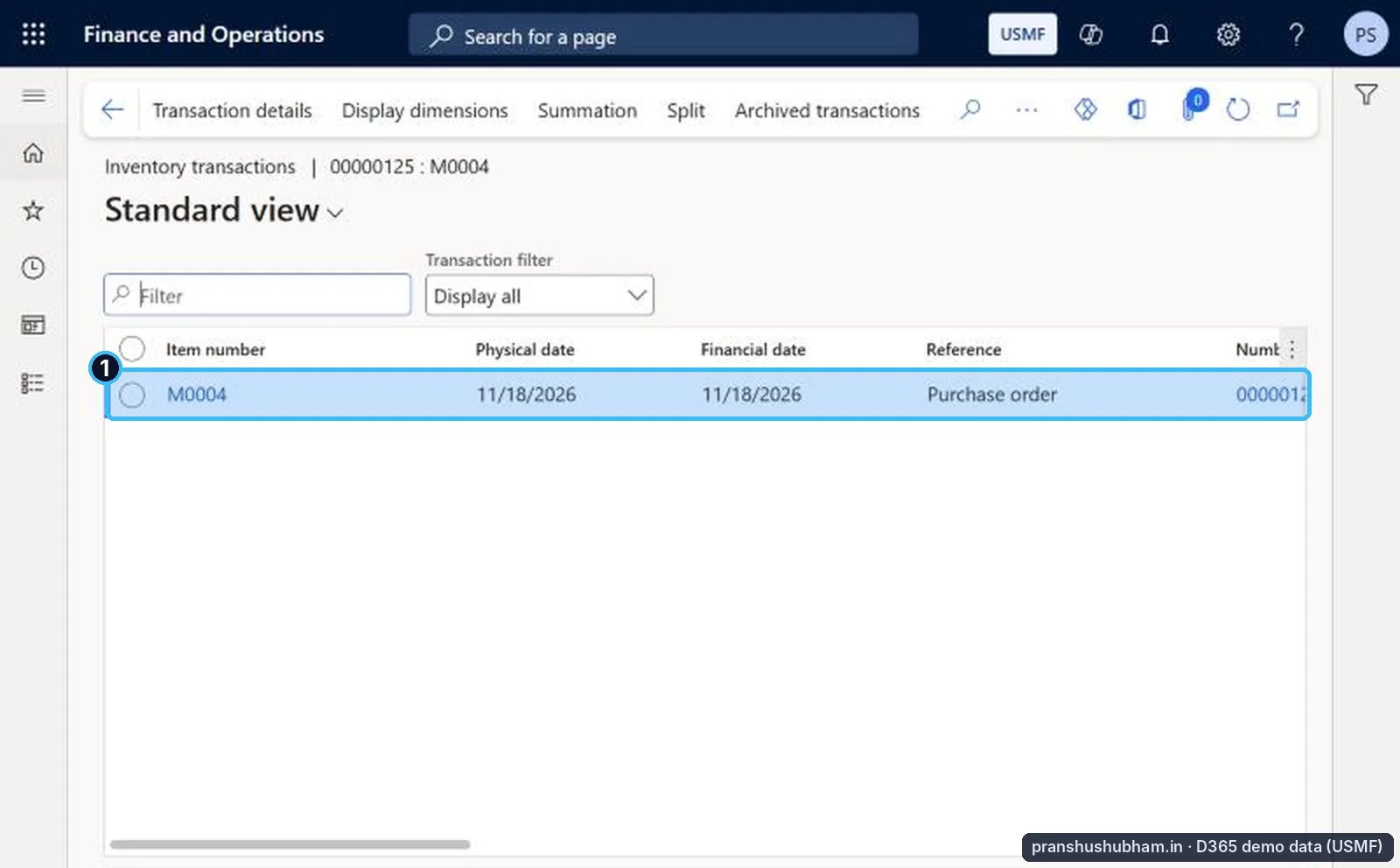
The transaction now has a financial date, which means it's financially updated (Purchased).
Step 4: Open the vendor payments workspace
Go to Accounts payable > Workspaces > Vendor payments. This is the newer home for payment runs, with tiles for pay runs not posted, electronic payments waiting for bank confirmation, invoices past due and vendors on hold.
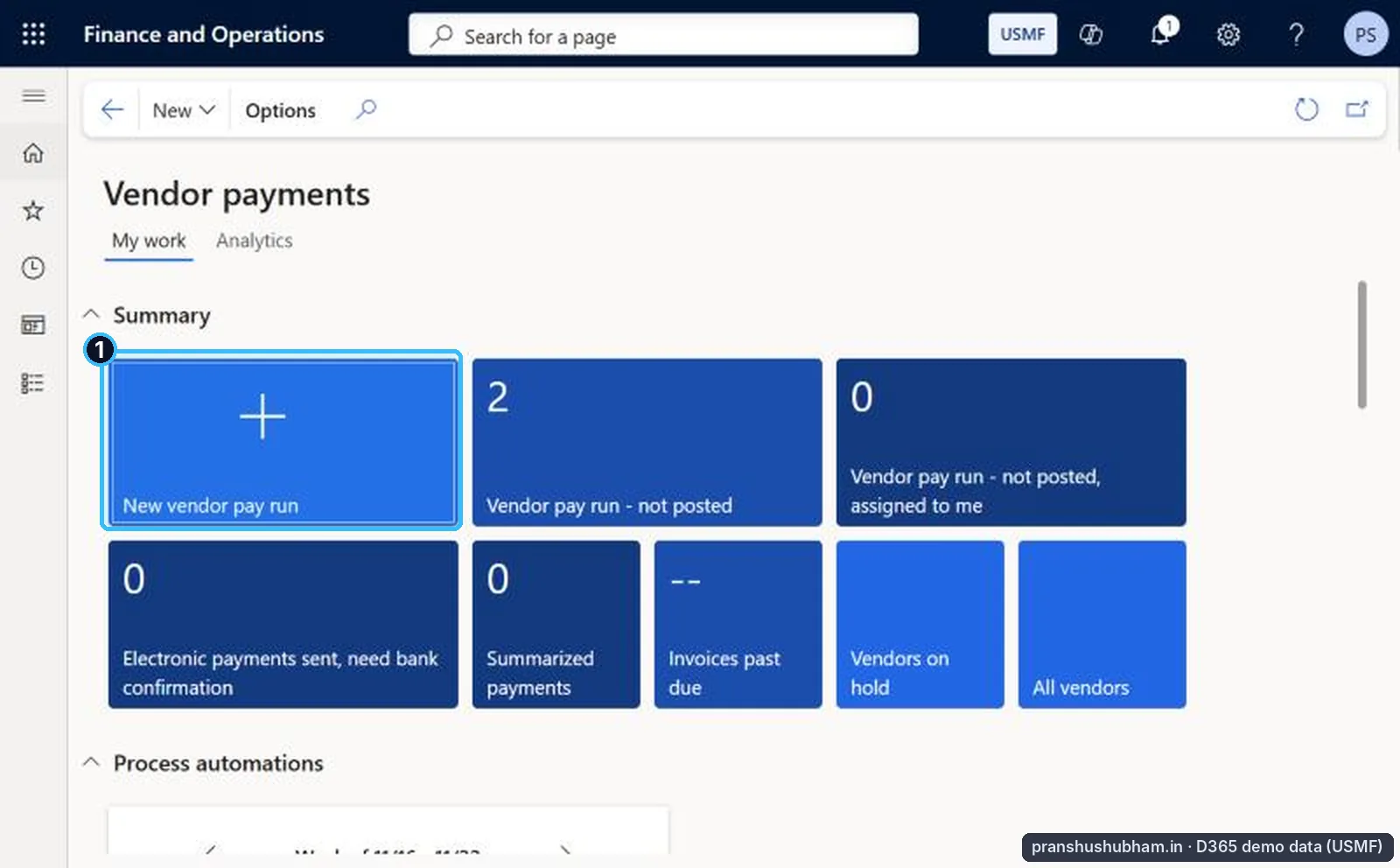
(1) New vendor pay run starts a guided payment run.
For one invoice, the classic journal is quicker: Accounts payable > Payments > Vendor payment journal.
Step 5: Create a payment journal line
Select New, choose journal name VendPay, and then Lines. Enter the vendor account US-104. The offset account (bank USMF OPER) and method of payment (CHECK) default from the vendor and journal setup.
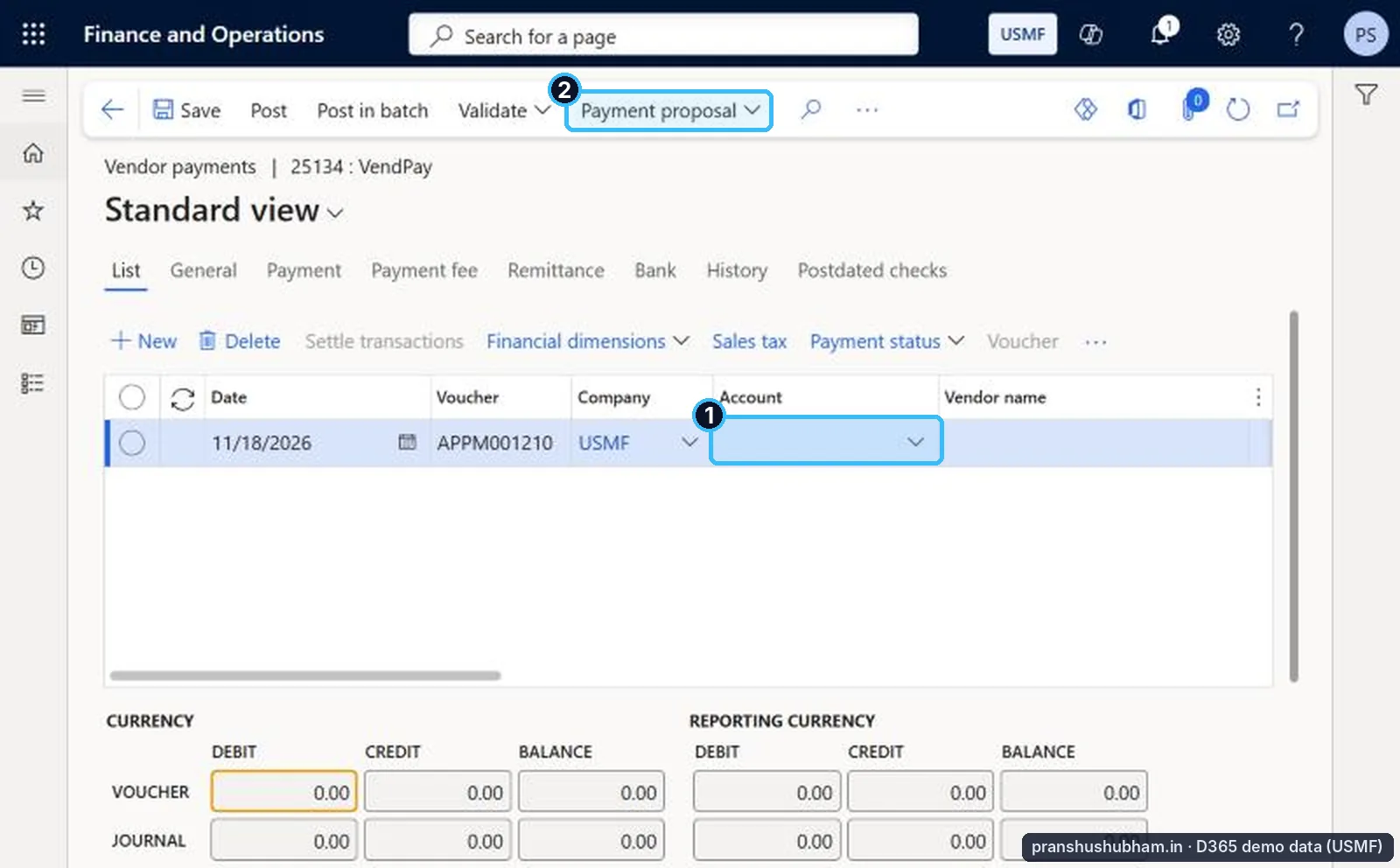
(1) Account US-104 on the line. (2) Payment proposal can find due invoices for you instead.
Step 6: Settle the invoice, and spot the cash discount
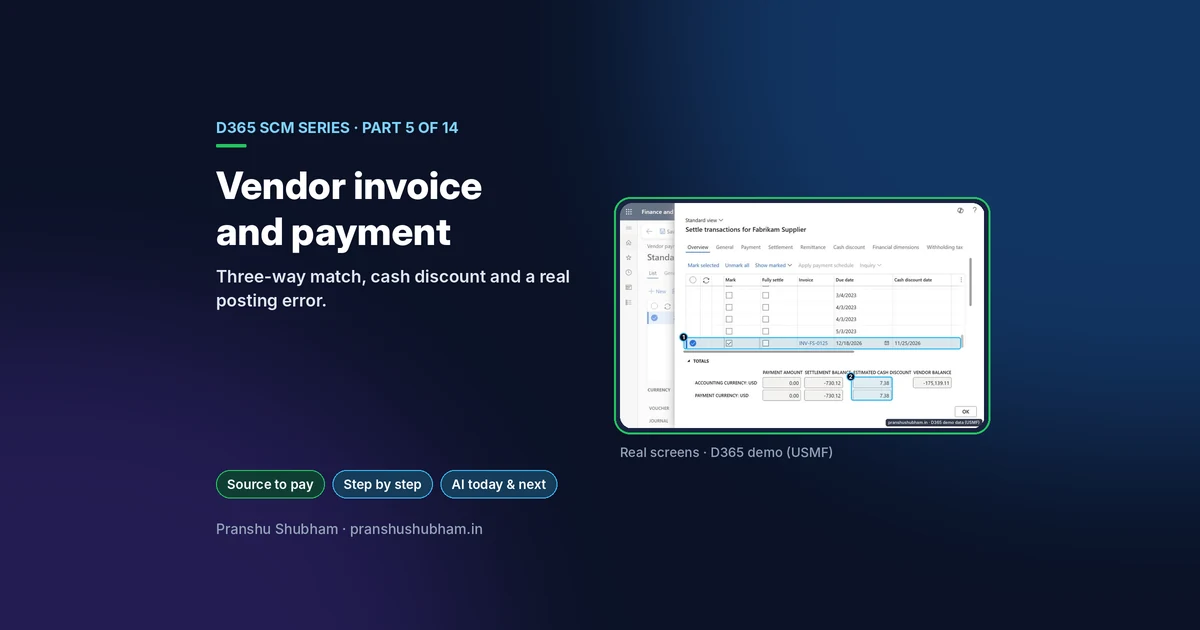
Select Settle transactions. Find INV-FS-0125 and select Mark. Look at the totals: the invoice is 737.50, but because I'm paying before the cash discount date (11/25/2026), D365 settles 730.12 and shows an estimated cash discount of 7.38.
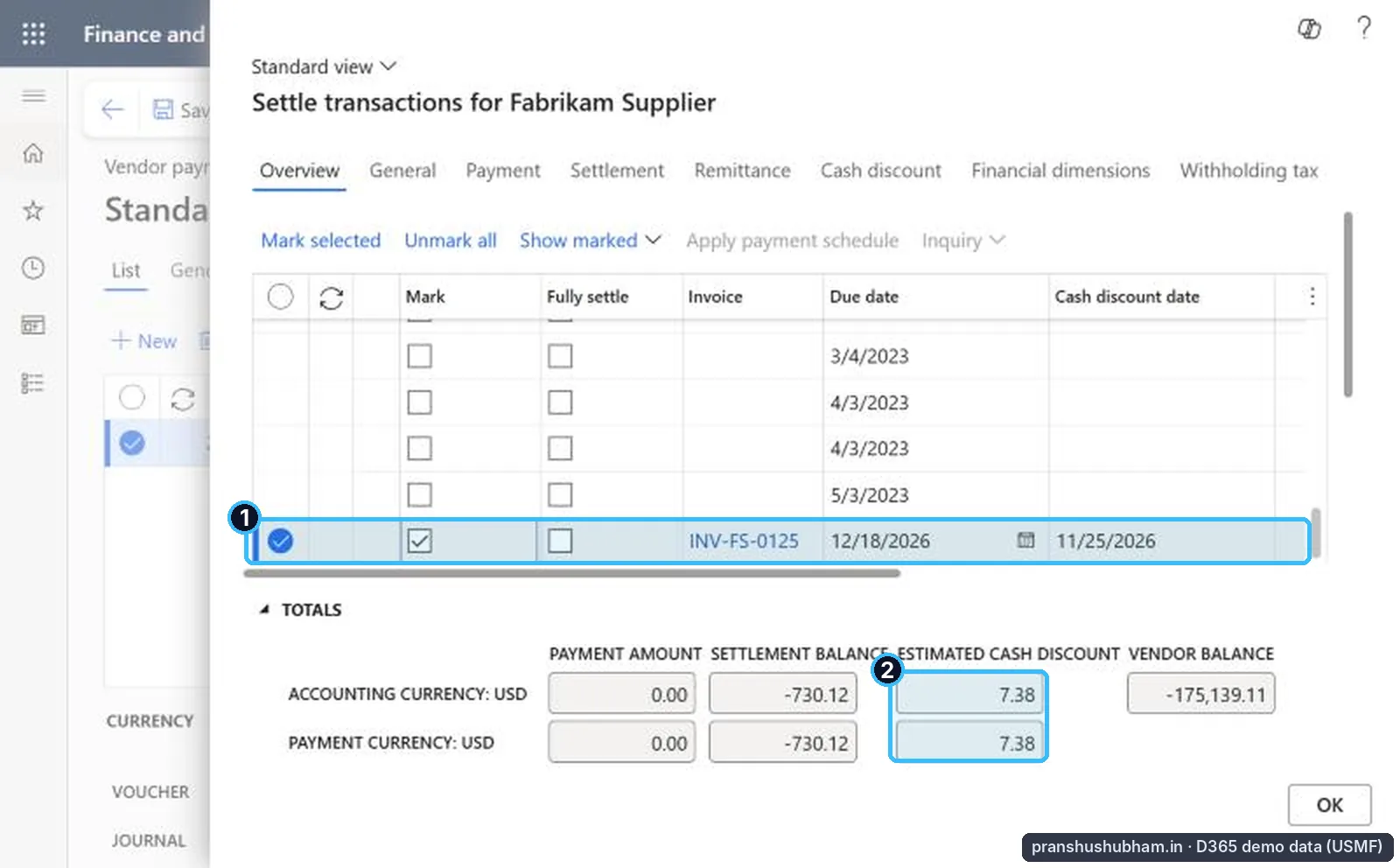
(1) INV-FS-0125 marked, due 12/18/2026, cash discount date 11/25/2026. (2) Estimated cash discount 7.38.
Select OK. The journal line now shows a debit of 730.12 and the journal is balanced.
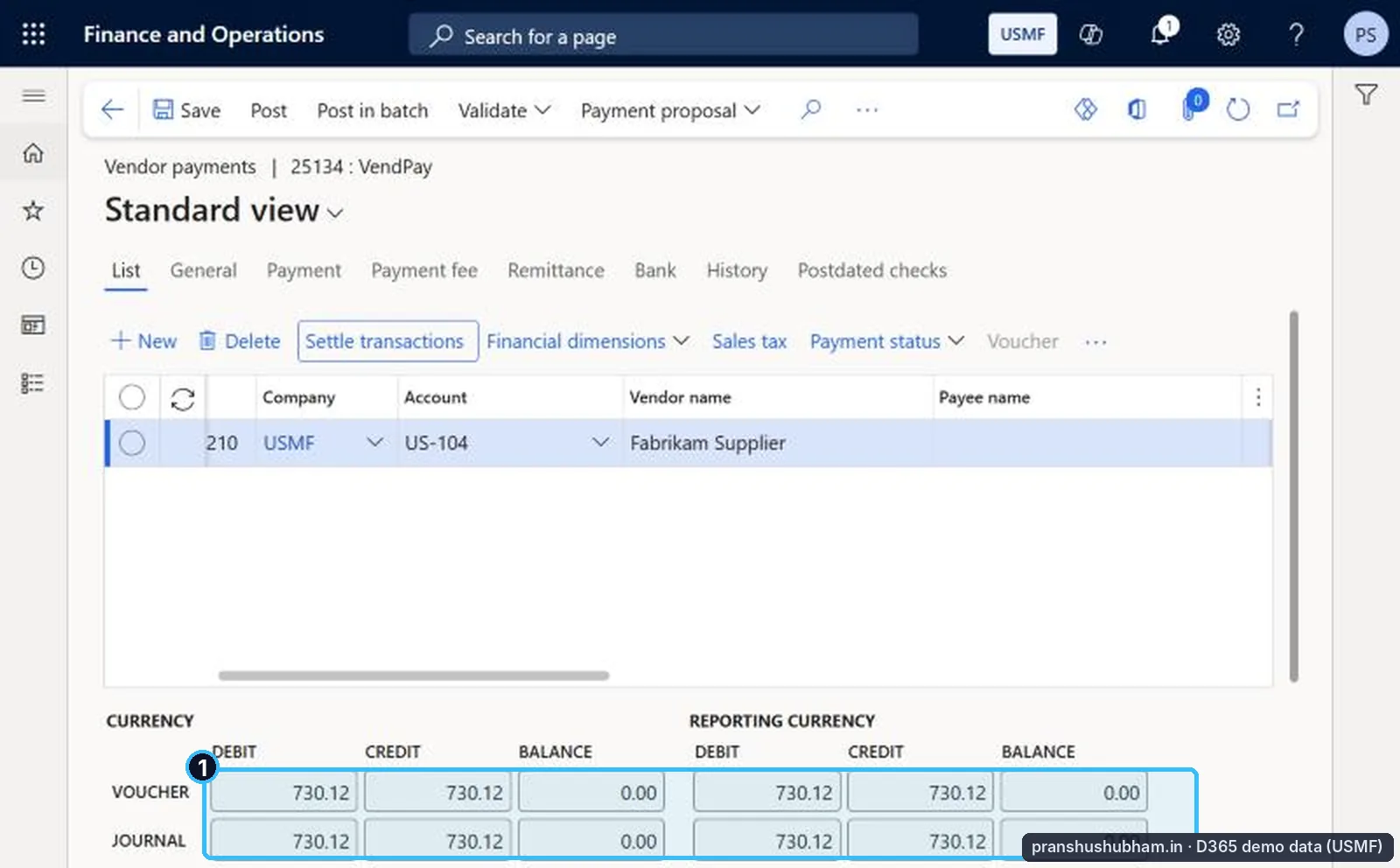
(1) Voucher and journal totals balance at 730.12.
Step 7: Post, and meet a real error
I selected Post and got this: "Check number must be filled in for voucher: APPM001210."
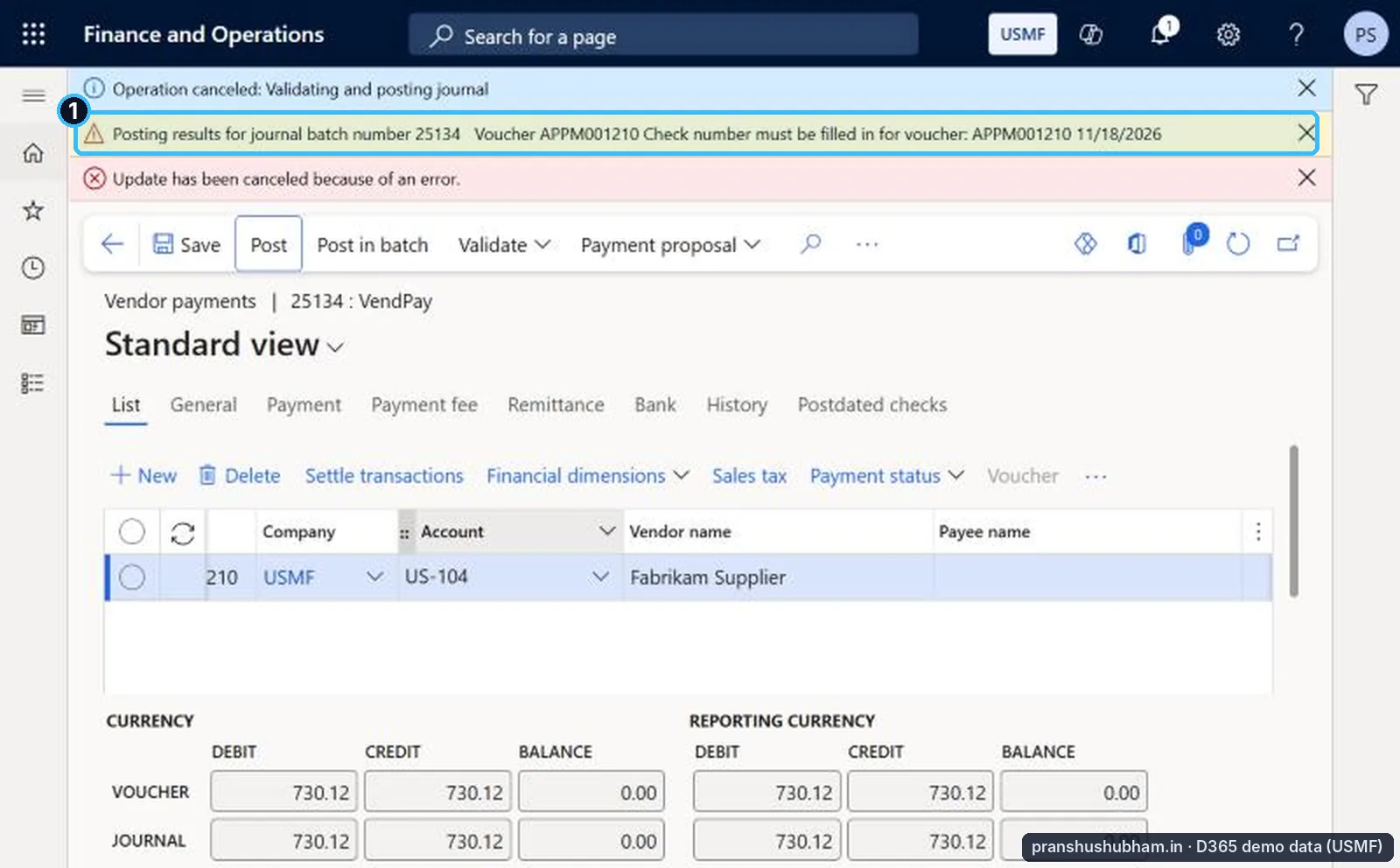
(1) The method of payment CHECK requires a check number before posting.
This is correct behavior. The CHECK method of payment is set to require a check number, which you get by generating payments (printing the check) first. Two valid fixes:
- Keep CHECK and use Generate payments to print the check. That fills the check number.
- Use a method that doesn't need a check number. I switched the line to ELECTRONIC on the Payment tab (payment specification CCD defaulted).
Then Post again: "Number of vouchers posted to the journal: 1".
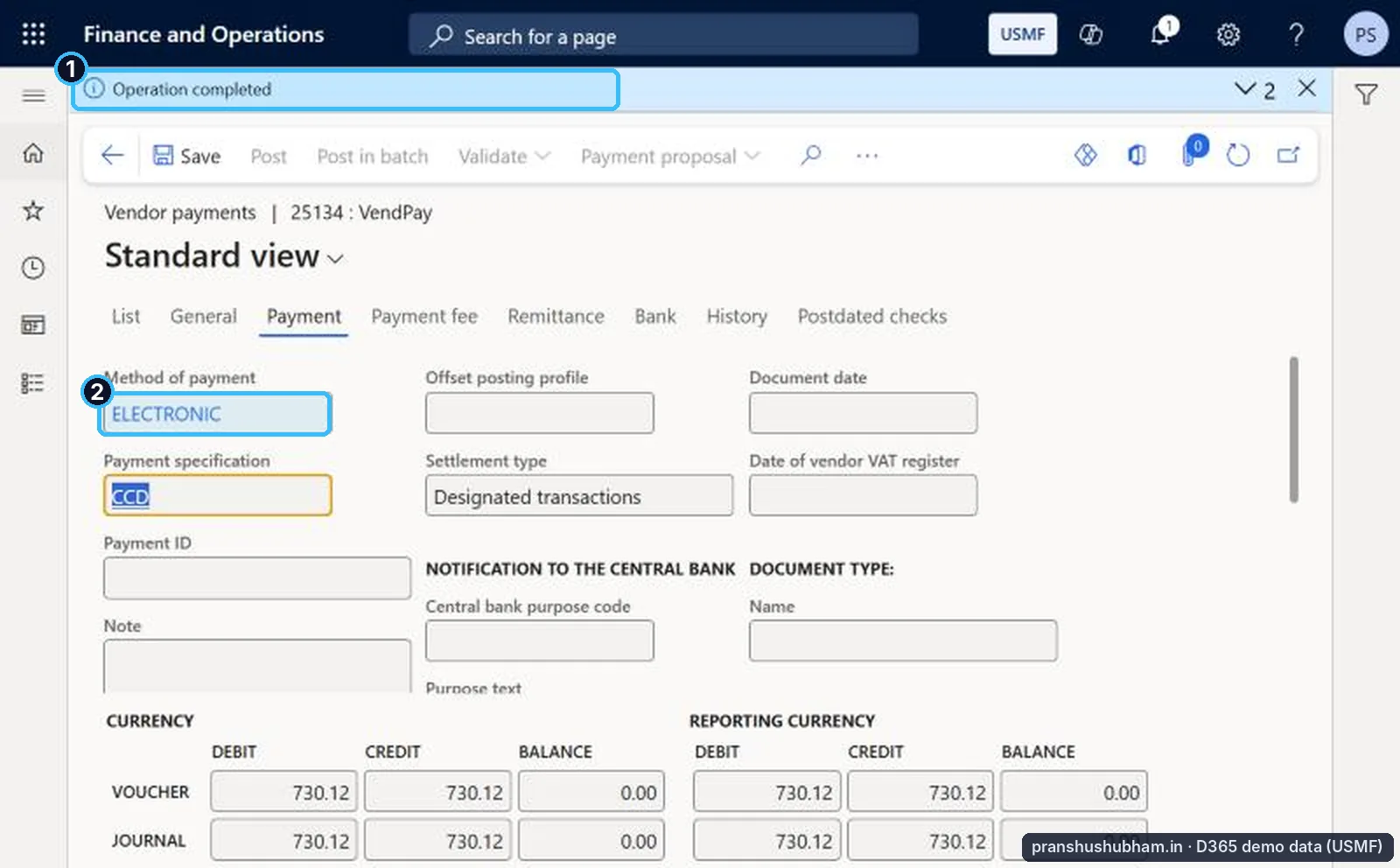
(1) Operation completed. (2) Method of payment changed to ELECTRONIC.
3. Behind the scenes
Who this section is for: Working professionals and functional consultants
- What the invoice posts: it reverses any received-not-invoiced entries from Part 4 and posts the real ones: inventory (or expense) debit, vendor balance credit, plus tax. Inventory status becomes Purchased.
- Matching policies: set in Accounts payable parameters, and overridable per vendor or item. Two-way (invoice vs PO), three-way (plus receipt) or no match. Price and quantity tolerances decide when a mismatch blocks posting.
- Pending vs posted invoices: "pending" invoices can be saved, sent to workflow and approved before posting. Big AP teams live in the Vendor invoice entry workspace.
- Cash discount comes from the vendor's cash discount code. It's calculated at settlement and posted to a cash discount account.
- Methods of payment control the rules. In USMF, CHECK requires a check number and ELECTRONIC doesn't. The method also decides the bank transaction type and the file format for electronic payments.
Common mistakes and fixes:
- Invoice won't post: price match failed. The invoice price differs from the PO beyond tolerance. Correct the price or get approval.
- Cash discount missed. Payment posted after the cash discount date. Use payment proposals by cash discount date.
- Payment posted but invoice still open. It wasn't settled. Use Settle open transactions on the vendor to link them.
4. Under the hood
Who this section is for: Technical consultants
- Invoices: VendInvoiceInfoTable and VendInvoiceInfoLine (pending), VendInvoiceJour and VendInvoiceTrans (posted), VendTrans and VendTransOpen (vendor balance and open items).
- Payments: LedgerJournalTable (journal header) and LedgerJournalTrans (lines), VendSettlement (which payment settled which invoice), SpecTrans (marked transactions during settlement).
- Data entities: vendor invoice header and line entities for pending invoices, and vendor payment journal entities for imports from banks or AP automation tools.
- Extension points: VendInvoiceInfoTable validation and the PurchFormLetter_Invoice class; the settlement framework (CustVendSettle) for payment logic. Electronic payment formats are usually built with Electronic reporting (ER), not code.
5. AI in this process: today and next
Who this section is for: Everyone
Vendor summary with Copilot (Available). The All vendors details page has a Summary by Copilot FastTab with hold status, open POs, posted invoices, payment status, overdue invoices, purchase agreements, rebates and risks.
Purchase order summary (Available) shows "fully received, not fully invoiced" lines, which is exactly the AP clerk's to-do list.
Period Close Agent template (Template; production use gated by Microsoft). The FastTrack template orchestrates close tasks from the financial period close workspace. Covered in my agent templates post.
Invoice capture (Available, separate add-in). Dynamics 365 Finance has an invoice capture solution that reads invoices from email or files and creates pending vendor invoices. Check licensing and setup on Microsoft Learn before planning on it.
My view (opinion): AP is the most "agent-ready" area in this series. The rules (match, tolerance, cash discount date) are explicit, and the exceptions are where people add value.
UAT test scenarios
- Post an invoice that matches PO price and quantity. Expected: posts; PO Invoiced; inventory Purchased.
- Post an invoice with a 10% higher price. Expected: match warning or block, per tolerance.
- Pay before the cash discount date. Expected: discount calculated at settlement.
- Post a CHECK payment without generating the check. Expected: "Check number must be filled in".
- Post an electronic payment. Expected: invoice closed in vendor transactions.
FAQ
Why is the PO "Invoiced" if I haven't paid? PO status tracks the order, not the payment. Payment status lives on the vendor transaction.
Two-way or three-way match? Three-way for stocked goods; two-way for services where there's no receipt.
Where do I see if an invoice is paid? Vendor > Transactions, or settlement history on the invoice.
Keep going in the series
- Series home: D365 Supply Chain, end to end
- Previous: Part 4: Product receipt
- Next: Part 6: Sales order entry
Sources
- Vendor invoice matching overview (Microsoft Learn)
- Three-way matching policies (Microsoft Learn)
- AI summaries with Copilot: vendor summary (Microsoft Learn)
- Invoice capture overview (Microsoft Learn)
Have a question about this process, or seeing something different in your version? Get in touch. I read every message.