D365 Sales Order Entry and Confirmation, Step by Step (with Copilot Summaries)
Order to cash starts here. Create and confirm a sales order in D365, and learn why my order line came in at zero.
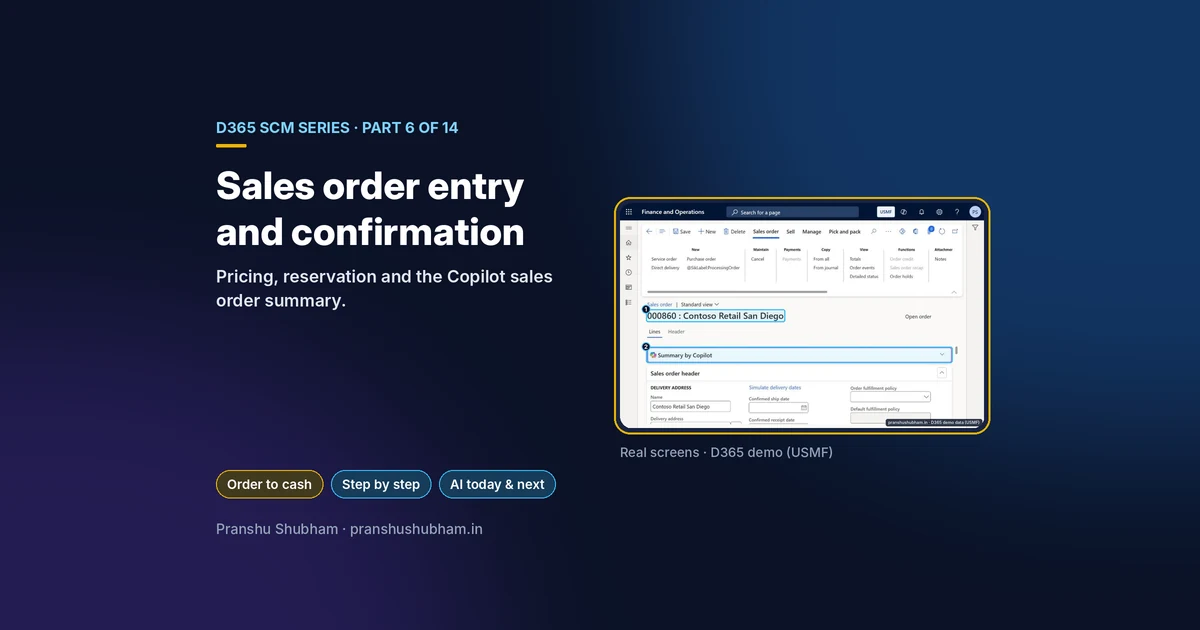
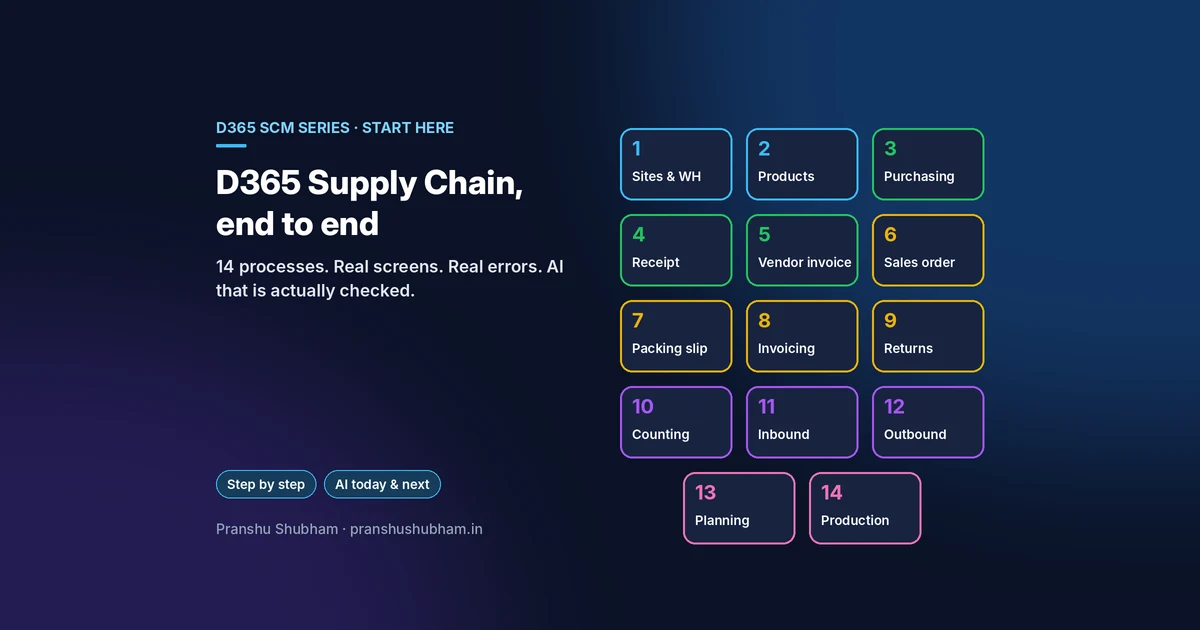
Part 6 of 14 in my free course D365 Supply Chain, end to end. All screenshots come from a Microsoft demo environment with standard Contoso data (company USMF). New here? Start with the series home.
Now we switch sides. For the next four parts we're the seller. Order to cash starts with the sales order: the document that records what the customer wants, at what price, from which warehouse, and when.
Running example: sales order 000860 for customer US-001 Contoso Retail San Diego, item M0004 Crossover, quantity 5, shipped from site 1, warehouse 11. That's the same item we bought in Part 3.
1. The story
Who this section is for: Freshers, customers and anyone new to D365
A customer phones, emails or sends an EDI order. Customer service enters it as a sales order. D365 fills in prices, discounts and the delivery address from the customer and item, checks stock, and works out a delivery date. When everything is agreed, the order is confirmed and the confirmation is sent to the customer.
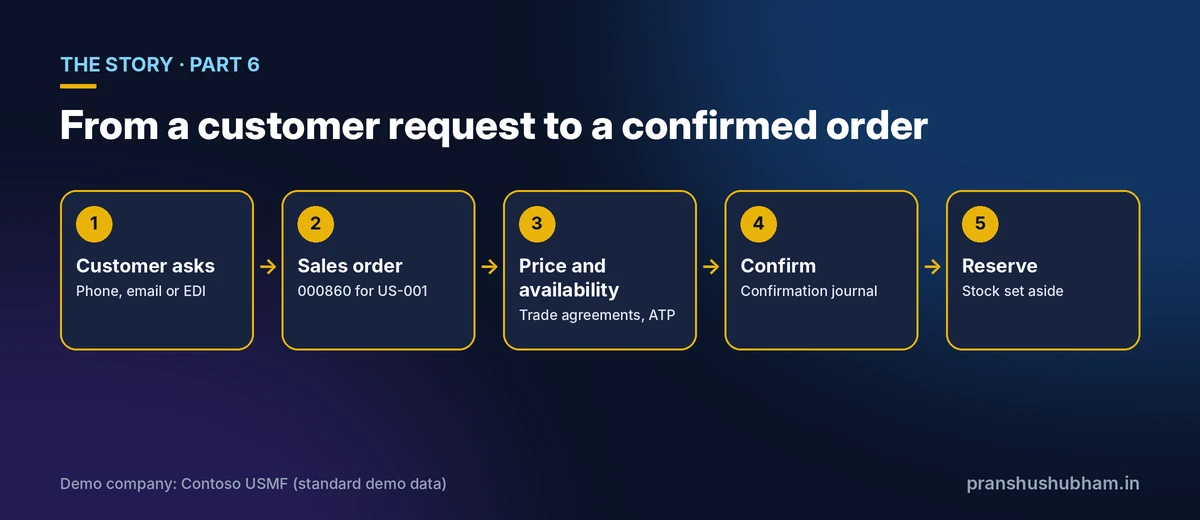
Glossary. Sales order: the customer's order in D365. Trade agreement: a price or discount rule for a customer, group or item. ATP: available to promise, the quantity you can still promise by a date. Reservation: setting stock aside for an order line.
2. Step by step in D365
Who this section is for: End users and functional consultants
Step 1: Create the sales order
Go to Sales and marketing > Sales orders > All sales orders and select New. In the Create sales order pane, enter Customer account US-001. Name, address, currency, payment terms and default warehouse come from the customer.
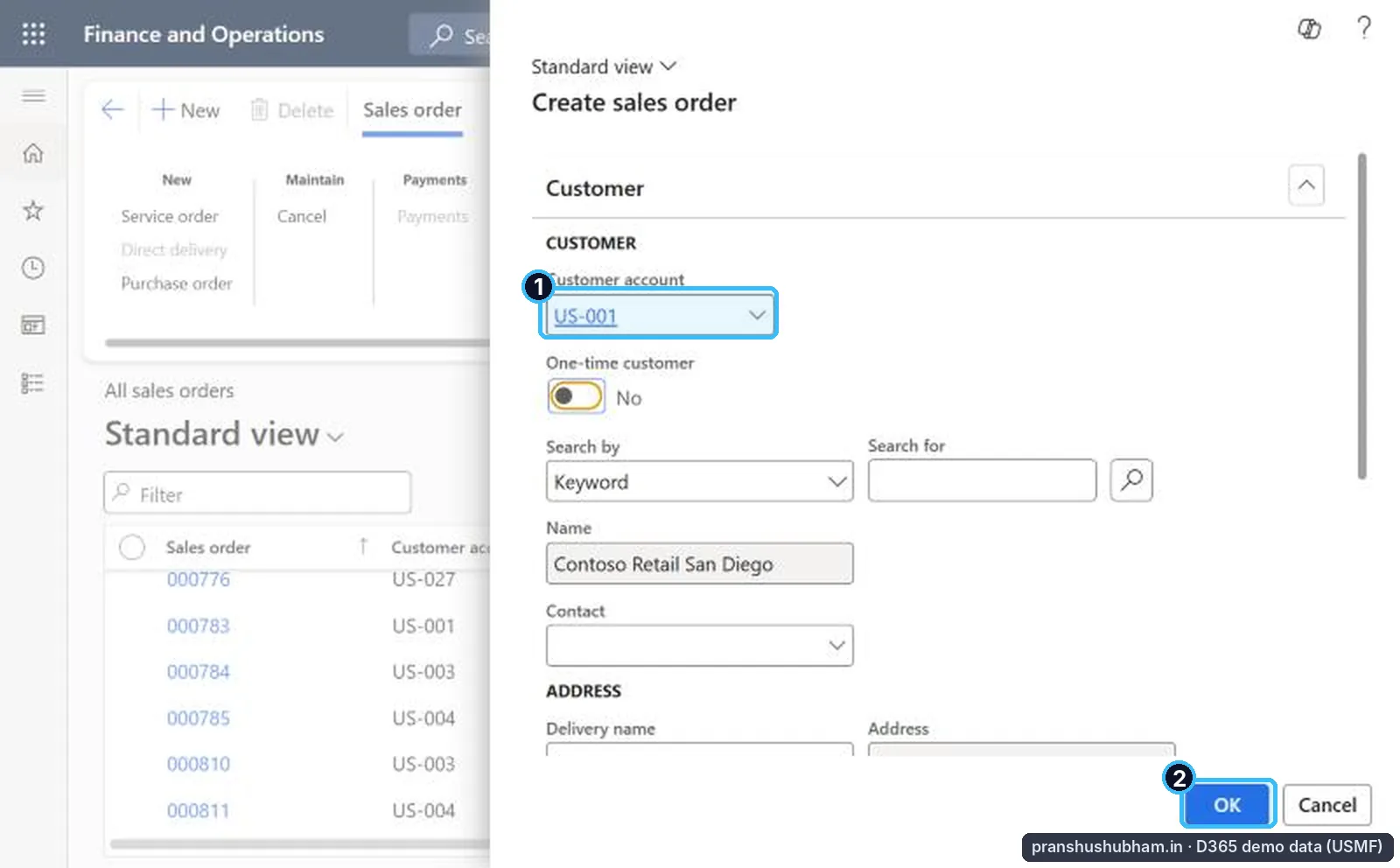
(1) Customer account US-001, Contoso Retail San Diego. (2) OK creates the order header.
Step 2: Check the header and add lines
The order opens as 000860, status Open order. Like purchase orders, the top of the page has a Summary by Copilot FastTab.
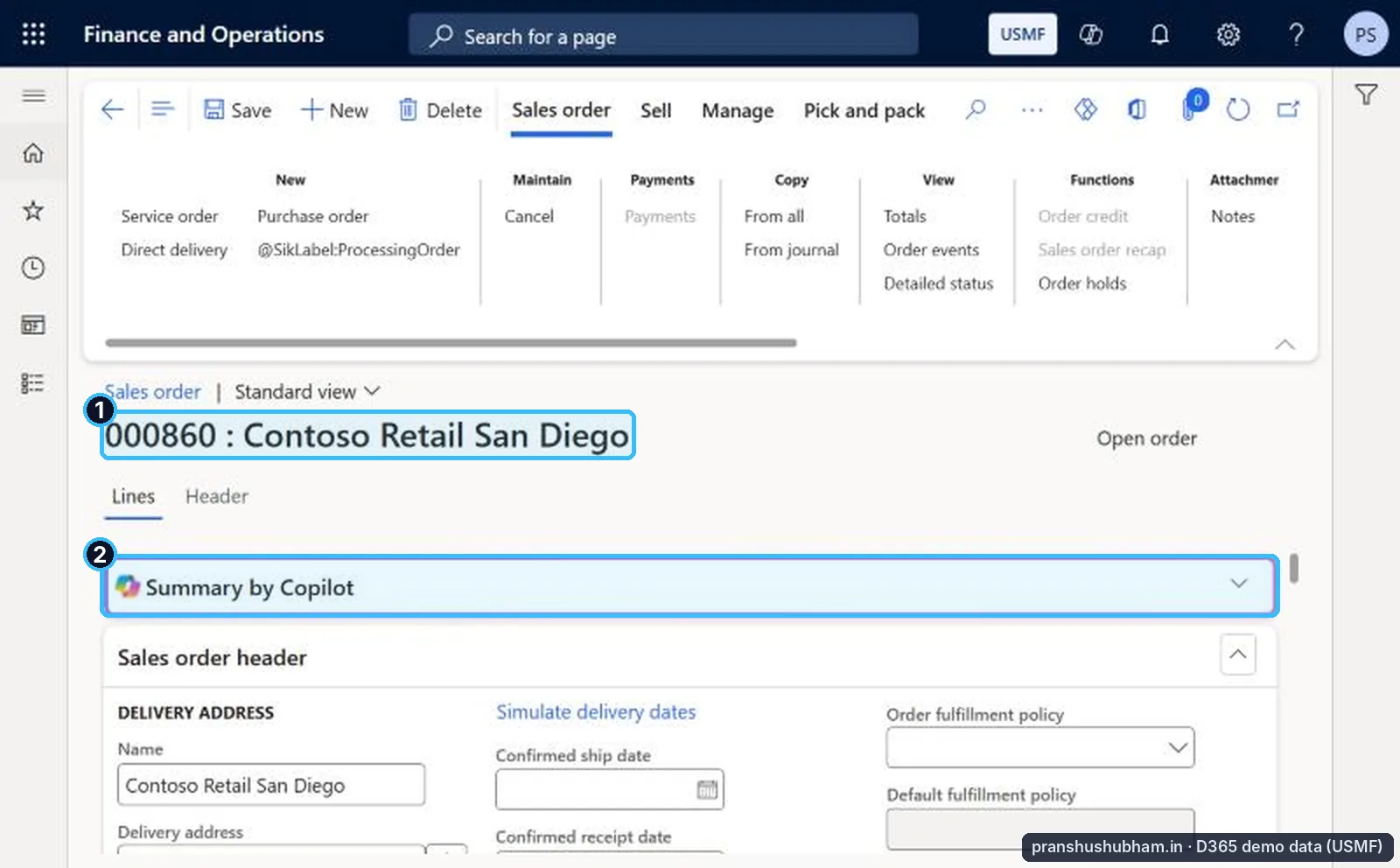
(1) Order number and customer. (2) Summary by Copilot above the header.
Add a line: item M0004, quantity 5, site 1, warehouse 11.
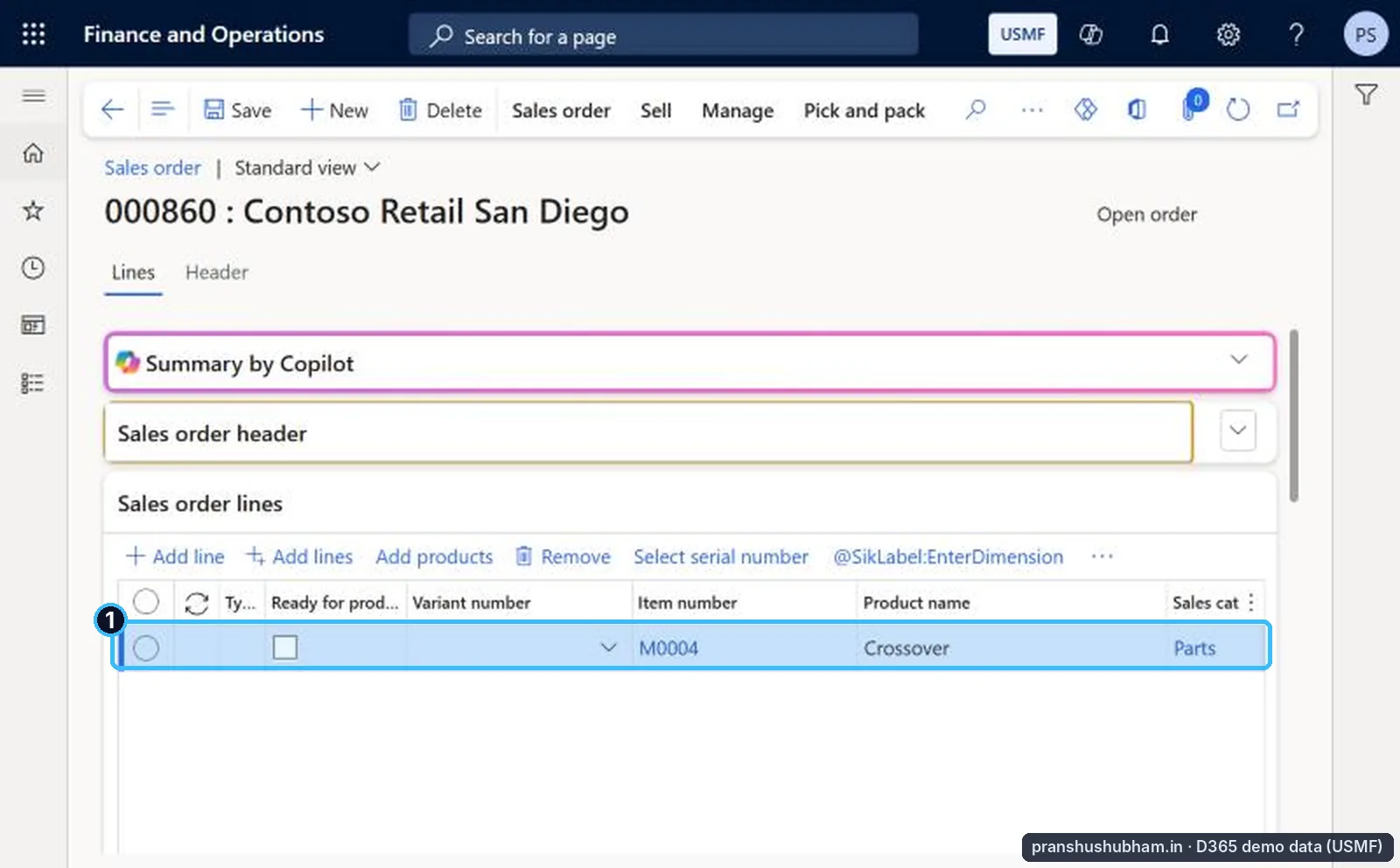
(1) The order line with item M0004 Crossover.
What to check on every line:
- Unit price: from the item's base price or a trade agreement. In my run the price came in as zero, because M0004 has no sales price or trade agreement in the demo data. I left it that way on purpose. Part 8 shows what that does at invoice.
- Site and warehouse: they decide where stock is reserved and shipped from.
- Requested and confirmed ship dates: use Delivery date control (sales lead time, ATP or CTP, called order promising on Microsoft Learn) to get a realistic date.
Step 3: Confirm the order
On the Sell tab of the Action Pane, under Generate, select Confirm sales order.
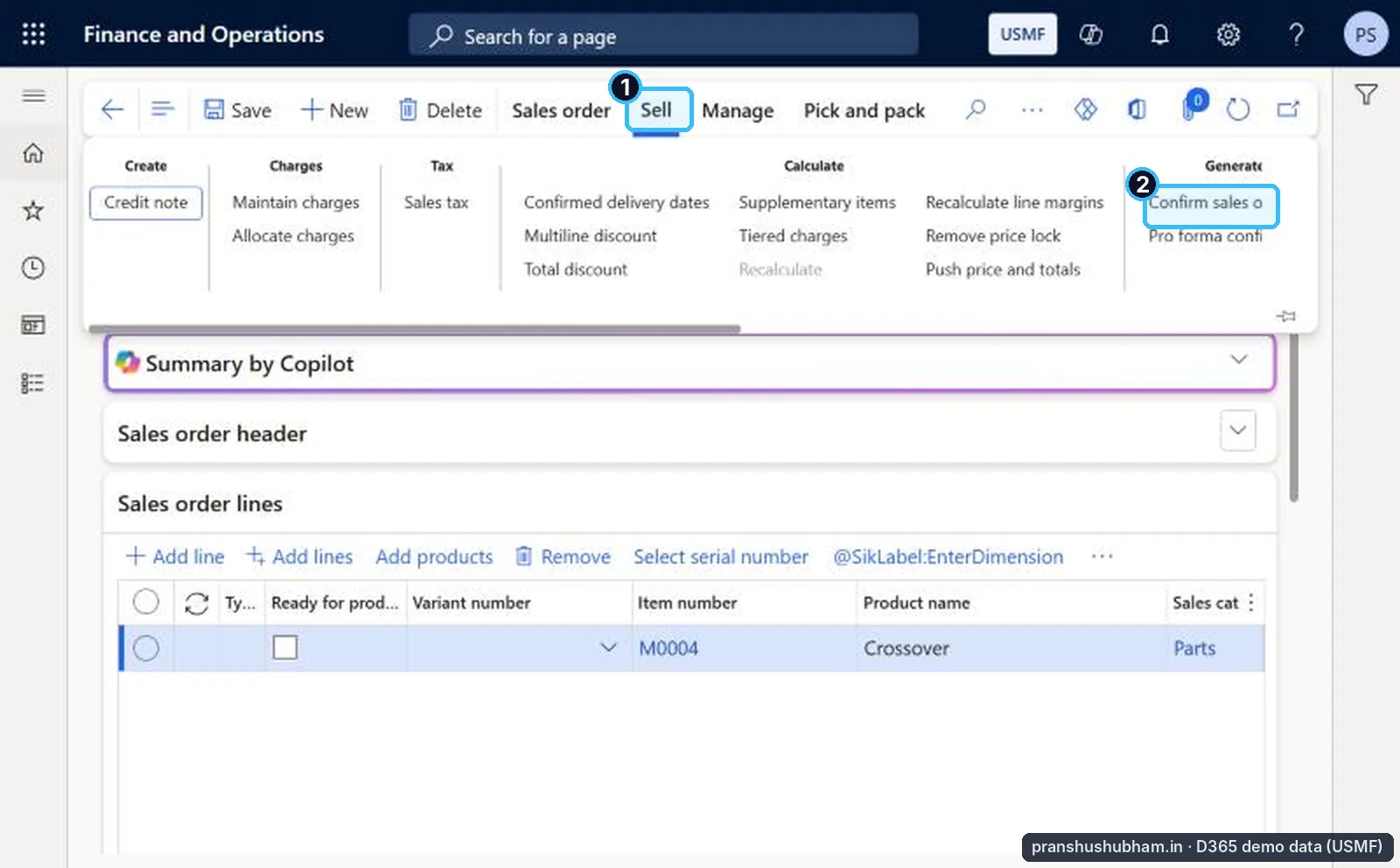
(1) The Sell tab. (2) Confirm sales order under Generate.
In the Confirm sales order dialog, check that the order is listed with update Confirmation, and select OK.
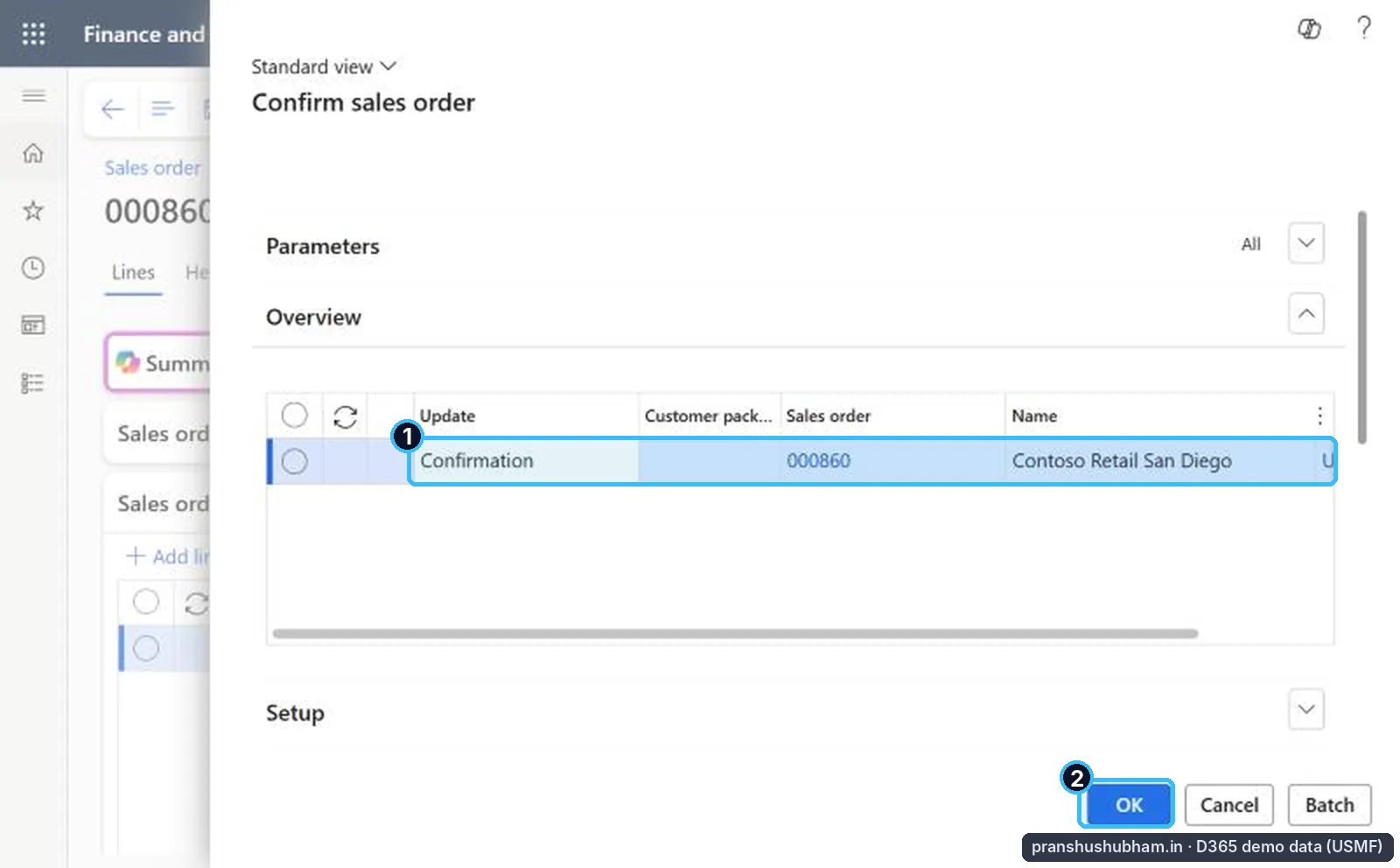
(1) Order 000860 with update Confirmation. (2) OK posts the confirmation.
Step 4: Check the result
The order stays Open order (nothing shipped yet), and a confirmation journal now exists under Sell > Journals > Sales order confirmation.
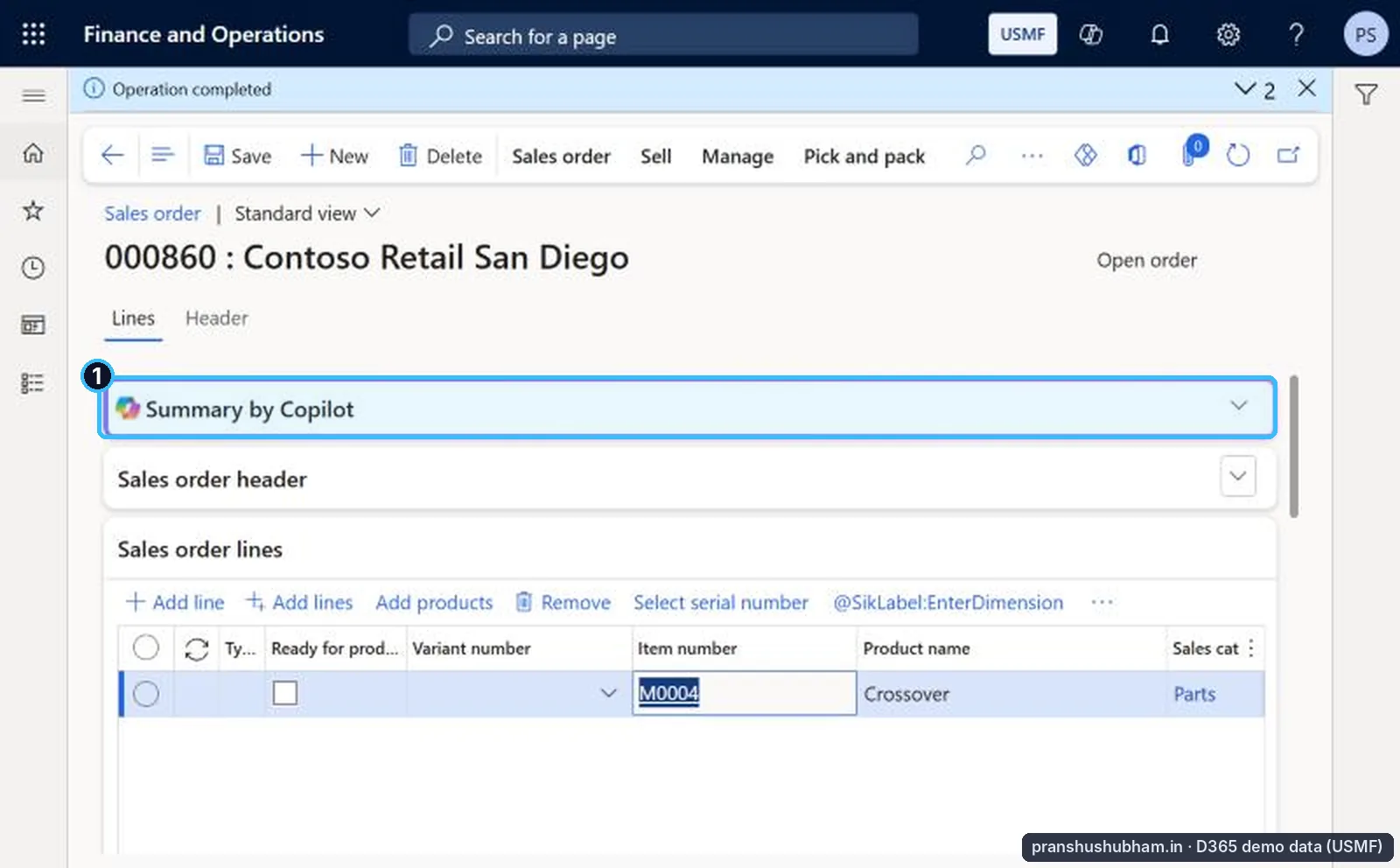
(1) The Summary by Copilot FastTab now has something to say about the order's progress.
3. Behind the scenes
Who this section is for: Working professionals and functional consultants
Inventory statuses on the issue side:
- On order: as soon as the sales line is saved.
- Reserved ordered / Reserved physical: when stock is reserved against incoming supply or on-hand.
- Picked: after picking (Part 7).
- Deducted: after the packing slip posts (Part 7).
- Sold: after the invoice posts (Part 8).
- Reservation can be automatic or manual, set on the order, the customer or in Accounts receivable parameters. Automatic reservation is convenient but can lock stock other customers need.
- Confirmation doesn't post to the ledger. Like the PO, it creates a journal (a version you can send).
- Credit limit checks can run at entry, confirmation, packing slip or invoice, depending on parameters. A blocked order shows a credit limit message.
- Delivery date control options: none, sales lead time, ATP, ATP plus issue margin, and CTP (capable to promise, which also considers capacity). With Planning Optimization, CTP runs as near real-time CTP or batch CTP.
Common mistakes and fixes:
- Zero price. No base price and no trade agreement. Fix the price setup, or use price validation to block zero-price lines.
- Wrong warehouse. The customer's default warehouse overrode the item. Check site-specific order settings.
- Order can't confirm: credit limit. Release the credit hold or adjust the limit.
4. Under the hood
Who this section is for: Technical consultants
- Main tables: SalesTable (header), SalesLine (lines), CustConfirmJour and CustConfirmTrans (confirmations), InventTrans (issue transactions), MarkupTrans (charges), PriceDiscTable (trade agreements).
- Data entities: Sales order headers V2 and Sales order lines. In my capture I added the line through OData
/data/SalesOrderLineswithSalesOrderNumber,LineCreationSequenceNumber,ItemNumber,OrderedSalesQuantity,ShippingSiteIdandShippingWarehouseId. - Posting framework: SalesFormLetter and subclasses (confirmation, picking list, packing slip, invoice). Extend with Chain of Command.
- Pricing: classic trade agreements live in PriceDiscTable. Newer installations may use Unified pricing management, which has its own pricing calculation API in recent versions.
5. AI in this process: today and next
Who this section is for: Everyone
Sales order summary with Copilot (Available). The Sales order details page has a Summary by Copilot FastTab. Microsoft Learn describes forward-looking status groups (not fully picked, not fully shipped, not fully invoiced) with filter buttons, plus insights such as overdue or nearly overdue lines. Prerequisites: 10.0.40 PQU-1 or later and Power Platform integration.
Product hover summary (Available). Hover over the item number on the order line to see availability across warehouses and sales data, which is handy before promising a date.
Sales Order Agent template (Template, not a product feature). The FastTrack team publishes a template that reads purchase orders arriving as email attachments, validates customer and product data and creates sales orders. The README estimates credit consumption per attachment. Details in my agent templates post.
Inventory Fulfillment Agent template (Template). "Find it, promise it, move it" using Inventory Visibility, with confirmation before any write.
My view (opinion): order entry from emails and PDFs is one of the most practical first agent use cases. Start with drafts that a person approves, not straight-through creation.
UAT test scenarios
- Create a sales order for US-001 with one line. Expected: address, currency and terms default from the customer.
- Add an item with a trade agreement. Expected: the agreement price applies.
- Add an item without a price. Expected: zero price, or a block if price validation is on.
- Confirm the order. Expected: confirmation journal created; status stays Open order.
- Check line inventory transactions. Expected: status On order or Reserved physical.
FAQ
What's the difference between confirmation and sales order status? Status (Open order, Delivered, Invoiced) tracks fulfillment; confirmation is a document you send.
Should I reserve automatically? Only if you allocate first come, first served. Otherwise reserve at release to warehouse.
Does the Copilot summary see all orders? It works on the order you open and respects your security role.
Keep going in the series
- Series home: D365 Supply Chain, end to end
- Previous: Part 5: Vendor invoice and payment
- Next: Part 7: Picking, packing slip and shipping
Sources
- AI summaries with Copilot: sales order summary (Microsoft Learn)
- Delivery date control (Microsoft Learn)
- FastTrack AI ERP agent templates (GitHub)
Have a question about this process, or seeing something different in your version? Get in touch. I read every message.