D365 Purchase Requisition to Purchase Order: Create, Approve and Confirm (with the Procurement Agent)
The PO is where money starts leaving the business. Create, approve and confirm one in D365, and see what the Procurement Agent adds.
Part 3 of 14 in my free course D365 Supply Chain, end to end. All screenshots come from a Microsoft demo environment with standard Contoso data (company USMF). New here? Start with the series home.
This is where money starts leaving the business. The purchase order (PO) is the legal promise to a vendor: "send us these items at this price by this date". In Dynamics 365 it's also the document that drives receiving, invoicing, payment and even master planning.
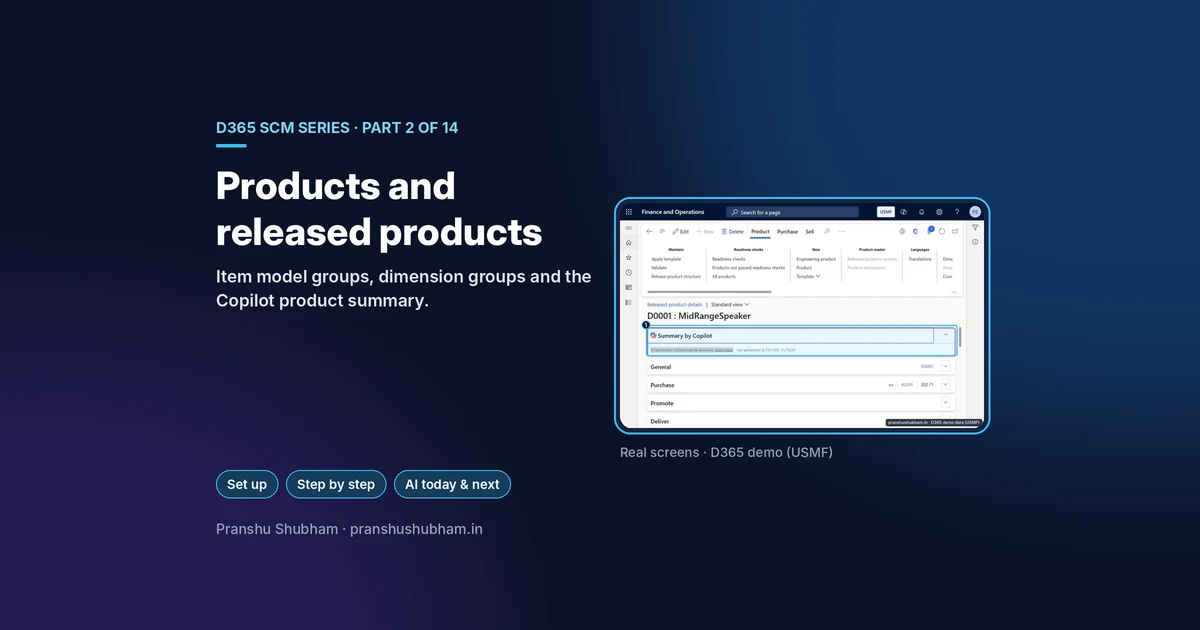
In this part we create purchase order 00000125 for vendor US-104 Fabrikam Supplier in company USMF, approve it, confirm it and see what changes. We'll receive it in Part 4 and pay for it in Part 5.
1. The story
Who this section is for: Freshers, customers and anyone new to D365
Someone needs something. In bigger companies they raise a purchase requisition (an internal request) that goes for approval. Purchasing turns approved requests into a purchase order, agrees price and date with the vendor, and confirms it. Confirming is the "we've officially ordered this" moment.
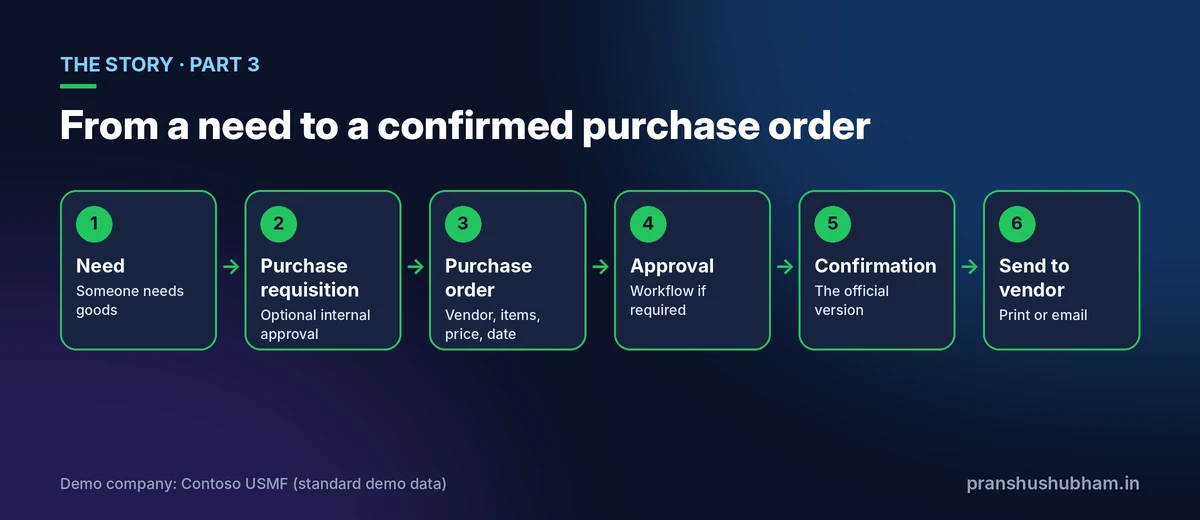
Glossary. Purchase requisition: internal request for goods or services. Purchase order: the order sent to the vendor. Approval status: Draft, In review, Approved, Confirmed. Confirmation: a posted, versioned copy of the PO that's sent to the vendor.
2. Step by step in D365
Who this section is for: End users and functional consultants
Step 1 (optional): Purchase requisitions
Go to Procurement and sourcing > Purchase requisitions > Purchase requisitions prepared by me (or "requested for me"). In the demo data you can see requisition 000021 by Sara Thomas, already Closed because it has become a PO.
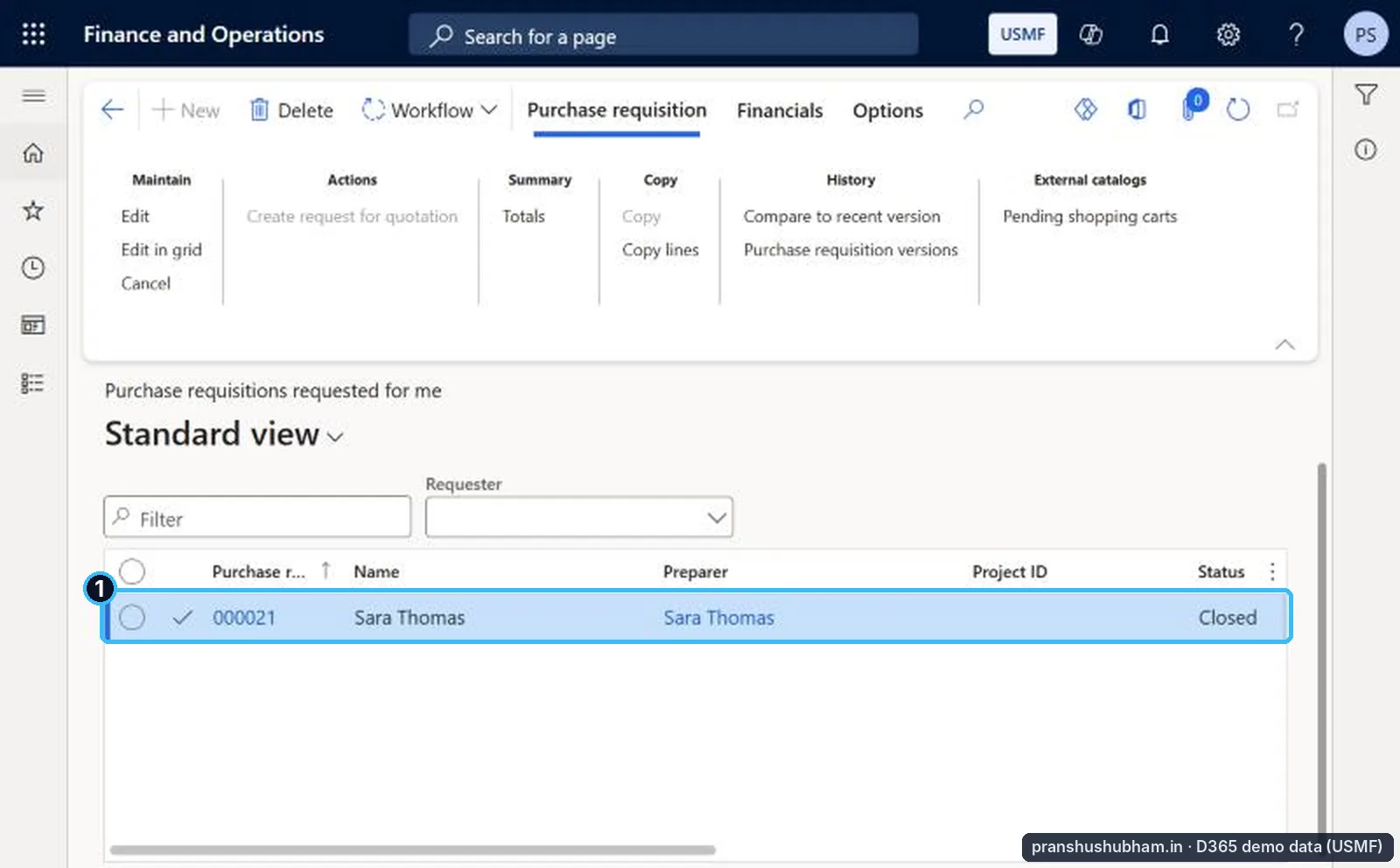
(1) A requisition that has completed approval and was released to a purchase order.
Many mid-size companies skip requisitions and let buyers create POs directly. That's fine, as long as you have purchase order approval (change management) instead.
Step 2: Create the purchase order
Go to Procurement and sourcing > Purchase orders > All purchase orders and select New. In the Create purchase order pane, enter the Vendor account (US-104) and select OK. Address, currency, payment terms and delivery terms default from the vendor.
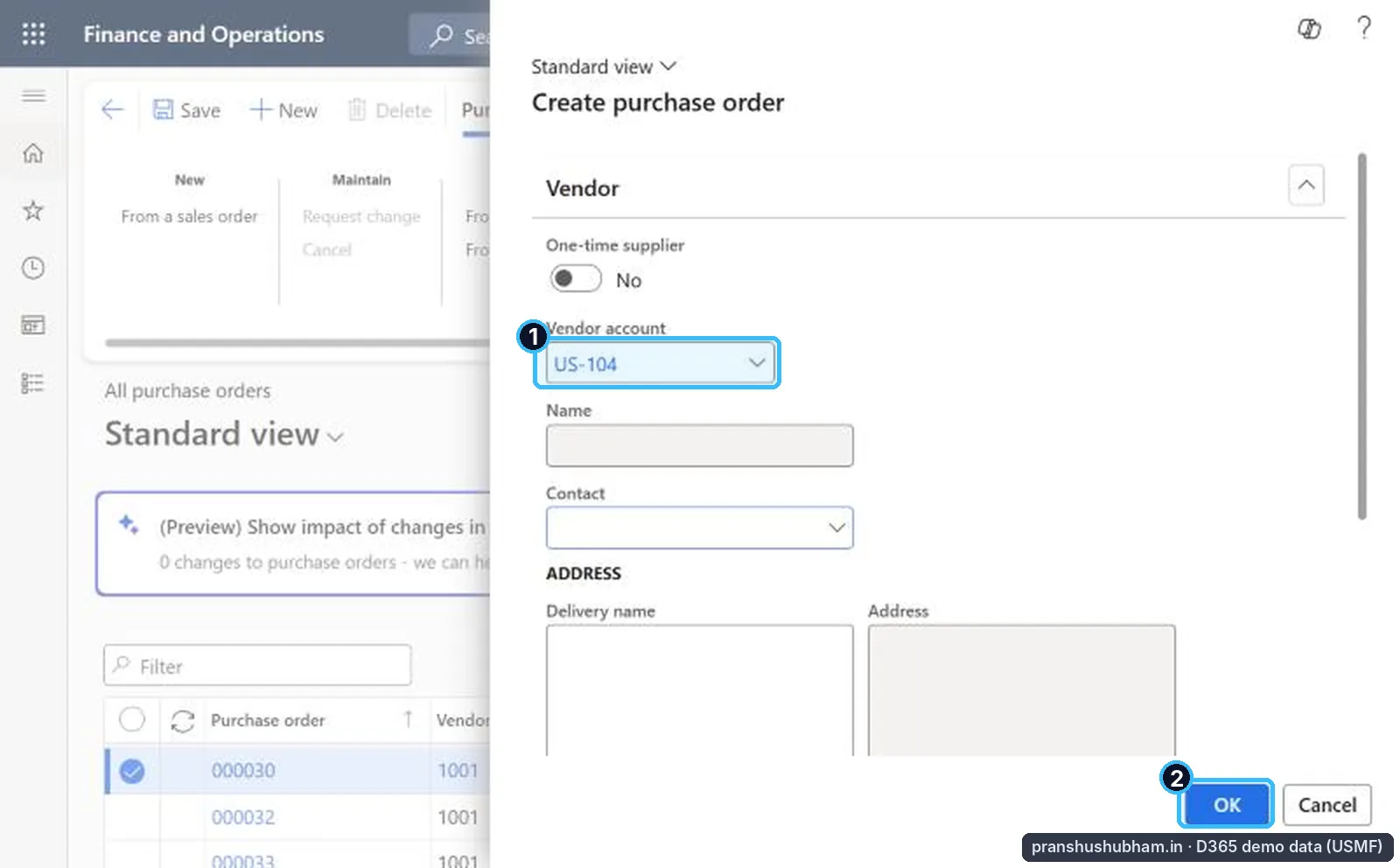
(1) Vendor account drives most defaults. (2) OK creates the PO header.
Notice the banner behind the pane: "(Preview) Show impact of changes in purchase orders". That's the Procurement Agent's impact analysis, which we'll come back to in the AI section.
Step 3: Add lines and read the header
The PO opens with a Summary by Copilot FastTab at the top, then the purchase order header and lines. Our PO is 00000125, approval status Approved (this demo company doesn't require PO workflow approval).
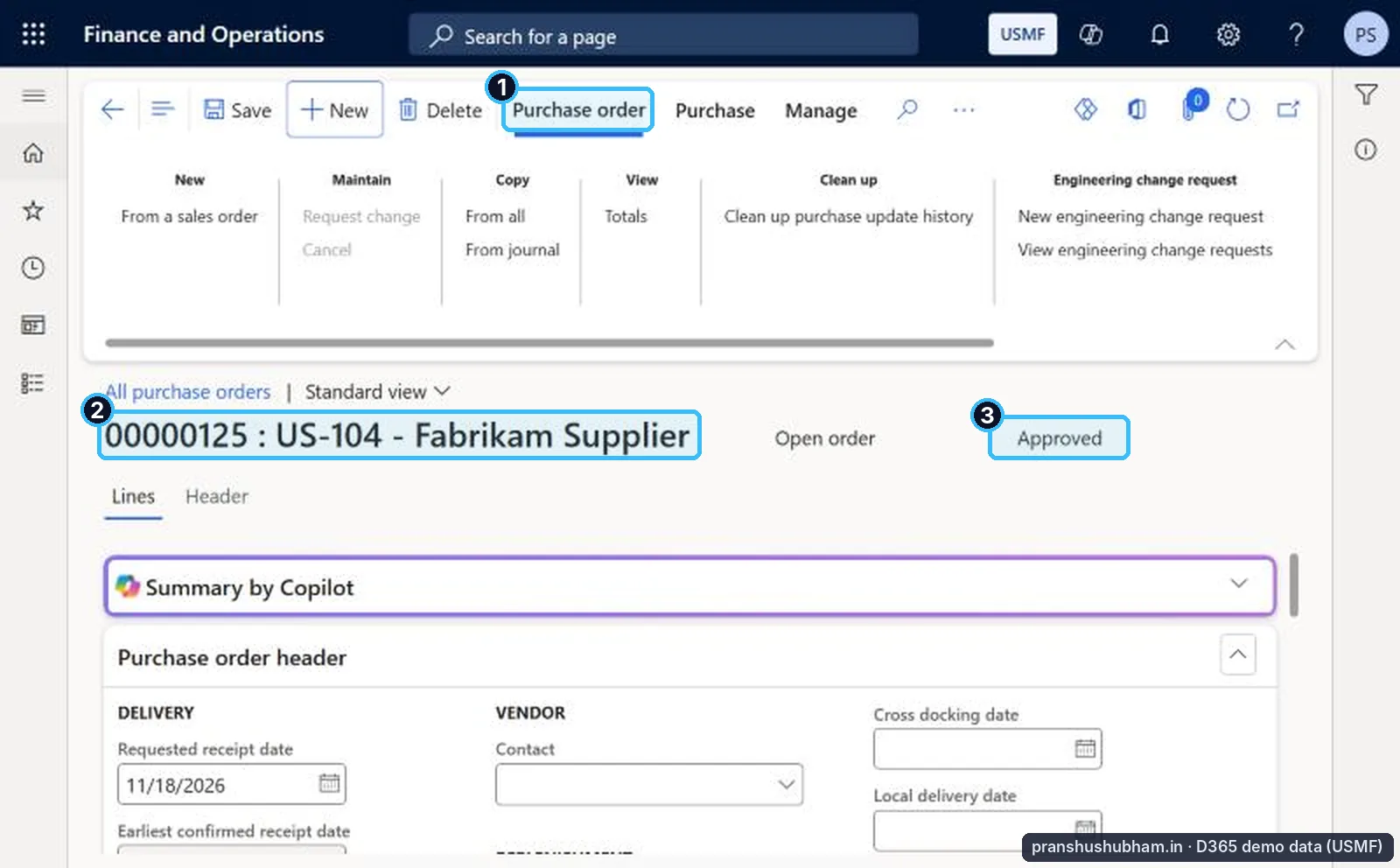
(1) The Purchase order tab on the Action Pane. (2) PO number and vendor. (3) Approval status.
On Purchase order lines I added two items for site 1, warehouse 11: M0004 Crossover and M0001 Wiring Harness.
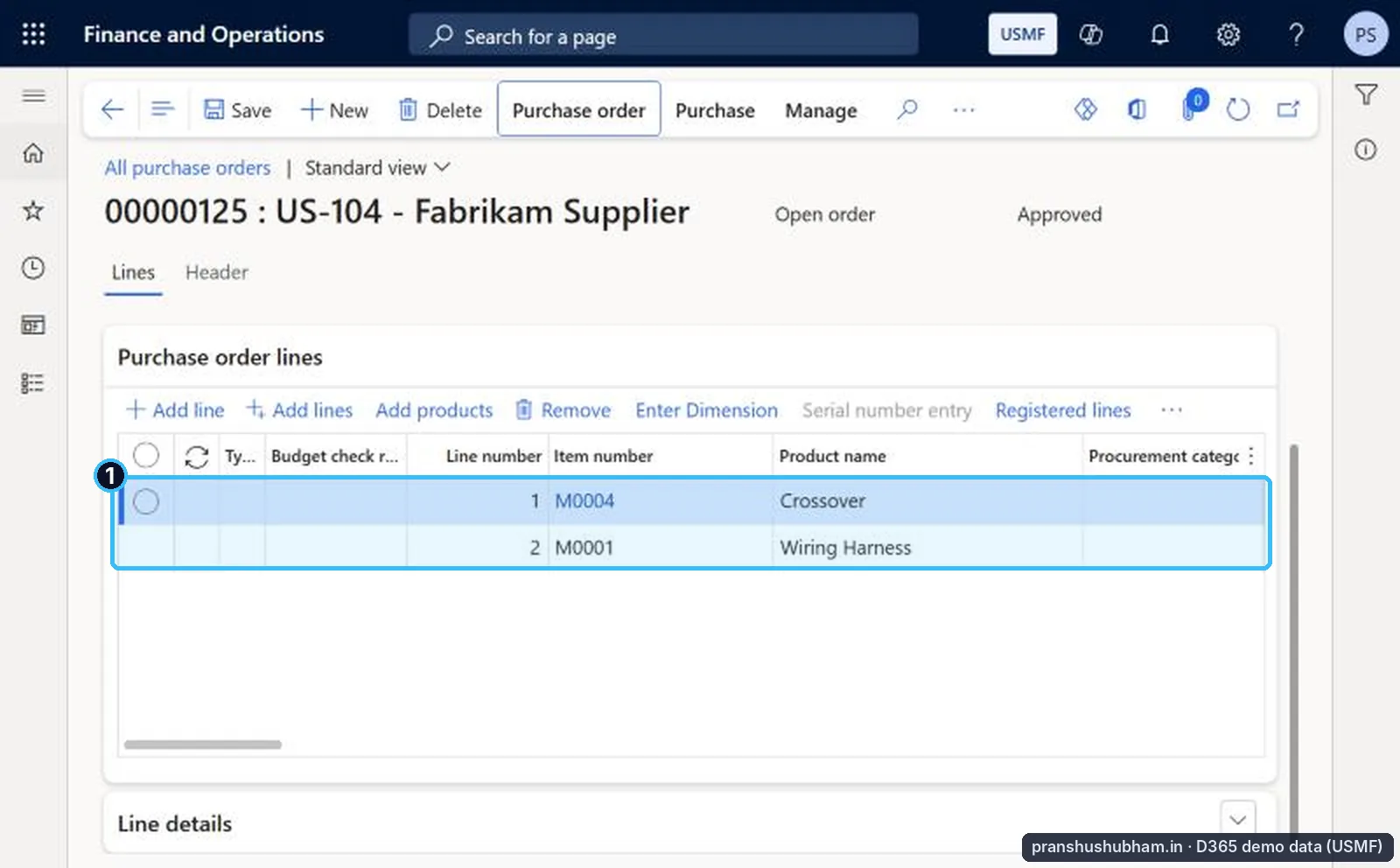
(1) Each line has item, quantity, site, warehouse, unit price and delivery date.
Fields to check on every line:
- Quantity and unit: the purchase unit may differ from the inventory unit.
- Unit price and discount: from the item's purchase price or a trade agreement.
- Site and warehouse: from the item's default order settings or the header.
- Requested receipt date: drives planning and the "overdue" insight in the Copilot summary.
Step 4: Confirm the purchase order
On the Purchase tab of the Action Pane, under Generate, select Confirmation.
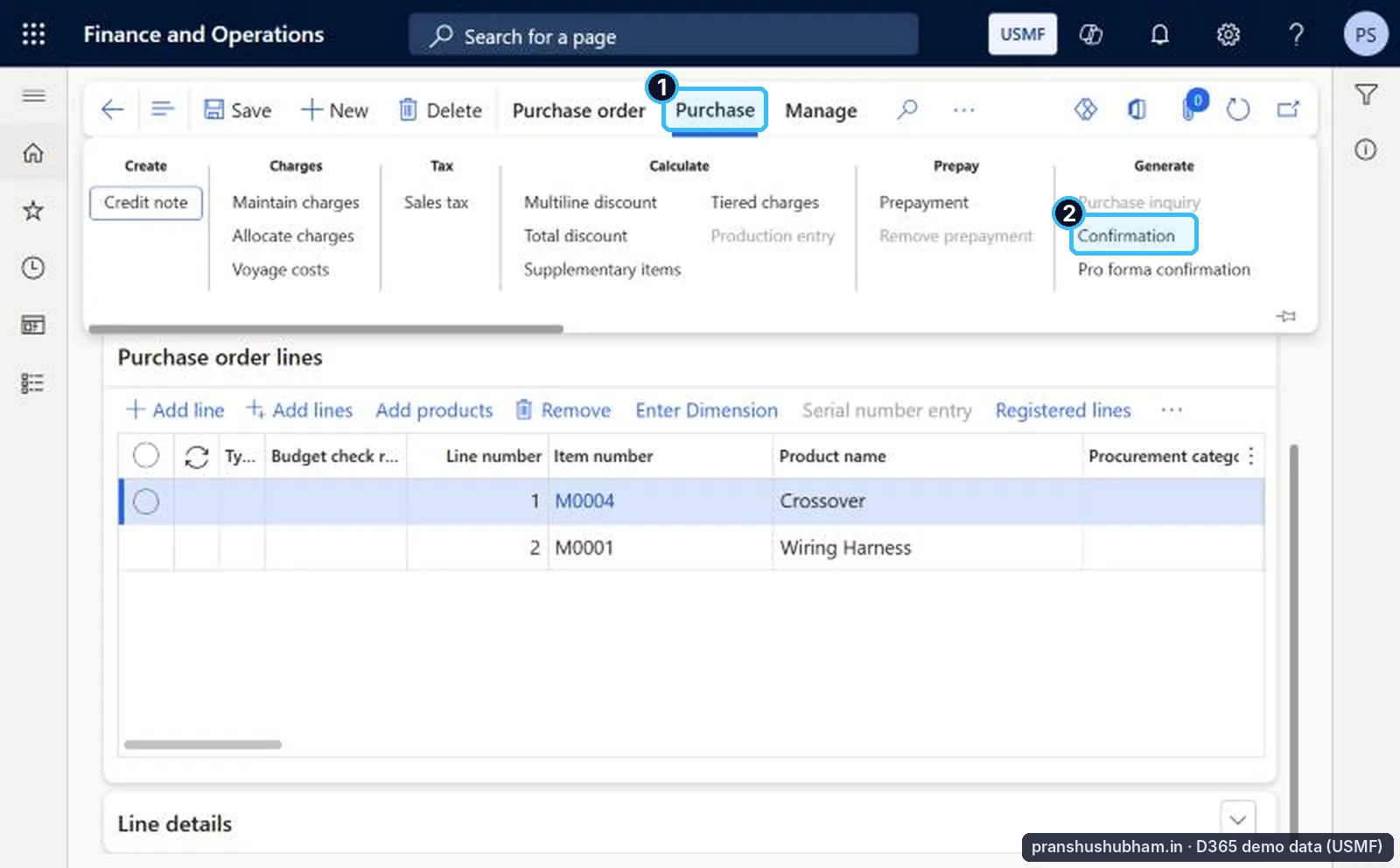
(1) The Purchase tab. (2) Confirmation posts and versions the PO.
In this environment I got an extra prompt: "You are about to confirm the purchase order while the latest version of it is not confirmed by a vendor." That appears when vendor confirmation through the vendor collaboration portal is expected. Select OK to confirm internally.
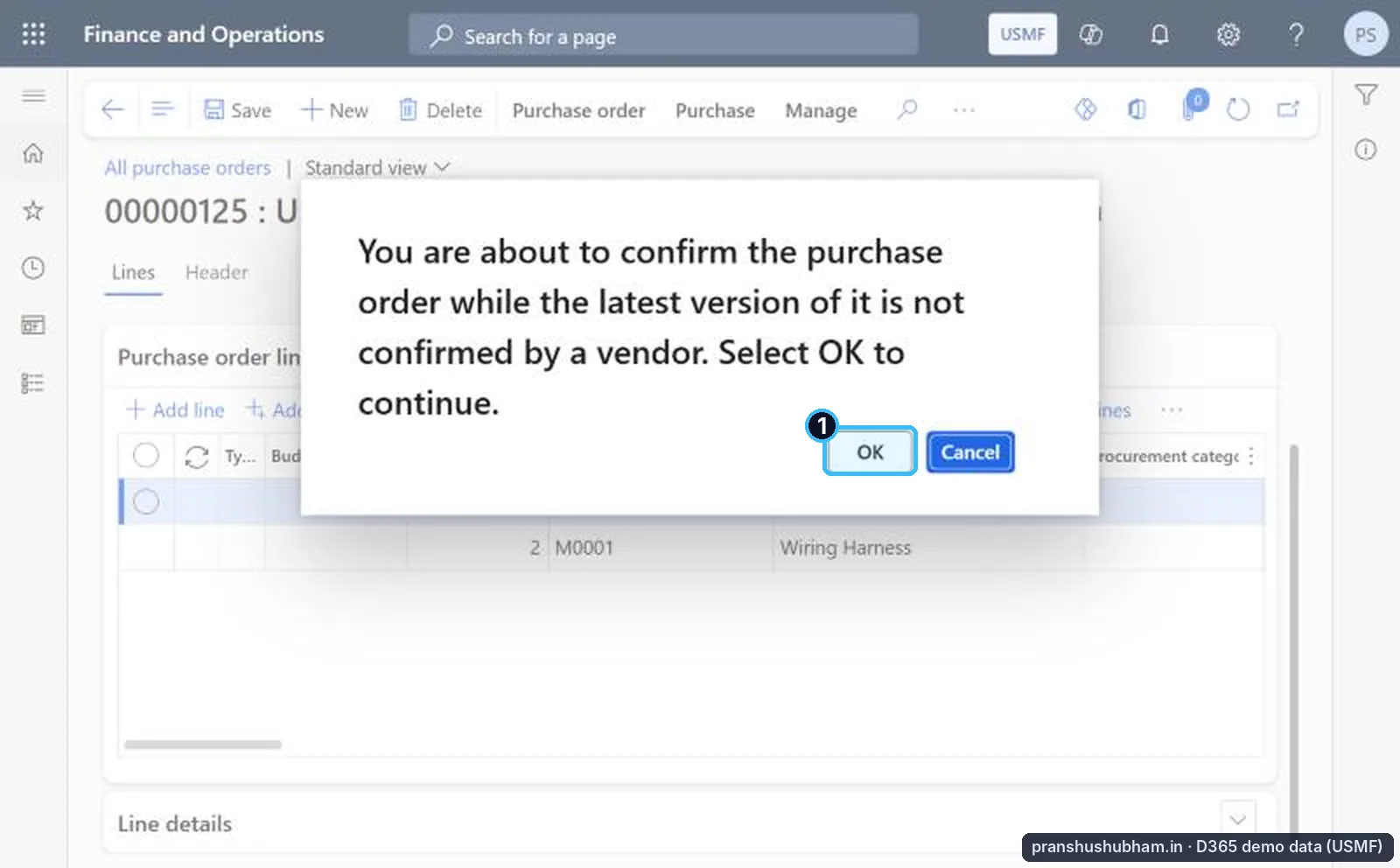
(1) OK confirms anyway; Cancel waits for the vendor.
Step 5: Check the result
The approval status is now Confirmed and the document status is Open order (nothing received yet).
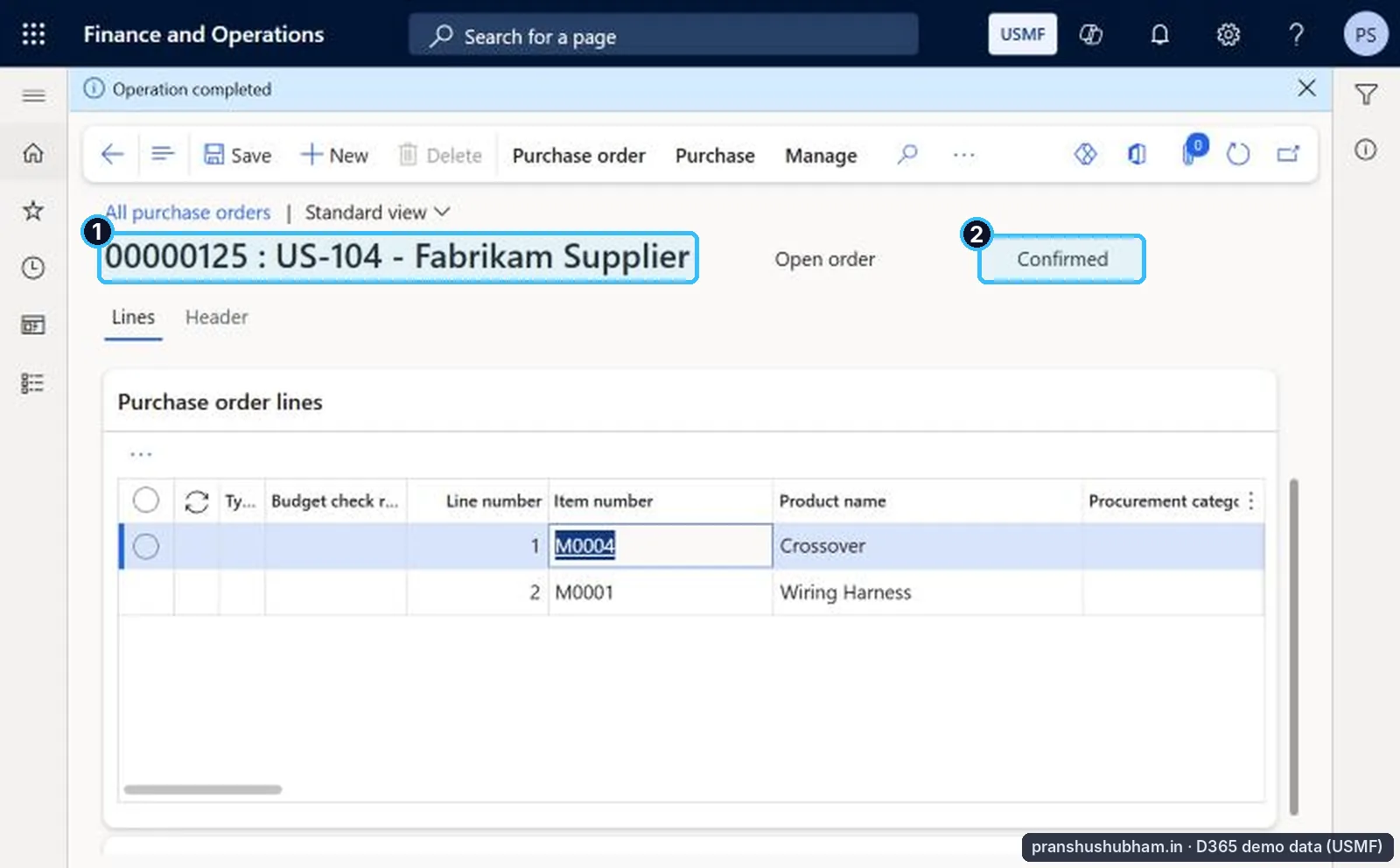
(1) Same PO, now confirmed. (2) Approval status Confirmed.
3. Behind the scenes
Who this section is for: Working professionals and functional consultants
- Inventory transactions are created when the line is saved. Each line creates a receipt transaction with status Ordered. Master planning and on-hand "on order" quantities see it immediately, even before confirmation.
- Confirmation creates a journal, not a ledger posting. It saves a purchase order confirmation journal (a version you can print and send). No vouchers are created unless you use encumbrance (budget) accounting.
- Change management (purchasing policy or vendor setting) forces approval workflow and versioning. After confirmation, changes create a new version that may need re-approval.
- Purchase order statuses: document status (Open order, Received, Invoiced, Canceled) and approval status (Draft, In review, Approved, Confirmed) are separate. People mix them up constantly.
Common mistakes and fixes:
- PO stuck in "In review". Workflow is waiting. Check the workflow history; there's a Copilot workflow history summary for this too.
- Wrong price on the line. Trade agreement not found because of date, quantity or unit. Use "Price details" on the line.
- "Not confirmed by a vendor" prompt. Expected with vendor collaboration. Agree internally whether buyers may confirm without the vendor.
4. Under the hood
Who this section is for: Technical consultants
- Main tables: PurchTable (header), PurchLine (lines), PurchReqTable / PurchReqLine (requisitions), VendPurchOrderJour / PurchLineHistory (confirmations and versions), InventTrans and InventTransOrigin (the inventory receipt).
- Data entities: Purchase order headers V2 and Purchase order lines V2. In my capture I used the OData endpoint
/data/PurchaseOrderLinesV2from the browser to add lines. A line needsPurchaseOrderNumber,LineNumber,ItemNumber,OrderedPurchaseQuantity,ReceivingSiteIdandReceivingWarehouseId. - Posting framework: confirmation, receipt and invoice all go through the form letter framework (PurchFormLetter and subclasses). Extend with Chain of Command, not by copying.
- Events: check the business events catalog in your environment for purchase order events to trigger Power Automate or Azure integrations.
5. AI in this process: today and next
Who this section is for: Everyone
Purchase order summary with Copilot (Available). The All purchase orders details page includes a Summary by Copilot FastTab. Microsoft Learn says it shows status counts (not fully received, received but not invoiced, fully invoiced) and insights like overdue or nearly overdue lines and lines without confirmed receipt dates, with filter buttons. Prerequisites are the same as product summaries (10.0.40 PQU-1 or later, Power Platform integration).
Procurement Agent: supplier communications (Production-ready preview, 10.0.44+). The agent reads vendor emails, works out whether each one is a confirmation or a change request, matches it to the PO and proposes field changes (quantity, unit, price, confirmation, delivery date, cancellation) for a buyer to apply. It can also draft follow-up emails for unconfirmed or delayed POs, and send them automatically if you switch that on (Microsoft recommends not doing that in sandboxes).
Procurement Agent: impact analysis (Production-ready preview, added in 10.0.48). When a vendor changes a date or quantity, the agent checks the downstream impact, for example sales orders or production that depend on that PO. That's the banner I saw on the PO list page.
My view (opinion): the biggest win here isn't creating POs, it's the follow-up. Buyers spend hours chasing confirmations, and the supplier communications agent targets exactly that.
UAT test scenarios
- Create a PO for US-104 with two lines. Expected: prices and warehouse default from the item and vendor.
- Confirm the PO. Expected: approval status Confirmed and a confirmation journal exists.
- Change the quantity after confirmation. Expected: a new version; re-approval if change management is on.
- Check Inventory > Transactions on the line. Expected: receipt status Ordered.
- Open the Copilot summary. Expected: the line counts match the PO lines.
FAQ
Is confirming the same as sending? Confirmation creates the official version; printing or emailing it (print management) is how it reaches the vendor.
Do I need requisitions? Only if you need internal approvals before buying. Otherwise use PO change management.
Can the agent change my PO on its own? For supplier communications, a buyer reviews and applies suggested changes. Automatic sending applies to follow-up emails only.
Keep going in the series
- Series home: D365 Supply Chain, end to end
- Previous: Part 2: Products and released products
- Next: Part 4: Product receipt
Sources
- AI summaries with Copilot: purchase order summary (Microsoft Learn)
- Procurement Agent overview (Microsoft Learn)
- Supplier communications features of the Procurement Agent (Microsoft Learn)
- What's new in Supply Chain Management 10.0.48 (Microsoft Learn)
Have a question about this process, or seeing something different in your version? Get in touch. I read every message.