D365 Production Order Lifecycle: Create to End, with Two Real Errors Explained
Make 10 speakers in D365: create, estimate, release, start, report as finished and end, with two real errors on the way.
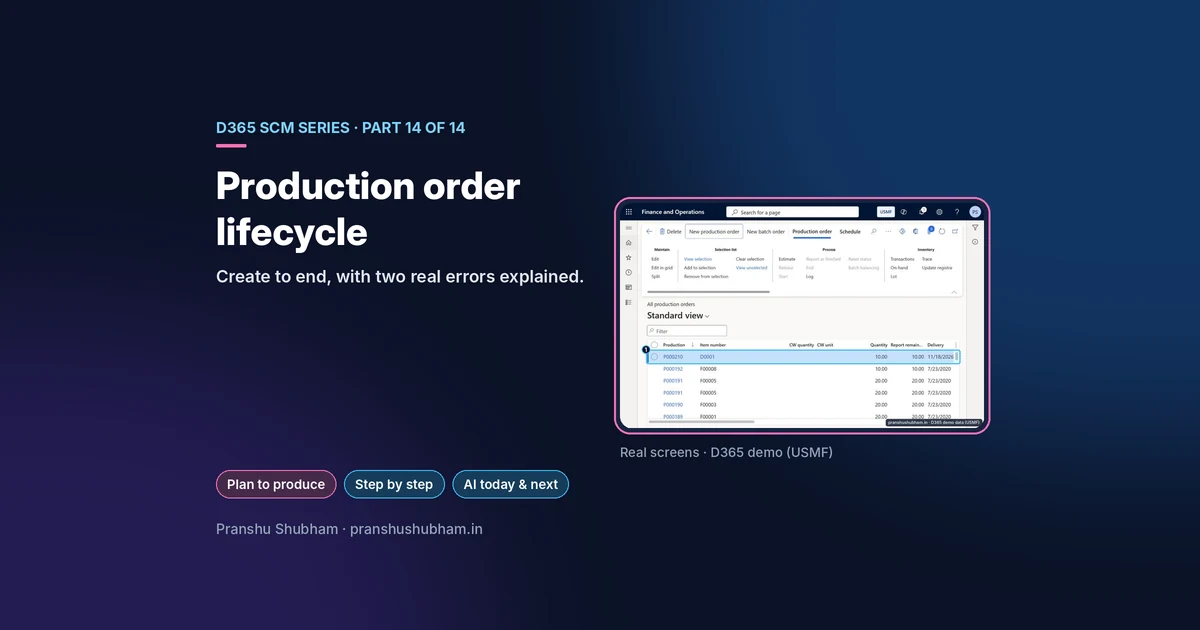
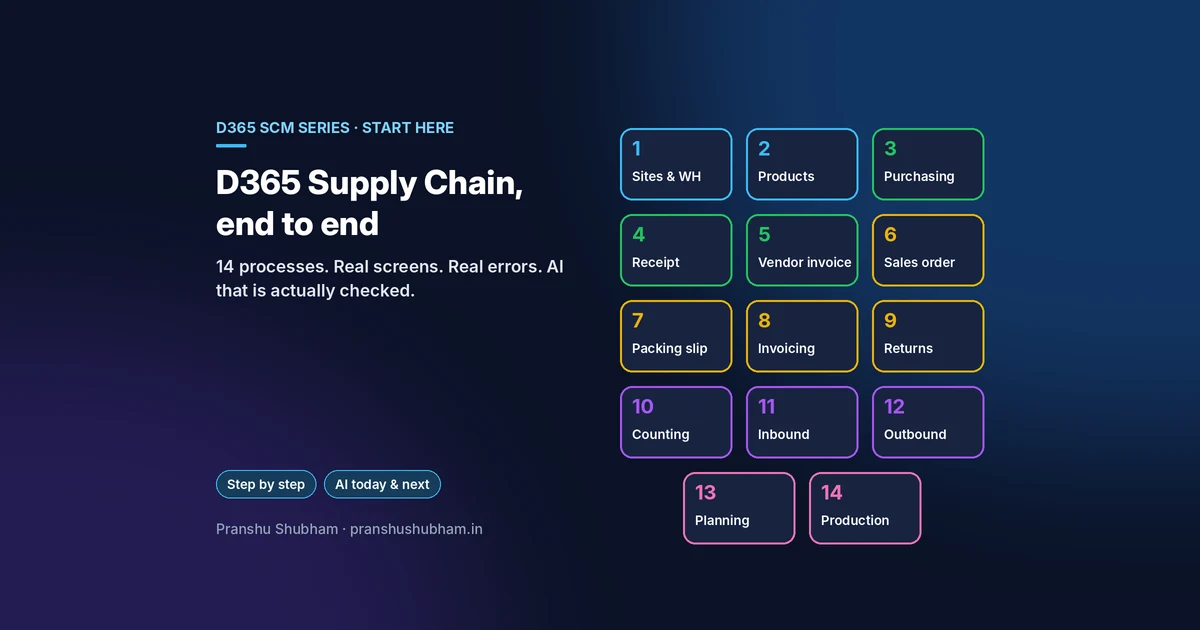
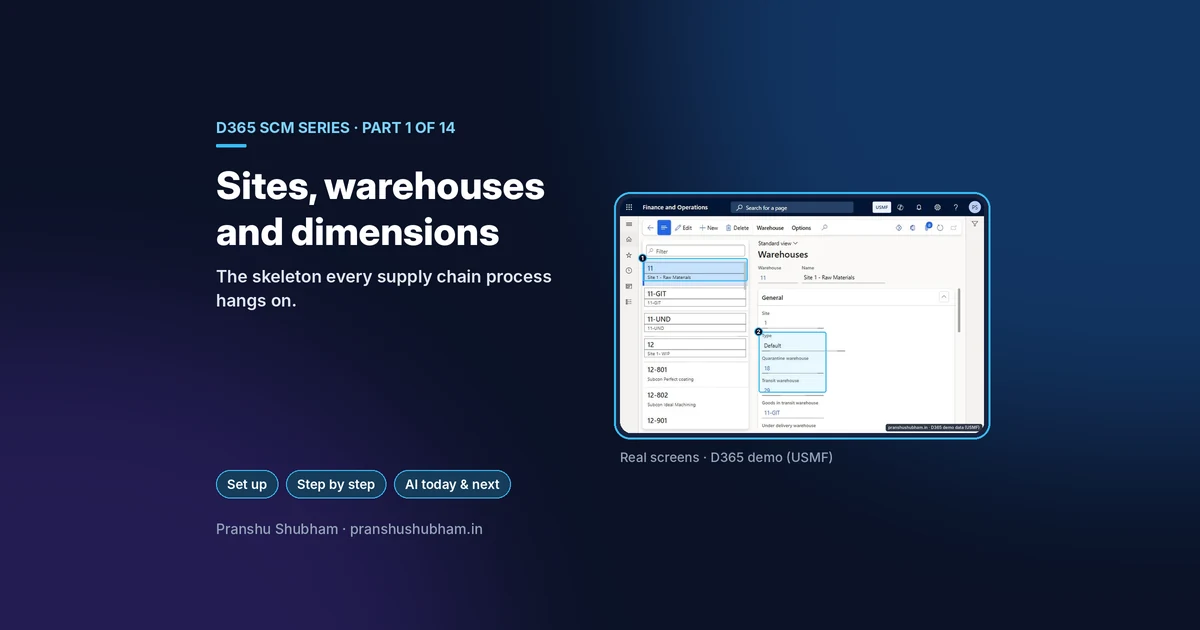
Part 14 of 14 in my free course D365 Supply Chain, end to end. All screenshots come from a Microsoft demo environment with standard Contoso data (company USMF). New here? Start with the series home.
The last part of the series is where things get made. A production order tells the shop floor: make this many of this item, using this bill of materials (BOM) and this route. Dynamics 365 then tracks materials, time, cost and finished goods.
Running example: production order P000210 for 10 × D0001 MidRangeSpeaker at site 1, warehouse 13, using BOM D0001BOM and route 000005. I took it from Created all the way to Ended, and I hit two real errors on the way: a Planning Optimization scheduling failure and unfinished route jobs.
1. The story
Who this section is for: Freshers, customers and anyone new to D365
Production gets an order to make 10 speakers. Planning estimates the materials and cost, the order is released to the floor (with paperwork such as a route card), and work starts. Operators consume materials and record their operations. When the speakers are done, they're reported as finished and go into stock. Finally, finance ends the order and calculates the real cost.
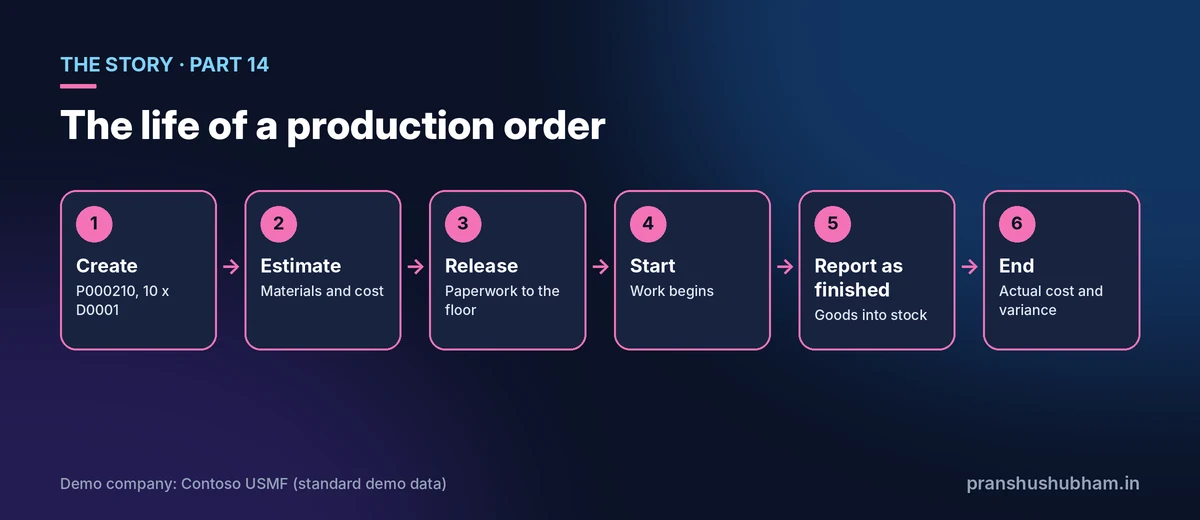
Glossary. BOM: the list of components. Route: the list of operations and work centers. Estimate: calculates material and cost. Report as finished (RAF): puts finished goods into inventory. End: closes the order and calculates the cost variance.
2. Step by step in D365
Who this section is for: End users and functional consultants
Step 1: Look at the BOM
Go to Product information management > Bills of materials and formulas > Bills of materials. Here's BOM 000003 in USMF; notice M0004 Crossover, the item we bought in Part 3, as one of the components. That's how purchasing and production connect.
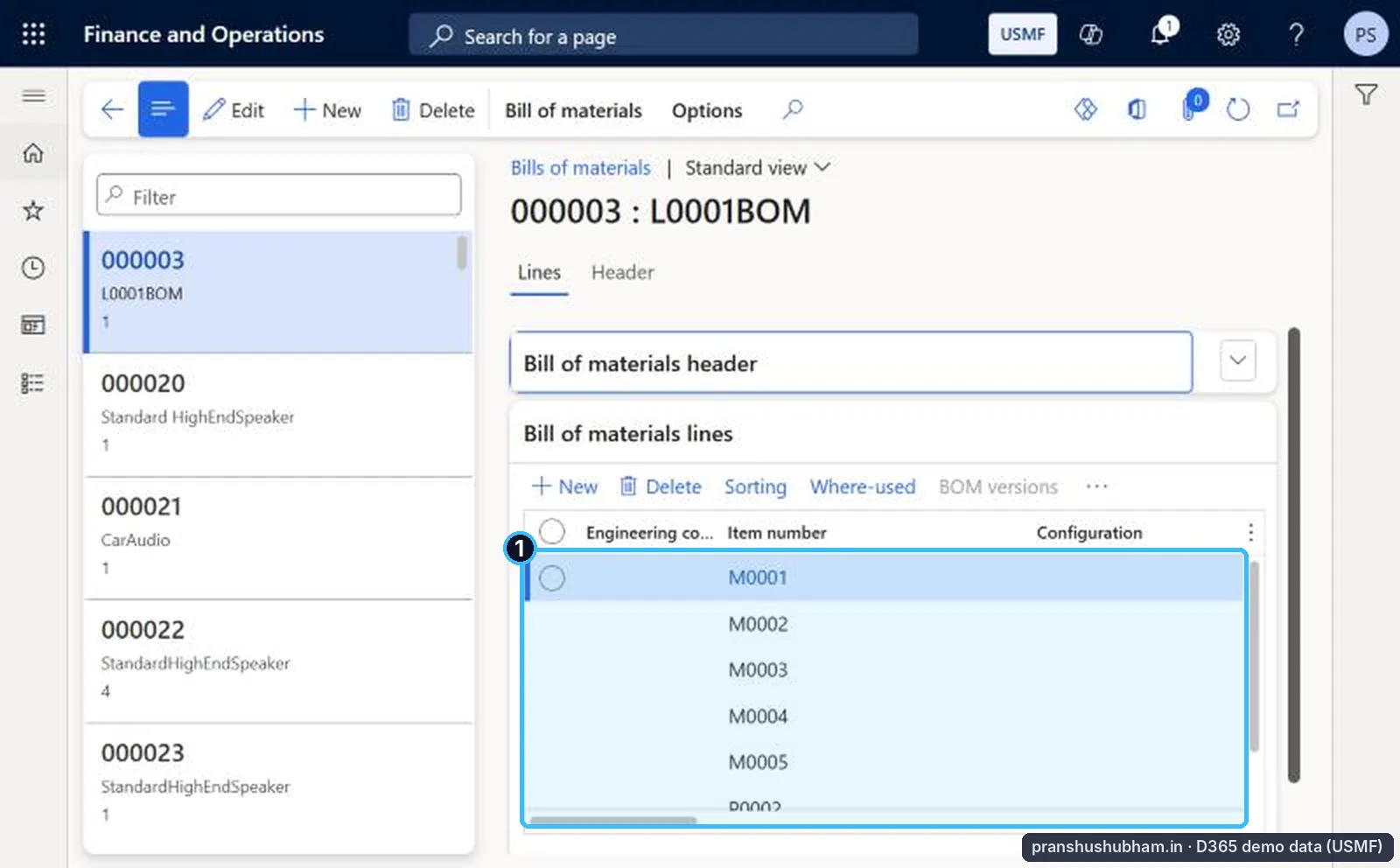
(1) BOM lines, including M0004 Crossover from earlier parts.
Step 2: Create the production order
Go to Production control > Production orders > All production orders and select New production order.
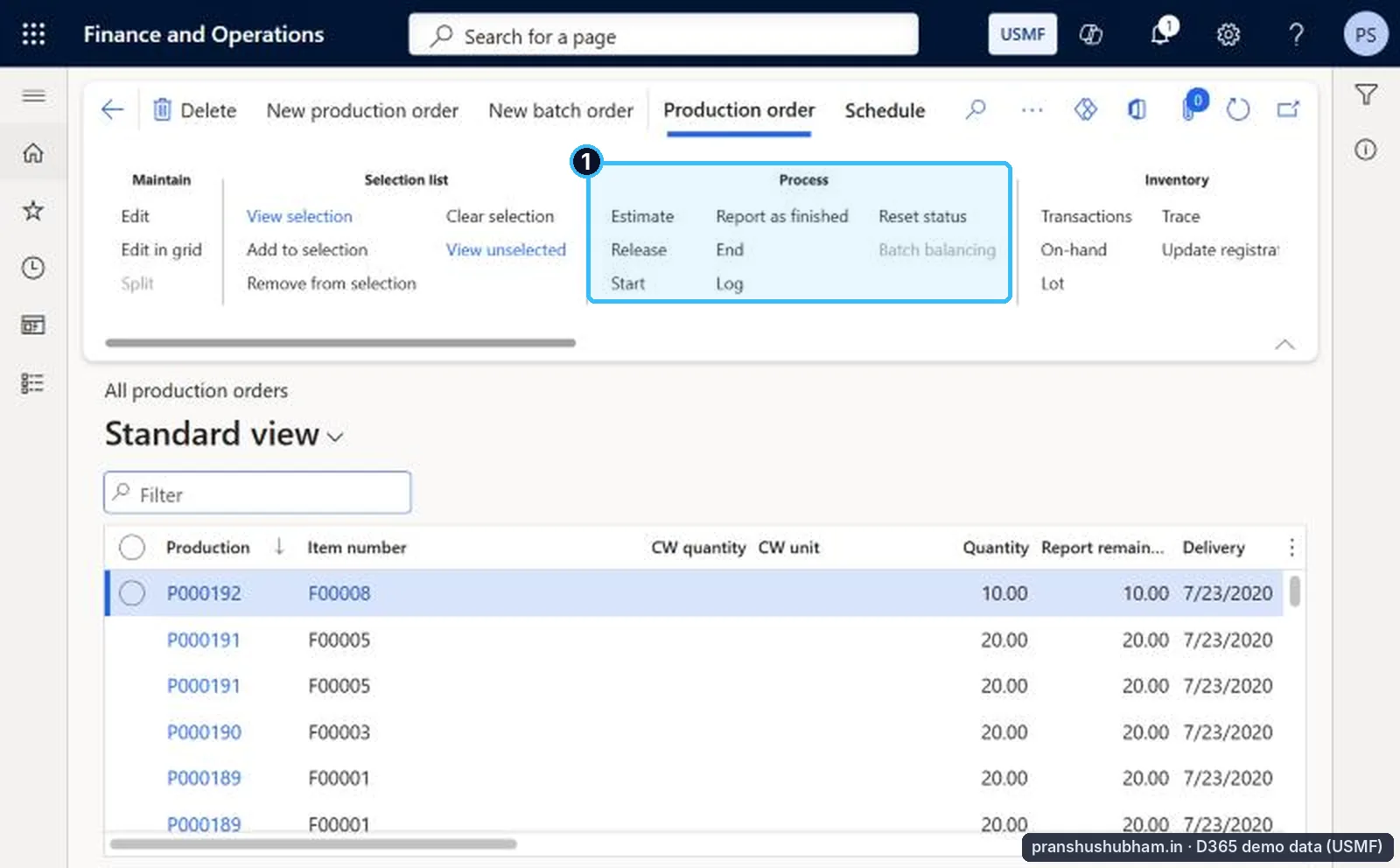
(1) The Process group: Estimate, Release, Start, Report as finished, End.
In the Create production order pane, enter Item number. My first try was D0006 Speaker solution, but the BOM and route stayed empty: D0006 is a configurable product whose BOM depends on a configuration. I switched to D0001, and D365 filled in BOM D0001BOM and route 000005. Quantity 10, site 1, warehouse 13, then Create.
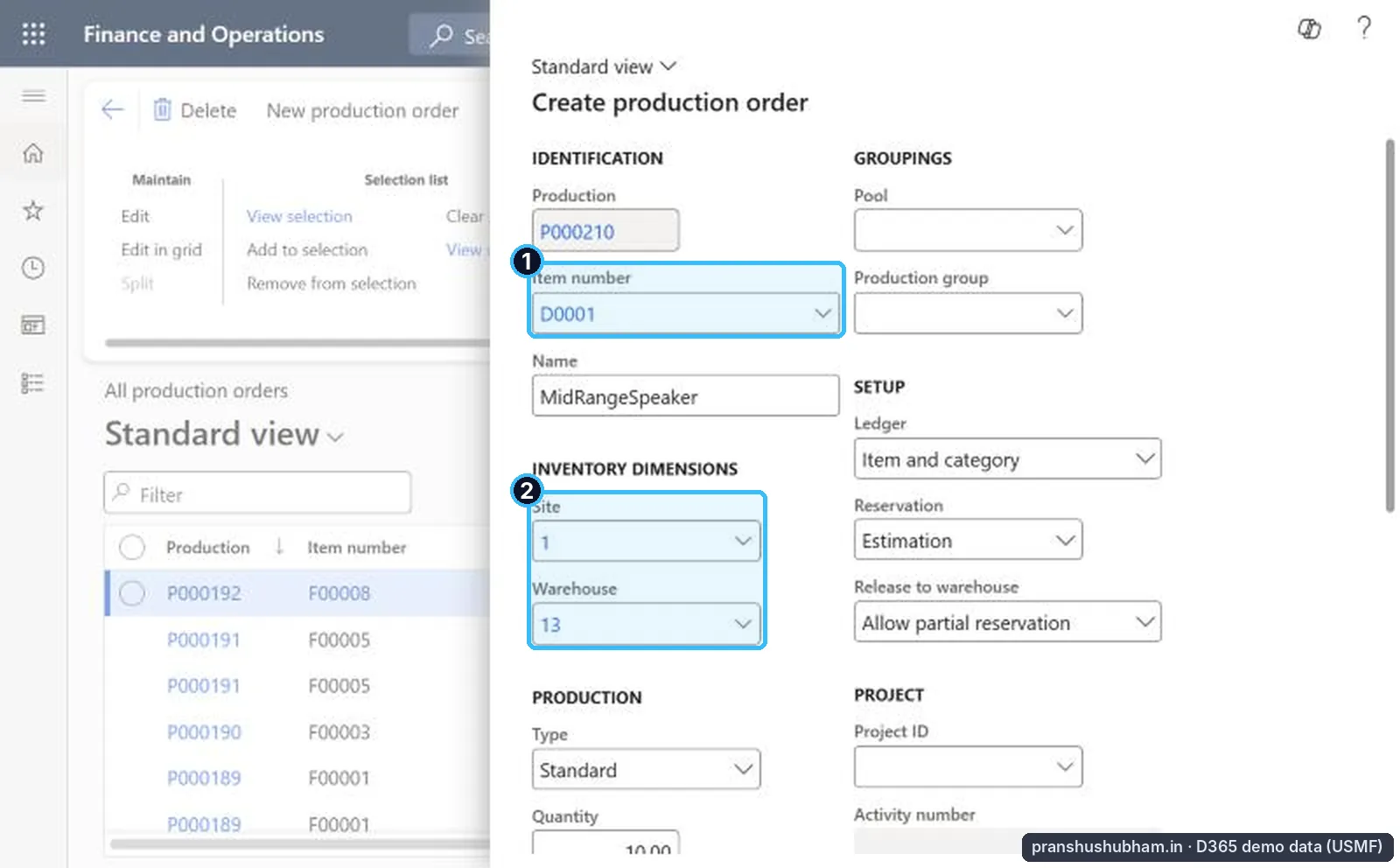
(1) Item D0001 MidRangeSpeaker. (2) Site 1 and warehouse 13.
The order P000210 appears with status Created. Only Estimate is available.
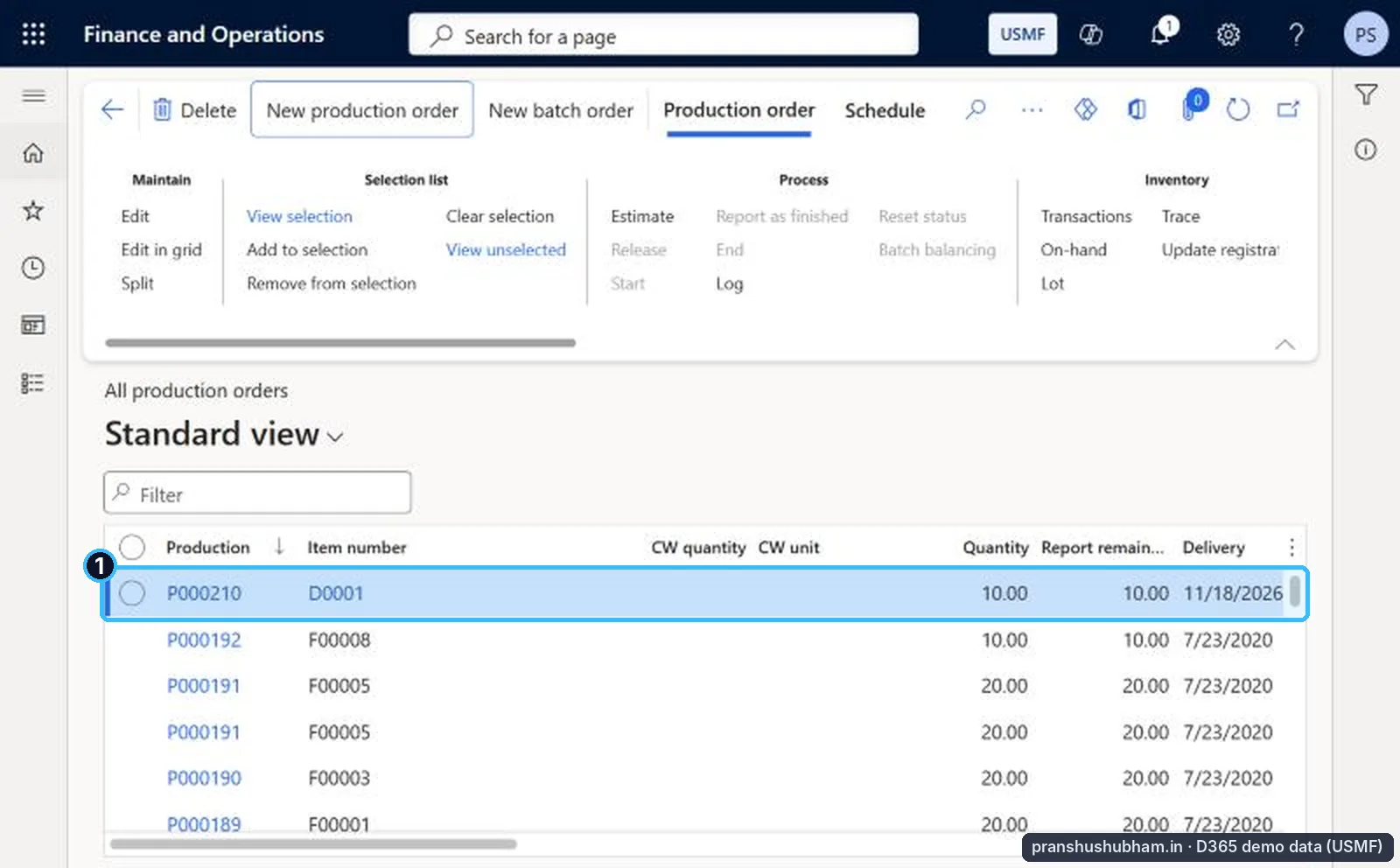
(1) P000210, 10 units of D0001.
Step 3: Estimate
Select Estimate. The dialog lists the order and the Profit-setting (Standard). Select OK.
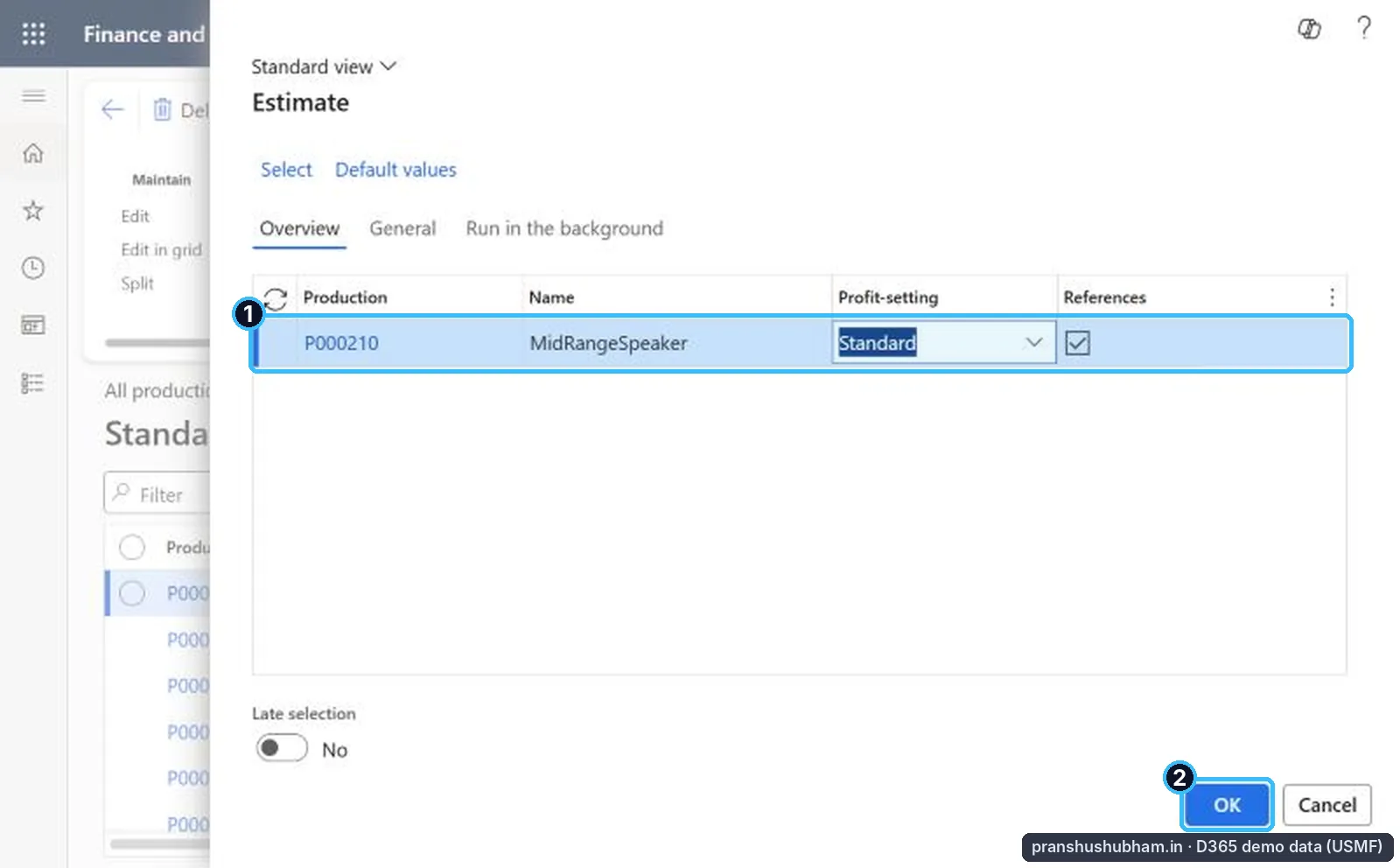
(1) P000210 with profit-setting Standard. (2) OK runs the estimate.
Status: Estimated. Now Release and Start become available.
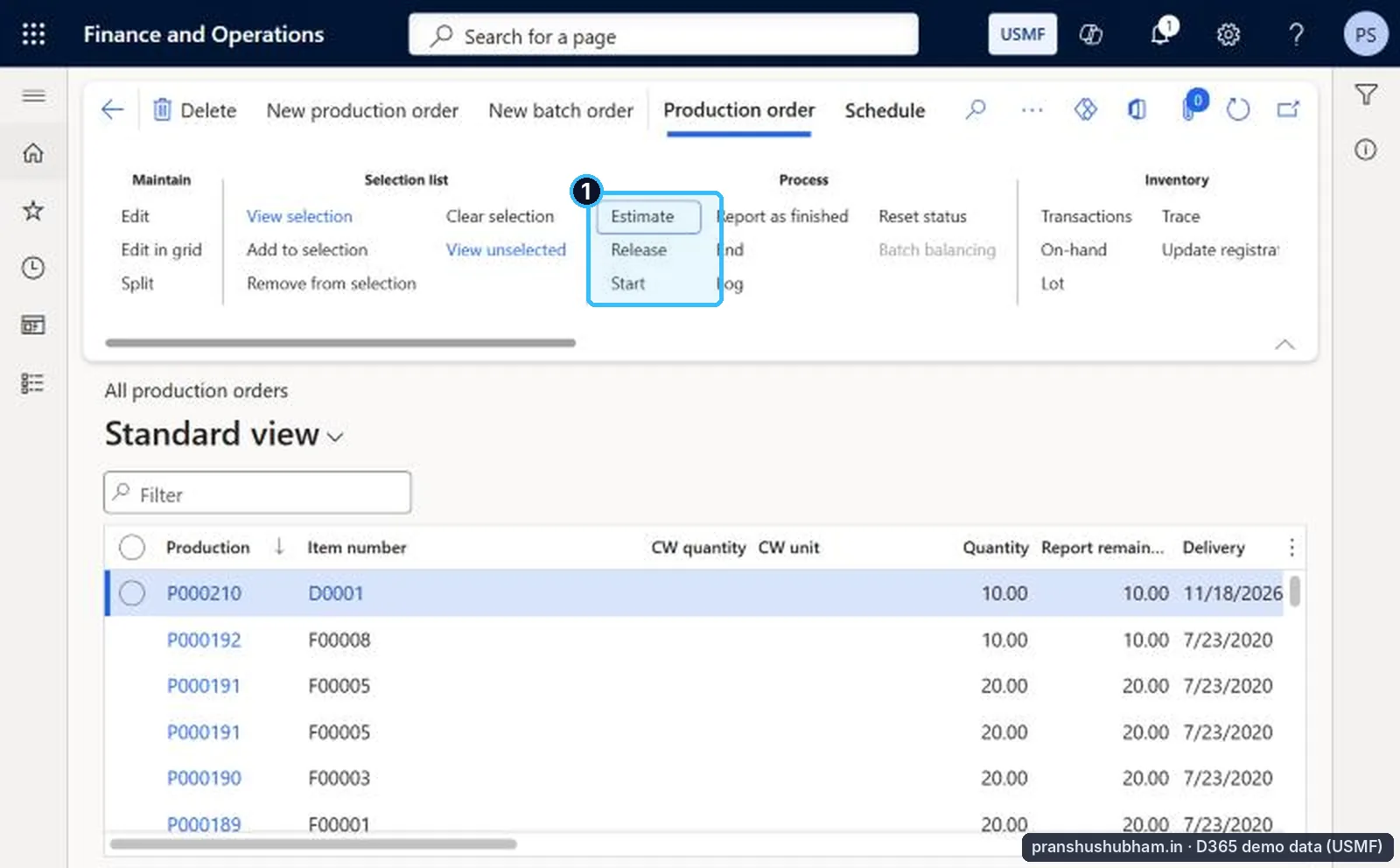
(1) After estimation, Release and Start are enabled.
Step 4: Release, and the scheduling error
Select Release and OK. Then I selected Start, and as the Start dialog opened, a progress window appeared: "Processing operation – Planning Optimization for item D0001". After about a minute and a half it failed: "Planning Optimization client request retry count exceeded. Planning Optimization run failed."
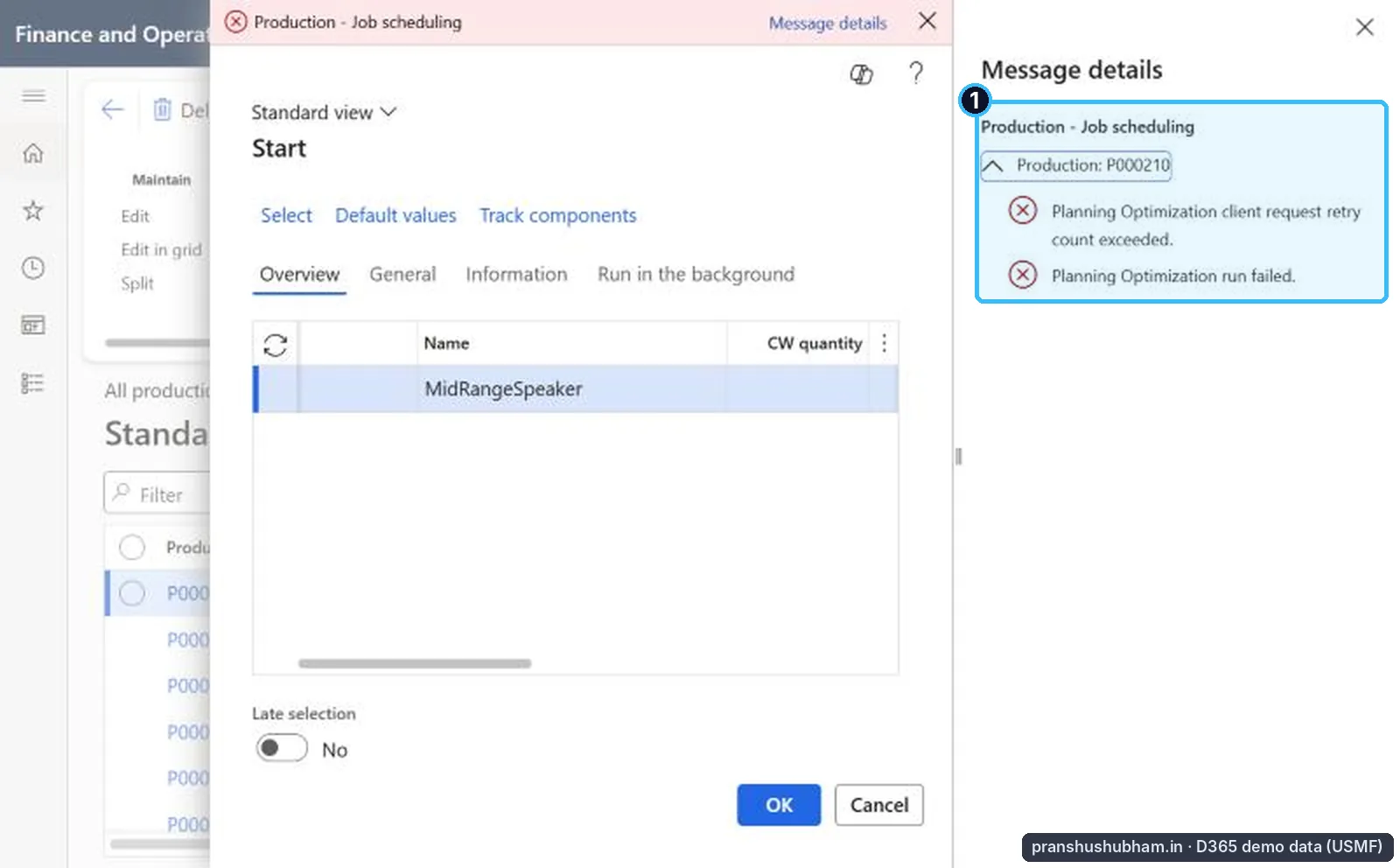
(1) Production job scheduling: the Planning Optimization request failed after retries.
What happened: in this environment, scheduling of production orders runs through the Planning Optimization service, and the sandbox couldn't get a response in time. It's an environment issue, not a data issue. In a real project, check the Planning Optimization connection and its status in the Planning Optimization parameters before blaming your setup.
Step 5: Start
I continued with Start and OK. Despite the scheduling message, the order status became Started. Starting can also post the picking list (material consumption), depending on the dialog settings.
Step 6: Report as finished, and the route job error
Select Report as finished. On the Overview tab, Good quantity is 10 and End job is selected.
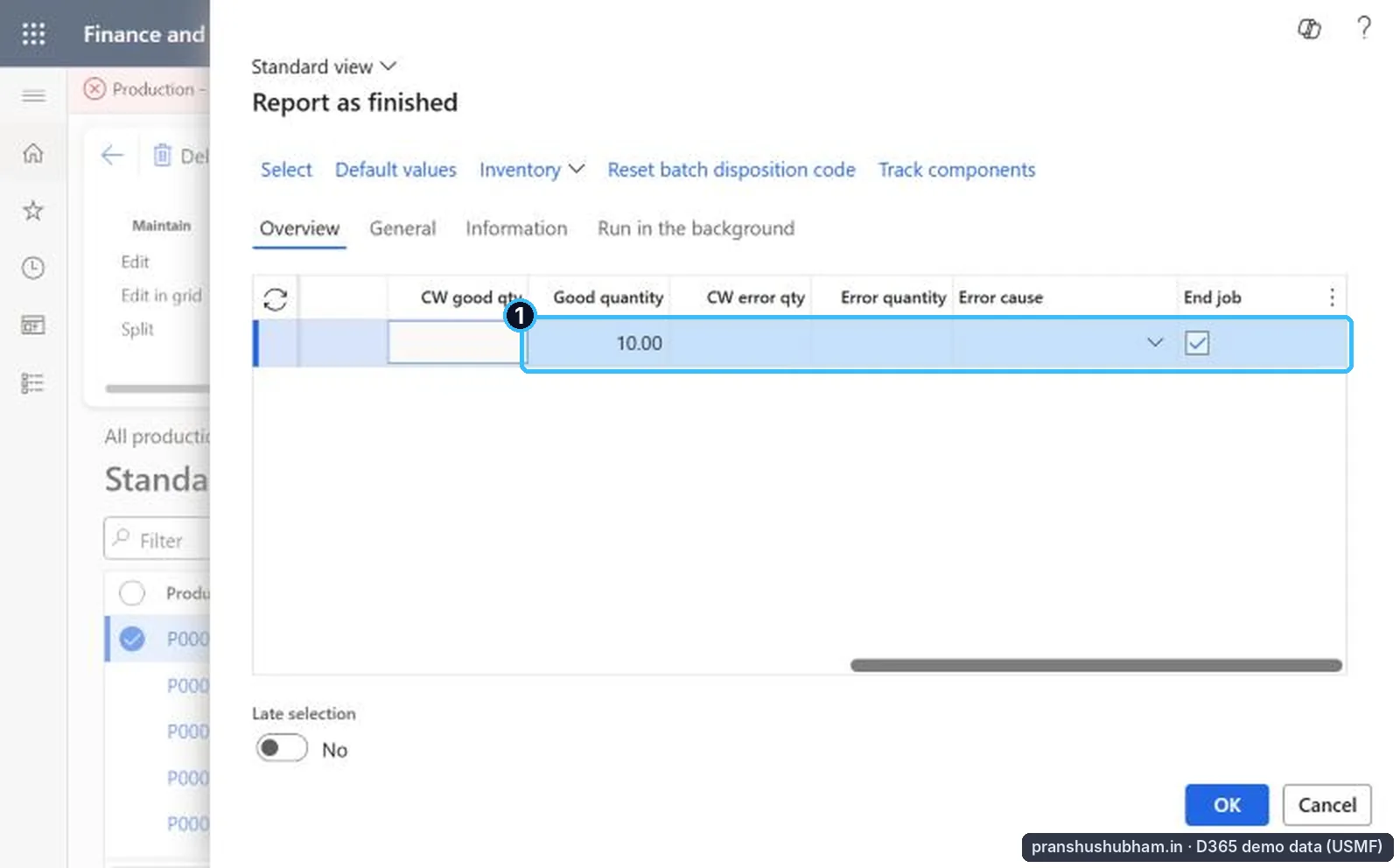
(1) Good quantity 10 and End job.
First attempt failed: "Job 005861 has not been reported as finished" (and the same for jobs 005862–005865). "Update has been canceled."
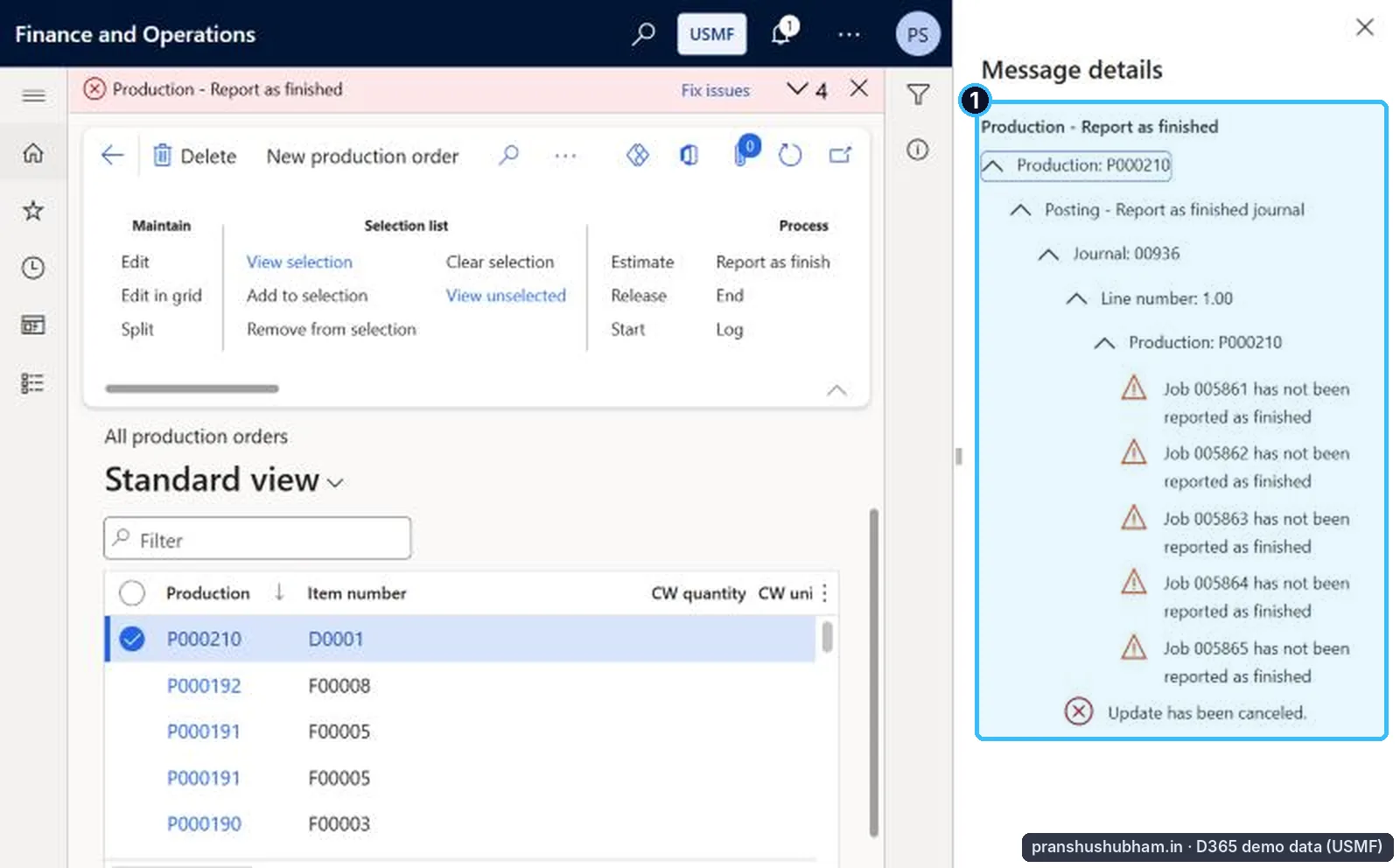
(1) Five route jobs must be reported before the order can be reported as finished.
This is a control, not a bug. The route has operations scheduled as jobs, and the setup requires them to be reported (through a route card journal, job card journal or the Production floor execution interface) before finished goods can be reported.
Two ways forward:
- The proper way: report the route jobs first, so time and operations are recorded and costed.
- The demo shortcut: on the General tab, set Accept error to Yes. I did this for the demo only, so you can see the rest of the lifecycle.
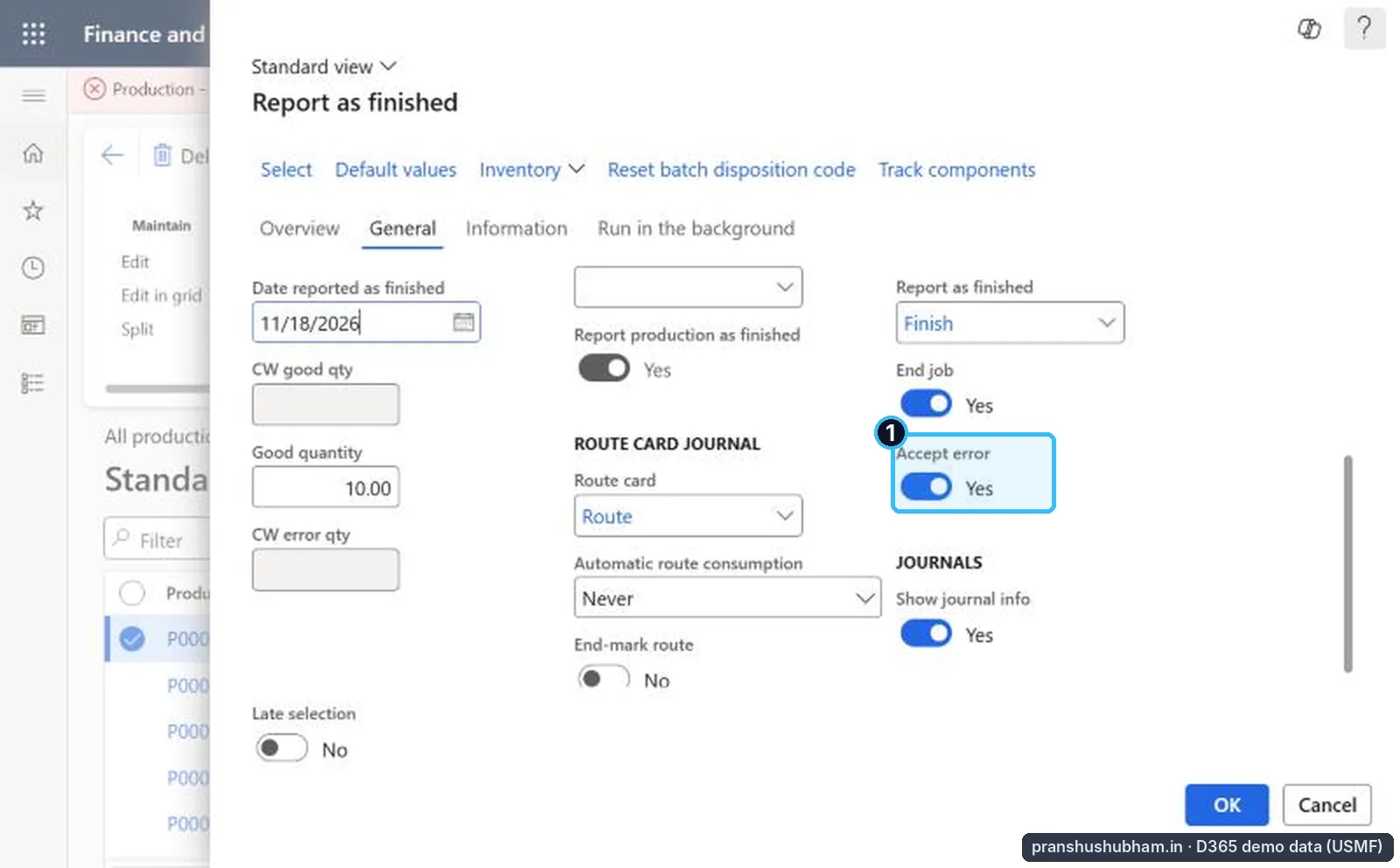
(1) Accept error: Yes lets RAF post despite unfinished jobs. Use it carefully.
After that, the order status is Reported as finished, and the remaining quantity is zero.
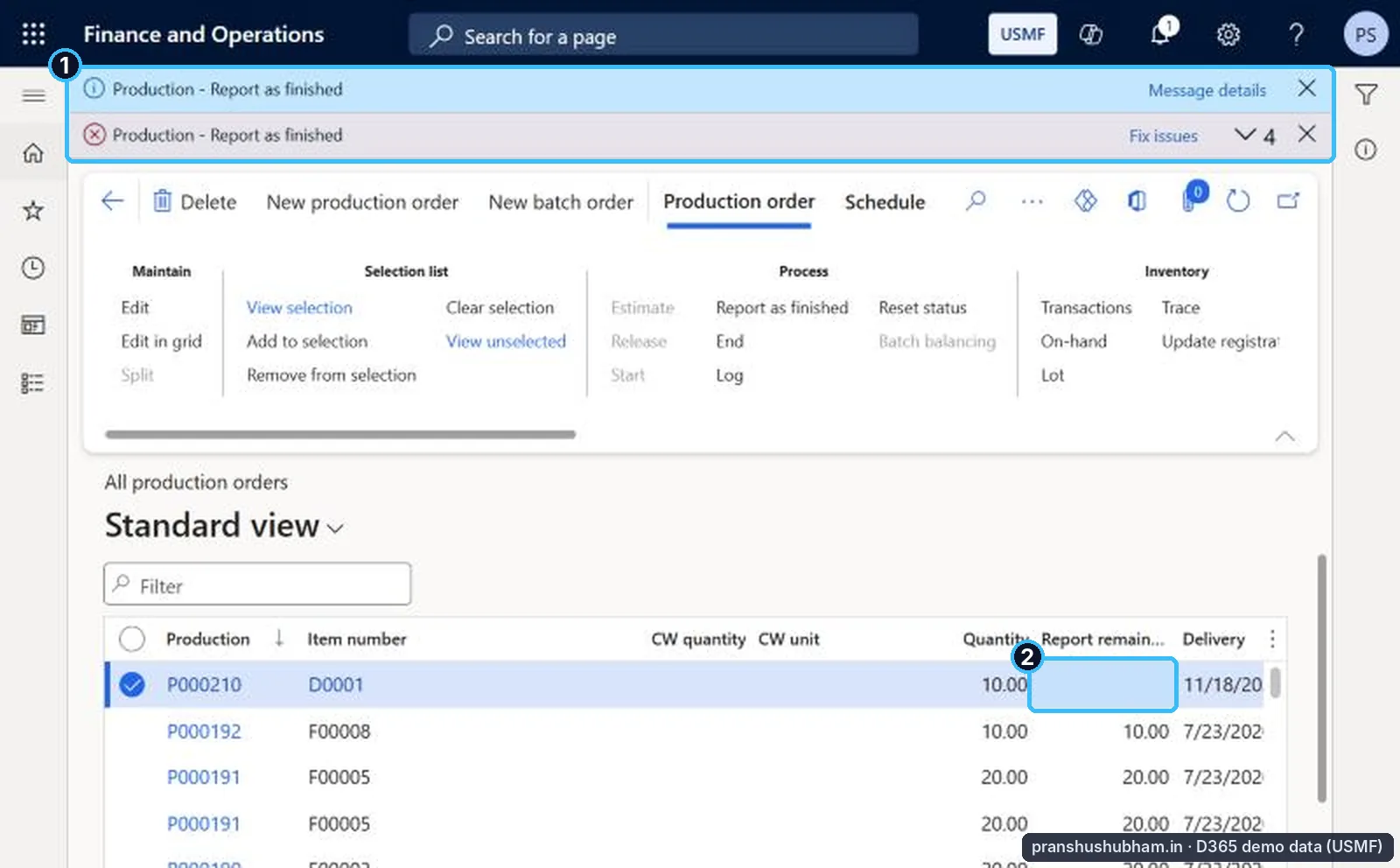
(1) Posting messages. (2) Report remainder is now empty for P000210.
Step 7: End the order
Select End and OK. The status becomes Ended, and all Process buttons are disabled.
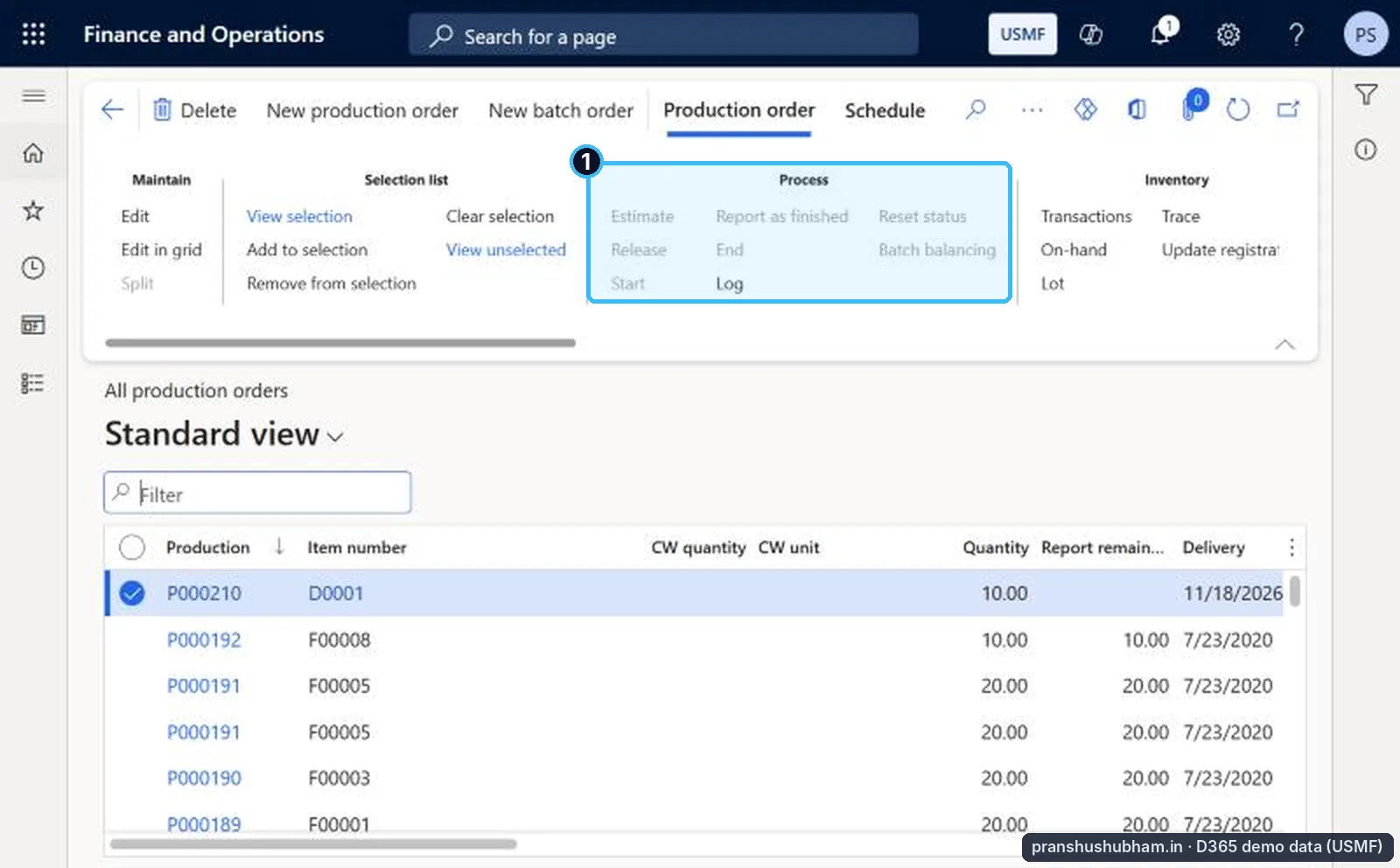
(1) After End, no further process steps are available.
3. Behind the scenes
Who this section is for: Working professionals and functional consultants
Production statuses: Created → Estimated → Scheduled (optional) → Released → Started → Reported as finished → Ended.
- Estimate calculates BOM and route consumption and reserves materials if reservation is "Estimation" (the default I saw in the create pane).
- Scheduling (operations or job scheduling) assigns work centers and times. Job scheduling creates the jobs that later needed reporting.
- Start can post the picking list journal (materials) and route card journal automatically, depending on "Automatic BOM consumption" and "Automatic route consumption" settings. In my dialog they were set to "Never", which is why the jobs stayed unreported.
- Report as finished posts finished goods into inventory at the estimated cost.
- End calculates the actual cost and posts the variance (for standard cost items, to production variance accounts).
- Accept error bypasses the "all jobs must be reported" check. In a live system, restrict it with security or don't use it.
Common mistakes and fixes:
- Empty BOM and route on a new order. The item is configurable, or there's no approved, active BOM version for the site and date.
- "Job has not been reported as finished". Report jobs first, or change automatic route consumption, depending on how you run the floor.
- Scheduling fails with Planning Optimization. Check the service connection; you can also continue without scheduling for urgent orders.
4. Under the hood
Who this section is for: Technical consultants
- Main tables: ProdTable (order), ProdBOM (order BOM lines), ProdRoute and ProdRouteJob (operations and jobs), ProdJournalTable with ProdJournalBOM, ProdJournalRoute and ProdJournalProd (picking list, route card and RAF journals), BOMTable / BOMVersion / BOM (master BOM), RouteTable / RouteVersion / Route (master route).
- Data entities: Production order headers (I checked status with
/data/ProductionOrderHeaders, which moved through StartedUp, ReportedFinished and Completed) and Bill of materials versions V3 (I used it to find items with a standard, non-configurable BOM at site 1). - Status changes run through ProdUpd classes (for example ProdUpdStartUp, ProdUpdReportFinished). Extend with Chain of Command.
- Shop floor: Production floor execution is the touch interface for operators and reports jobs in real time.
5. AI in this process: today and next
Who this section is for: Everyone
Production auto report with Sensor Data Intelligence (Preview, 10.0.47). Sensors on machines can report production progress automatically. Exactly the step that tripped me up.
Same-batch selection for raw materials (Preview, 10.0.49). Reserve the same batch for a production order. Not AI, but it's useful automation for process industries.
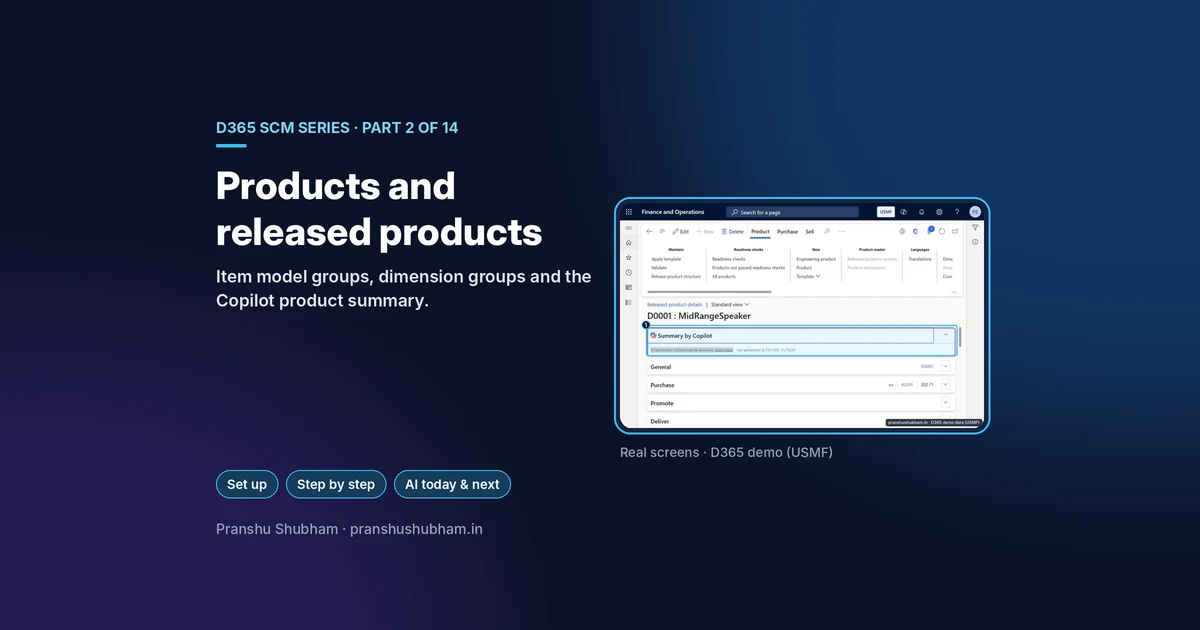
Product summaries with Copilot (Available) on released products help planners see availability of components before releasing an order.
Planning Optimization (Available) now also handles production scheduling in many environments, as my error shows.
My view (opinion): manufacturing AI will start with exception handling: explaining why an order can't start (missing material, unreported jobs, scheduling failures) and suggesting the fix, rather than running the shop floor.
UAT test scenarios
- Create a production order for a non-configurable item. Expected: active BOM and route default.
- Estimate. Expected: status Estimated; materials reserved if reservation is Estimation.
- Report as finished with unreported jobs and Accept error = No. Expected: error listing the jobs.
- Report jobs, then RAF. Expected: finished goods on hand; status Reported as finished.
- End the order. Expected: status Ended; variance posted for standard cost items.
FAQ
Do I have to schedule? No, but without scheduling there are no capacity checks or jobs.
Why is the BOM empty? Configurable product, no approved and active BOM version, or a site or date mismatch.
Should operators use Accept error? No. It's for supervisors and exceptions.
Keep going in the series
- Series home: D365 Supply Chain, end to end
- Previous: Part 13: Master planning
Sources
- Production process overview (Microsoft Learn)
- Production floor execution interface (Microsoft Learn)
- What's new in Supply Chain Management 10.0.47 (Microsoft Learn)
- What's new in Supply Chain Management 10.0.49 (Microsoft Learn)
Have a question about this process, or seeing something different in your version? Get in touch. I read every message.